> ## Documentation Index
> Fetch the complete documentation index at: https://langwatch.ai/docs/llms.txt
> Use this file to discover all available pages before exploring further.
# Automatically build datasets from real-time traces
> Automatically build datasets from real-time traces to power LLM evaluations, regression tests, and AI agent testing workflows.
You can keep continously populating the dataset with new data arriving from production by using **Automations**, mapping trace fields to any dataset columns you prefer.
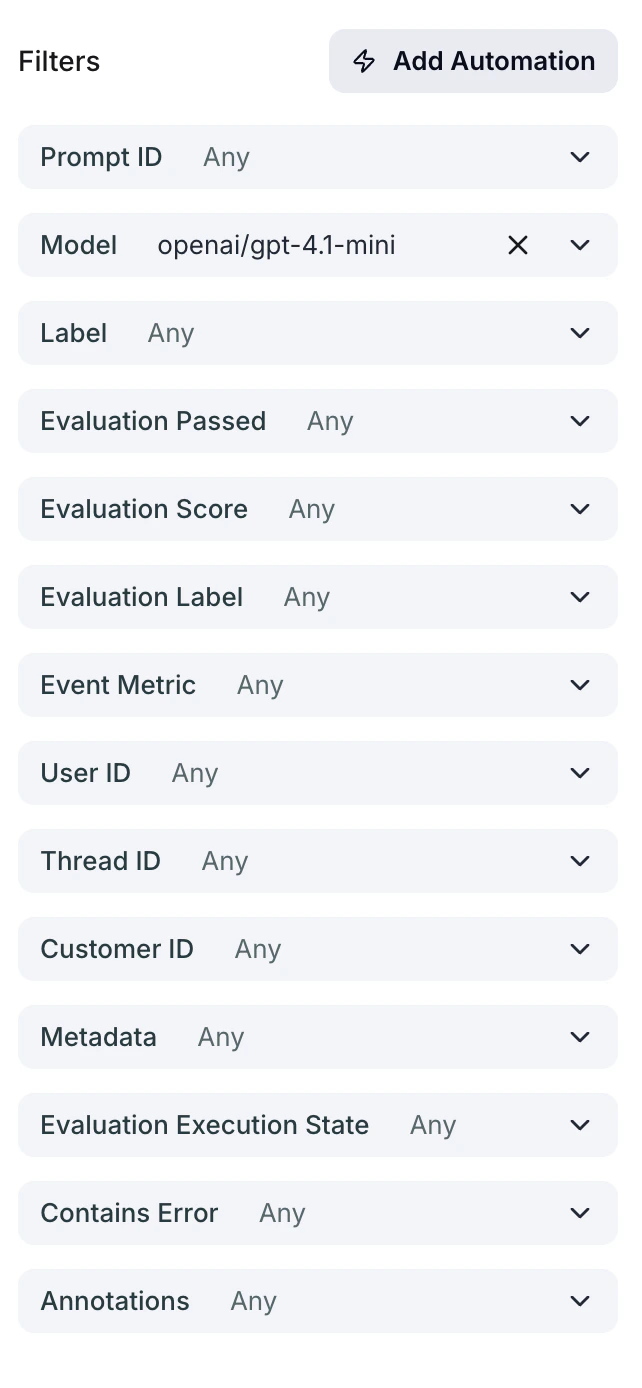
Simply go to the Messages page and select a filter (for example, by model), the Add Automation button will be enabled:
For Action, select **Add To Dataset**, and chose the right fields to map from the trace to the dataset:
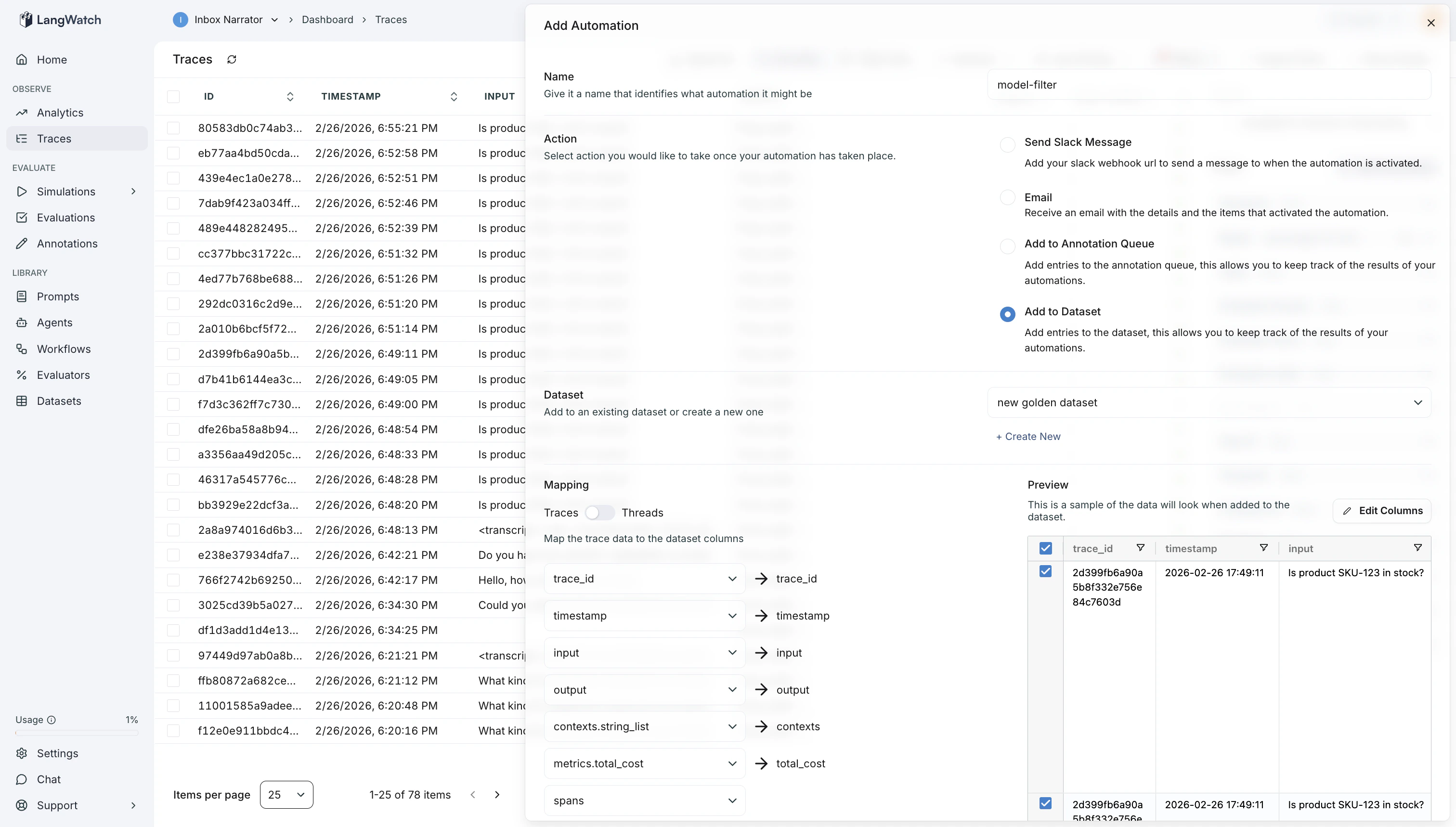 Hit save, and that's it! Now every time a new message matches the filter, the automation will be fired and the dataset will be populated with the new row.