> ## Documentation Index
> Fetch the complete documentation index at: https://langwatch.ai/docs/llms.txt
> Use this file to discover all available pages before exploring further.
# View images in datasets
> View image datasets in LangWatch to support multimodal evaluations and agent testing scenarios.
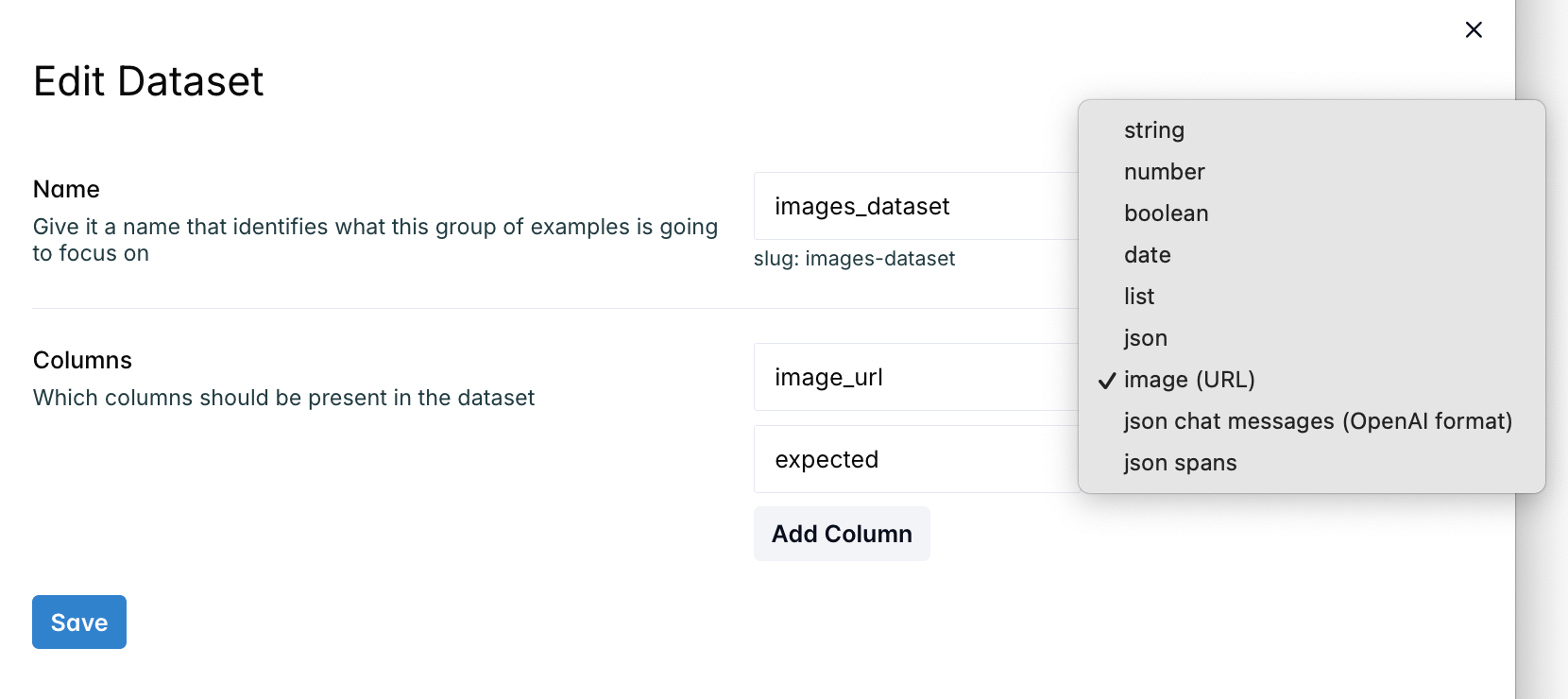
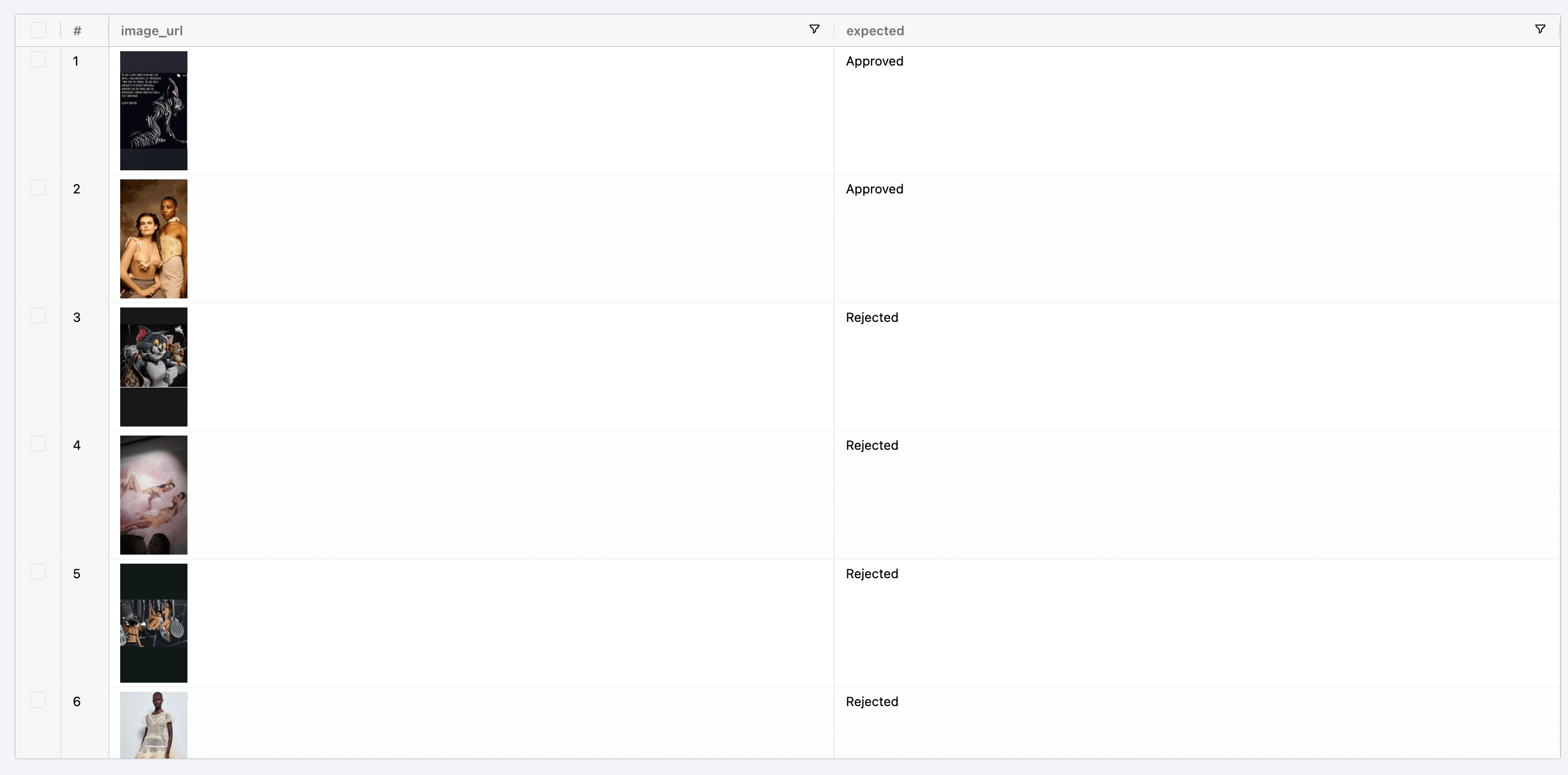
With the your images column type set to type set to `image (URL)`, you will be able to view images in your dataset. This is useful to analyze the images at a glance.
Below is an example of on how to set the column type to `image (URL)` in the screenshot below, you can also set this type when creating a new dataset.
Once you select the image type, the dataset will be updated to show the image column. You will be able to edit the column value by clicking on the image cell. Keep in mind the column value will be the URL of the image.
 ## How attachment URLs reach the model
When an image URL feeds a vision workflow or evaluation, LangWatch fetches the URL server-side and delivers the actual image to the model as image content, so the model sees the picture instead of the link text. This works across every model provider, whether or not the provider fetches URLs itself. The attachment type is detected from the response rather than the file extension, so extension-less links such as signed S3 or CDN URLs are classified correctly.
Audio and PDF URLs are delivered the same way when referenced from a prompt: an audio URL reaches the model as audio for it to hear, and a PDF URL reaches it as a document for it to read.
If a field is declared as an image and its URL cannot be loaded as an image (the URL is unreachable, returns an error status, is too large, or serves something other than an image), the run fails with a clear message naming the URL and the reason, instead of passing the raw link to the model as text. A plain link mentioned in prose is left as text and never fails the run.
## How attachment URLs reach the model
When an image URL feeds a vision workflow or evaluation, LangWatch fetches the URL server-side and delivers the actual image to the model as image content, so the model sees the picture instead of the link text. This works across every model provider, whether or not the provider fetches URLs itself. The attachment type is detected from the response rather than the file extension, so extension-less links such as signed S3 or CDN URLs are classified correctly.
Audio and PDF URLs are delivered the same way when referenced from a prompt: an audio URL reaches the model as audio for it to hear, and a PDF URL reaches it as a document for it to read.
If a field is declared as an image and its URL cannot be loaded as an image (the URL is unreachable, returns an error status, is too large, or serves something other than an image), the run fails with a clear message naming the URL and the reason, instead of passing the raw link to the model as text. A plain link mentioned in prose is left as text and never fails the run.