> ## Documentation Index
> Fetch the complete documentation index at: https://langwatch.ai/docs/llms.txt
> Use this file to discover all available pages before exploring further.
# Multimodal Evaluation Images, PDFs, and Vision
> Evaluate image generation, document parsing, and other multimodal AI pipelines with LLM-as-a-Judge vision models.
LangWatch supports multimodal evaluation out of the box. You can evaluate image inputs and outputs using any vision-capable model (GPT-4o, GPT-5.2, Claude Sonnet, Gemini, etc.) through the built-in LLM-as-a-Judge evaluators, no custom code required.
This covers common multimodal use cases:
* **Image generation quality**: score outputs of image generation models
* **Document parsing**: evaluate extracted metadata from PDFs and scanned documents
* **Content moderation**: detect NSFW or low-quality uploaded images
* **Visual QA**: evaluate answers to questions about images
* **Image comparison**: compare generated outputs against reference images
**Image support works with all three LLM-as-a-Judge evaluator types:**
* **Boolean**: pass/fail evaluation (e.g. "Is the generated image photorealistic?")
* **Score**: numeric score evaluation (e.g. "Rate image quality from 1-5")
* **Category**: classification evaluation (e.g. "Classify the image as: excellent, good, poor")
**See also:**
* [Dataset Images](/docs/datasets/dataset-images): Setting up image columns in datasets
* [Saved Evaluators](/docs/evaluations/evaluators/saved-evaluators): Reuse evaluators via API
## Supported Image Formats
Images can be provided in any of these formats:
| Format | Example |
| ------------------- | -------------------------------------------- |
| **Image URL** | `https://example.com/photo.png` |
| **Base64 data URI** | `data:image/png;base64,iVBORw0KGgo...` |
| **Markdown image** | `` |
Supported extensions: `.png`, `.jpg`, `.jpeg`, `.gif`, `.webp`, `.svg`, `.bmp`, `.tiff`
Image detection is strict by design, a field is treated as an image only when the **entire value** is an image URL or base64 string. Mixed text-and-image content is sent as plain text. This prevents unintended multipart content when a field happens to contain an image URL as part of a longer string.
## Evaluating Images via UI
### Step 1: Create a Dataset with Image Columns
1. Go to **Evaluations** → **New Evaluation** → **Create Experiment**
2. Click **+** next to the Datasets header to create a new dataset
3. Add columns and set their type to **image** using the column type dropdown
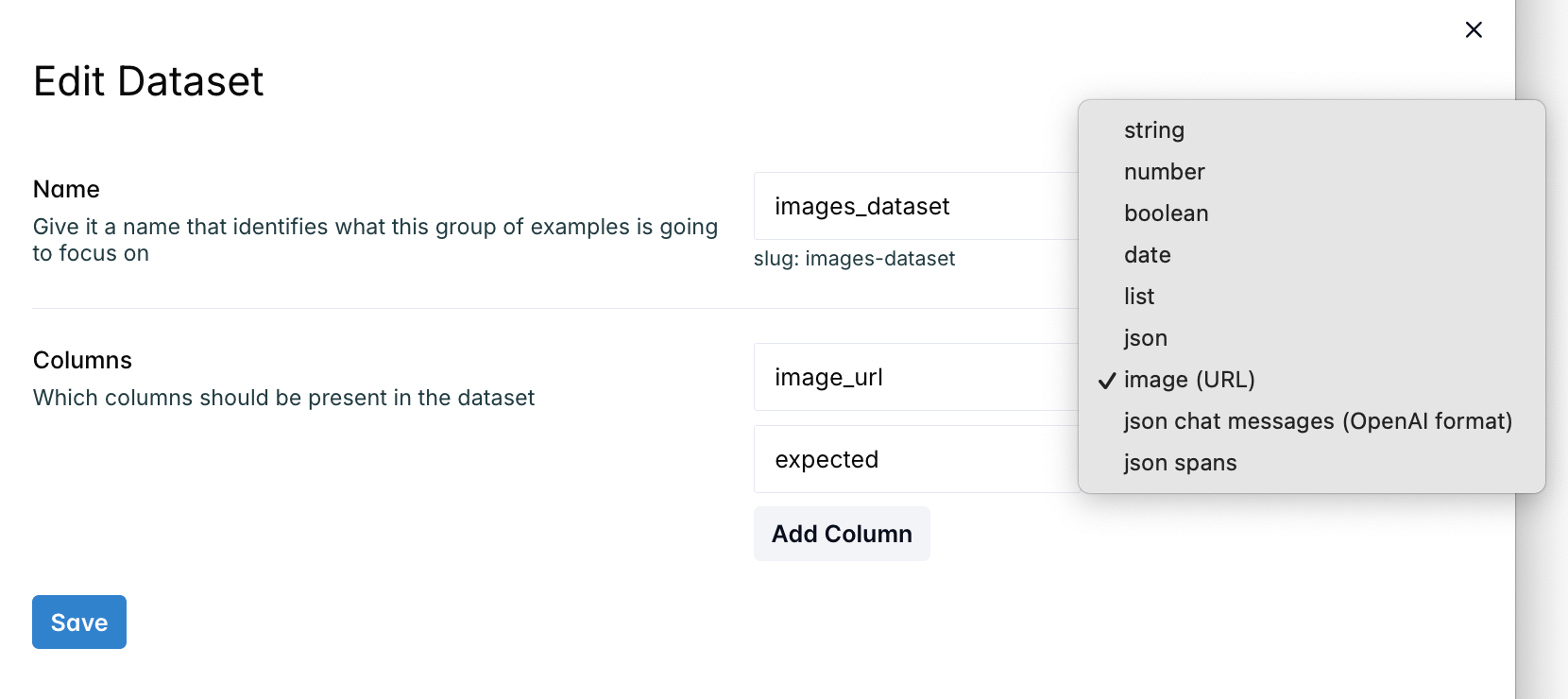
4. Paste image URLs or base64 data URIs into the cells, the workbench renders them inline with click-to-expand
### Step 2: Add an LLM-as-a-Judge Evaluator
1. Click **+ Add evaluator** on a row in the evaluators section
2. Select an **LLM-as-a-Judge** evaluator (Boolean, Score, or Category)
3. Choose a **vision-capable model** (e.g. `gpt-5.2`, `claude-sonnet-4-5-20250929`)
4. Write a prompt that references the image fields, map dataset columns to the evaluator's `input`, `output`, `contexts`, or `expected_output` variables
The evaluator automatically detects image values and sends them as multipart content to the vision model. No special configuration needed.
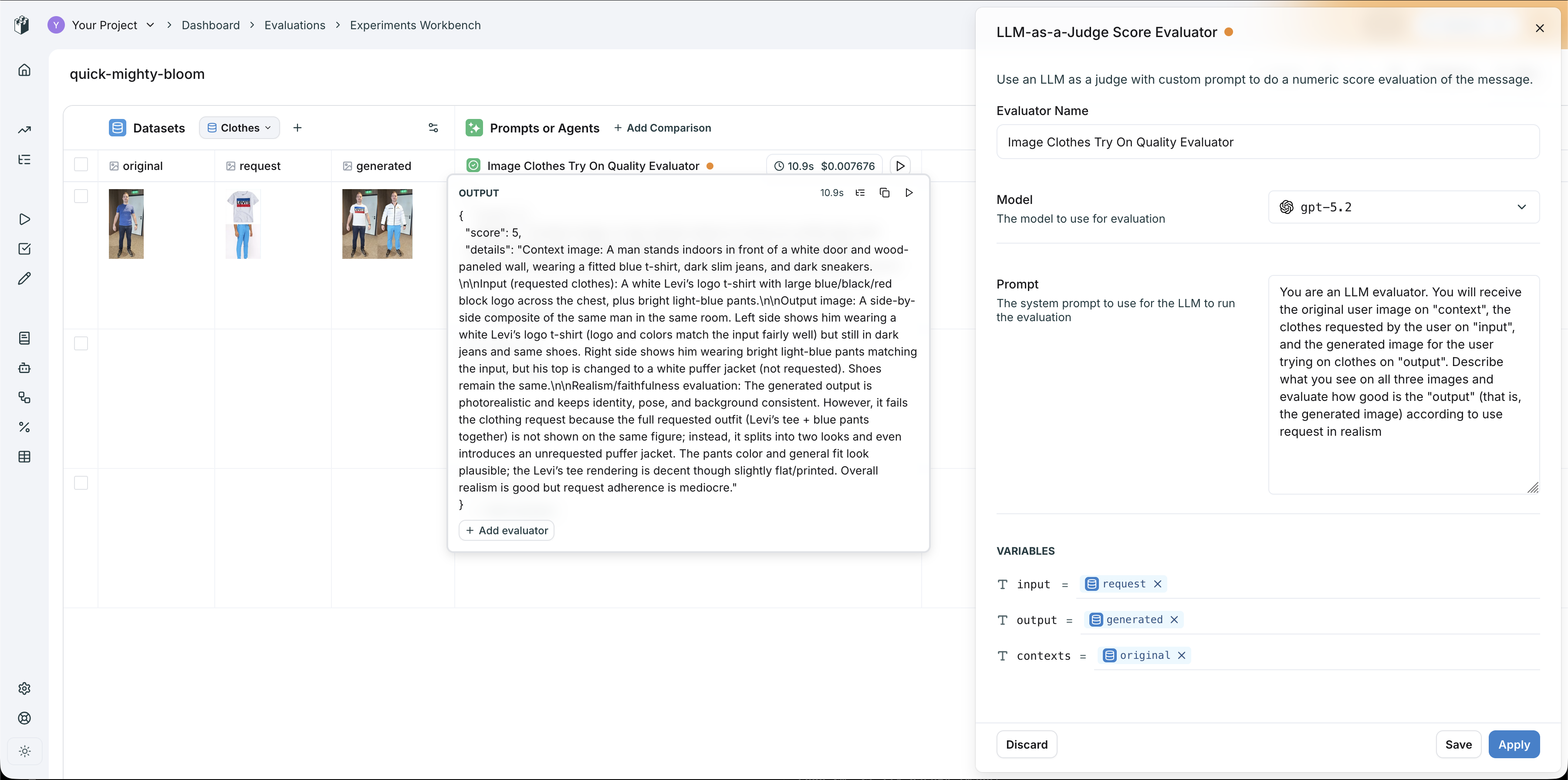 In this example, a virtual try-on pipeline is evaluated with three image columns:
* **original** → mapped to `contexts` (the person's photo)
* **request** → mapped to `input` (the clothing item)
* **generated** → mapped to `output` (the try-on result)
The LLM-as-a-Judge prompt instructs the model to evaluate all three images and score the quality of the generated output.
### Step 3: Run and Iterate
Click the **play button** to run the evaluator. The model receives all images as vision content and returns structured results (score, pass/fail, or category) with detailed reasoning.
Use this workflow to **iterate on your evaluator prompt** until you have reliable evaluation criteria, then save it for reuse across experiments and CI/CD pipelines.
## Custom Workflow Evaluators for Complex Logic
For more advanced evaluation pipelines, you can create a **Custom Workflow Evaluator** in the Evaluators page. This gives you a visual workflow builder where you can chain multiple LLM nodes, add image variables to prompts, and build multi-step evaluation logic.
In this example, a virtual try-on pipeline is evaluated with three image columns:
* **original** → mapped to `contexts` (the person's photo)
* **request** → mapped to `input` (the clothing item)
* **generated** → mapped to `output` (the try-on result)
The LLM-as-a-Judge prompt instructs the model to evaluate all three images and score the quality of the generated output.
### Step 3: Run and Iterate
Click the **play button** to run the evaluator. The model receives all images as vision content and returns structured results (score, pass/fail, or category) with detailed reasoning.
Use this workflow to **iterate on your evaluator prompt** until you have reliable evaluation criteria, then save it for reuse across experiments and CI/CD pipelines.
## Custom Workflow Evaluators for Complex Logic
For more advanced evaluation pipelines, you can create a **Custom Workflow Evaluator** in the Evaluators page. This gives you a visual workflow builder where you can chain multiple LLM nodes, add image variables to prompts, and build multi-step evaluation logic.
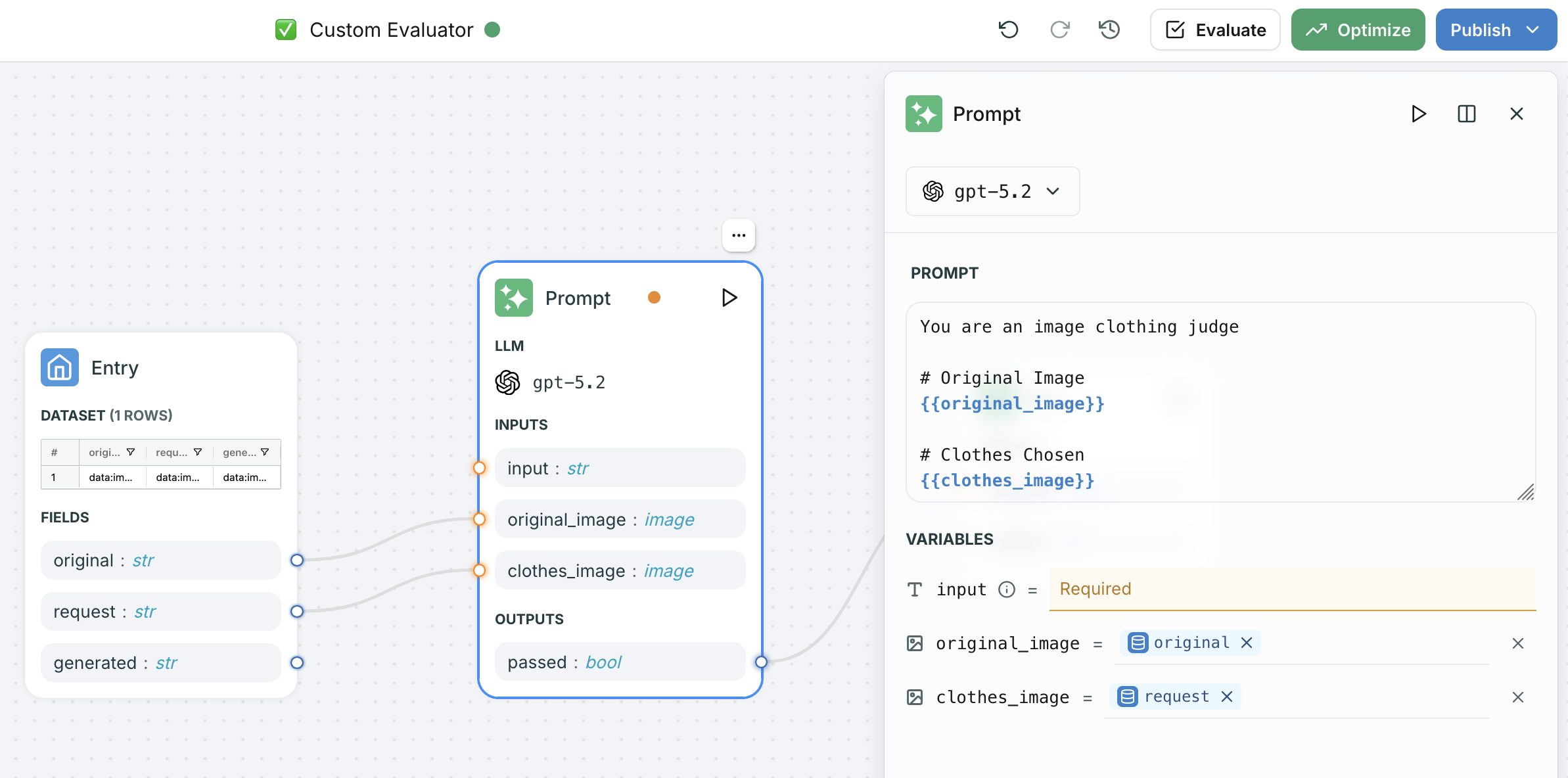 In the workflow builder:
1. Add **image-typed variables** to your prompt node inputs
2. Use `{{ "{{variable_name}}" }}` syntax to reference images in the prompt template
3. Map dataset columns to the image variables in the entry node
4. The workflow handles multipart content assembly automatically
This is useful when you need to split evaluation into multiple steps, use different models for different aspects, or combine vision evaluation with text-based checks.
## Evaluating Images via SDK
For programmatic evaluation from notebooks or CI/CD, use the Python or TypeScript SDK with a [saved evaluator](/docs/evaluations/evaluators/saved-evaluators).
### Using a Saved Evaluator
After iterating on your evaluator in the UI, save it and call it from code:
```python Python theme={null}
import langwatch
df = langwatch.datasets.get_dataset("my-image-dataset").to_pandas()
experiment = langwatch.experiment.init("image-quality-evaluation")
for index, row in experiment.loop(df.iterrows()):
# Use your saved image evaluator
experiment.evaluate(
"evaluators/image-quality-scorer", # Your saved evaluator slug
index=index,
data={
"input": row["request_image"], # Image URL or base64
"output": row["generated_image"], # Image URL or base64
"contexts": [row["original_photo"]], # List of context images
},
)
```
```typescript TypeScript theme={null}
import { LangWatch } from "langwatch";
const langwatch = new LangWatch();
const dataset = await langwatch.datasets.get("my-image-dataset");
const experiment = await langwatch.experiments.init("image-quality-evaluation");
await experiment.run(
dataset.entries.map((e) => e.entry),
async ({ item, index }) => {
// Use your saved image evaluator
await experiment.evaluate("evaluators/image-quality-scorer", {
index,
data: {
input: item.request_image, // Image URL or base64
output: item.generated_image, // Image URL or base64
contexts: [item.original_photo], // List of context images
},
});
},
{ concurrency: 4 }
);
```
### Custom Scoring with Vision Models
You can also call vision models directly and log custom scores:
```python theme={null}
import langwatch
import litellm
experiment = langwatch.experiment.init("custom-image-evaluation")
for index, row in experiment.loop(df.iterrows()):
# Call a vision model directly
response = litellm.completion(
model="gpt-4o",
messages=[{
"role": "user",
"content": [
{"type": "text", "text": "Rate this generated image quality from 1 to 5. Return only the number."},
{"type": "image_url", "image_url": {"url": row["generated_image"]}},
],
}],
)
score = int(response.choices[0].message.content.strip())
experiment.log(
"image_quality",
index=index,
data={"output": row["generated_image"]},
score=score / 5.0,
passed=score >= 3,
details=f"Image quality score: {score}/5",
)
```
## Evaluating Document Parsing (PDFs)
Multimodal evaluation also covers document-based pipelines. Here is an example of evaluating a PDF parsing pipeline that extracts metadata from academic papers:
```python theme={null}
import langwatch
import pandas as pd
from unstructured.partition.pdf import partition_pdf
from unstructured.staging.base import elements_to_text
import dspy
dspy.configure(lm=dspy.LM("openai/gpt-4o-mini"))
# Dataset of PDFs with ground truth metadata
df = pd.DataFrame([
{
"file": "paper1.pdf",
"expected_title": "Vibe Coding vs. Agentic Coding",
"expected_authors": "Ranjan Sapkota, Konstantinos I. Roumeliotis, Manoj Karkee",
},
# ... more rows
])
@langwatch.trace()
def extract_pdf_info(filename):
langwatch.get_current_trace().autotrack_dspy()
elements = partition_pdf(filename=filename)
pdf = elements_to_text(elements=elements)
return dspy.Predict(
"pdf -> title: str, author_names: str, github_link: Optional[str]"
)(pdf=pdf)
# Run the evaluation
evaluation = langwatch.experiment.init("pdf-parsing-evaluation")
for index, row in evaluation.loop(df.iterrows()):
response = extract_pdf_info(row["file"])
evaluation.log(
"author_names_accuracy",
index=index,
passed=response.author_names == row["expected_authors"],
details=f"Expected: {row['expected_authors']}, Got: {response.author_names}",
)
```
## Using Evaluators via API
Once you have a reliable image evaluator, you can call it directly via REST API for integration into any pipeline:
```bash theme={null}
curl -X POST "https://app.langwatch.ai/api/evaluations/evaluators/image-quality-scorer/evaluate" \
-H "X-Auth-Token: $LANGWATCH_API_KEY" \
-H "Content-Type: application/json" \
-d @- <
Base64 image payloads can be large. The evaluator API supports request bodies up to **30 MB**. If you are working with many high-resolution images, prefer using image URLs over base64 encoding.
## Model Compatibility
Image evaluation requires a **vision-capable model**. Any model supported by [litellm](https://docs.litellm.ai/docs/providers) with vision capabilities works, including:
| Provider | Models |
| --------- | ----------------------------------------------- |
| OpenAI | `gpt-4o`, `gpt-4o-mini`, `gpt-5.2` |
| Anthropic | `claude-sonnet-4-5-20250929`, `claude-opus-4-6` |
| Google | `gemini-2.0-flash`, `gemini-2.5-pro` |
If a non-vision model is selected, the evaluator falls back to sending plain text descriptions. For accurate image evaluation, always select a vision-capable model.
## Next Steps
In the workflow builder:
1. Add **image-typed variables** to your prompt node inputs
2. Use `{{ "{{variable_name}}" }}` syntax to reference images in the prompt template
3. Map dataset columns to the image variables in the entry node
4. The workflow handles multipart content assembly automatically
This is useful when you need to split evaluation into multiple steps, use different models for different aspects, or combine vision evaluation with text-based checks.
## Evaluating Images via SDK
For programmatic evaluation from notebooks or CI/CD, use the Python or TypeScript SDK with a [saved evaluator](/docs/evaluations/evaluators/saved-evaluators).
### Using a Saved Evaluator
After iterating on your evaluator in the UI, save it and call it from code:
```python Python theme={null}
import langwatch
df = langwatch.datasets.get_dataset("my-image-dataset").to_pandas()
experiment = langwatch.experiment.init("image-quality-evaluation")
for index, row in experiment.loop(df.iterrows()):
# Use your saved image evaluator
experiment.evaluate(
"evaluators/image-quality-scorer", # Your saved evaluator slug
index=index,
data={
"input": row["request_image"], # Image URL or base64
"output": row["generated_image"], # Image URL or base64
"contexts": [row["original_photo"]], # List of context images
},
)
```
```typescript TypeScript theme={null}
import { LangWatch } from "langwatch";
const langwatch = new LangWatch();
const dataset = await langwatch.datasets.get("my-image-dataset");
const experiment = await langwatch.experiments.init("image-quality-evaluation");
await experiment.run(
dataset.entries.map((e) => e.entry),
async ({ item, index }) => {
// Use your saved image evaluator
await experiment.evaluate("evaluators/image-quality-scorer", {
index,
data: {
input: item.request_image, // Image URL or base64
output: item.generated_image, // Image URL or base64
contexts: [item.original_photo], // List of context images
},
});
},
{ concurrency: 4 }
);
```
### Custom Scoring with Vision Models
You can also call vision models directly and log custom scores:
```python theme={null}
import langwatch
import litellm
experiment = langwatch.experiment.init("custom-image-evaluation")
for index, row in experiment.loop(df.iterrows()):
# Call a vision model directly
response = litellm.completion(
model="gpt-4o",
messages=[{
"role": "user",
"content": [
{"type": "text", "text": "Rate this generated image quality from 1 to 5. Return only the number."},
{"type": "image_url", "image_url": {"url": row["generated_image"]}},
],
}],
)
score = int(response.choices[0].message.content.strip())
experiment.log(
"image_quality",
index=index,
data={"output": row["generated_image"]},
score=score / 5.0,
passed=score >= 3,
details=f"Image quality score: {score}/5",
)
```
## Evaluating Document Parsing (PDFs)
Multimodal evaluation also covers document-based pipelines. Here is an example of evaluating a PDF parsing pipeline that extracts metadata from academic papers:
```python theme={null}
import langwatch
import pandas as pd
from unstructured.partition.pdf import partition_pdf
from unstructured.staging.base import elements_to_text
import dspy
dspy.configure(lm=dspy.LM("openai/gpt-4o-mini"))
# Dataset of PDFs with ground truth metadata
df = pd.DataFrame([
{
"file": "paper1.pdf",
"expected_title": "Vibe Coding vs. Agentic Coding",
"expected_authors": "Ranjan Sapkota, Konstantinos I. Roumeliotis, Manoj Karkee",
},
# ... more rows
])
@langwatch.trace()
def extract_pdf_info(filename):
langwatch.get_current_trace().autotrack_dspy()
elements = partition_pdf(filename=filename)
pdf = elements_to_text(elements=elements)
return dspy.Predict(
"pdf -> title: str, author_names: str, github_link: Optional[str]"
)(pdf=pdf)
# Run the evaluation
evaluation = langwatch.experiment.init("pdf-parsing-evaluation")
for index, row in evaluation.loop(df.iterrows()):
response = extract_pdf_info(row["file"])
evaluation.log(
"author_names_accuracy",
index=index,
passed=response.author_names == row["expected_authors"],
details=f"Expected: {row['expected_authors']}, Got: {response.author_names}",
)
```
## Using Evaluators via API
Once you have a reliable image evaluator, you can call it directly via REST API for integration into any pipeline:
```bash theme={null}
curl -X POST "https://app.langwatch.ai/api/evaluations/evaluators/image-quality-scorer/evaluate" \
-H "X-Auth-Token: $LANGWATCH_API_KEY" \
-H "Content-Type: application/json" \
-d @- <
Base64 image payloads can be large. The evaluator API supports request bodies up to **30 MB**. If you are working with many high-resolution images, prefer using image URLs over base64 encoding.
## Model Compatibility
Image evaluation requires a **vision-capable model**. Any model supported by [litellm](https://docs.litellm.ai/docs/providers) with vision capabilities works, including:
| Provider | Models |
| --------- | ----------------------------------------------- |
| OpenAI | `gpt-4o`, `gpt-4o-mini`, `gpt-5.2` |
| Anthropic | `claude-sonnet-4-5-20250929`, `claude-opus-4-6` |
| Google | `gemini-2.0-flash`, `gemini-2.5-pro` |
If a non-vision model is selected, the evaluator falls back to sending plain text descriptions. For accurate image evaluation, always select a vision-capable model.
## Next Steps