> ## Documentation Index
> Fetch the complete documentation index at: https://langwatch.ai/docs/llms.txt
> Use this file to discover all available pages before exploring further.
# Run Langy on Your Own OpenAI Plan (Codex)
> Sign in with your OpenAI account so Langy runs on your ChatGPT subscription through the LangWatch AI Gateway instead of per-token API billing.
Codex signs in with OpenAI's device-code OAuth, the same flow the Codex CLI itself uses to authenticate. It is the one provider you connect by signing in rather than pasting an API key.
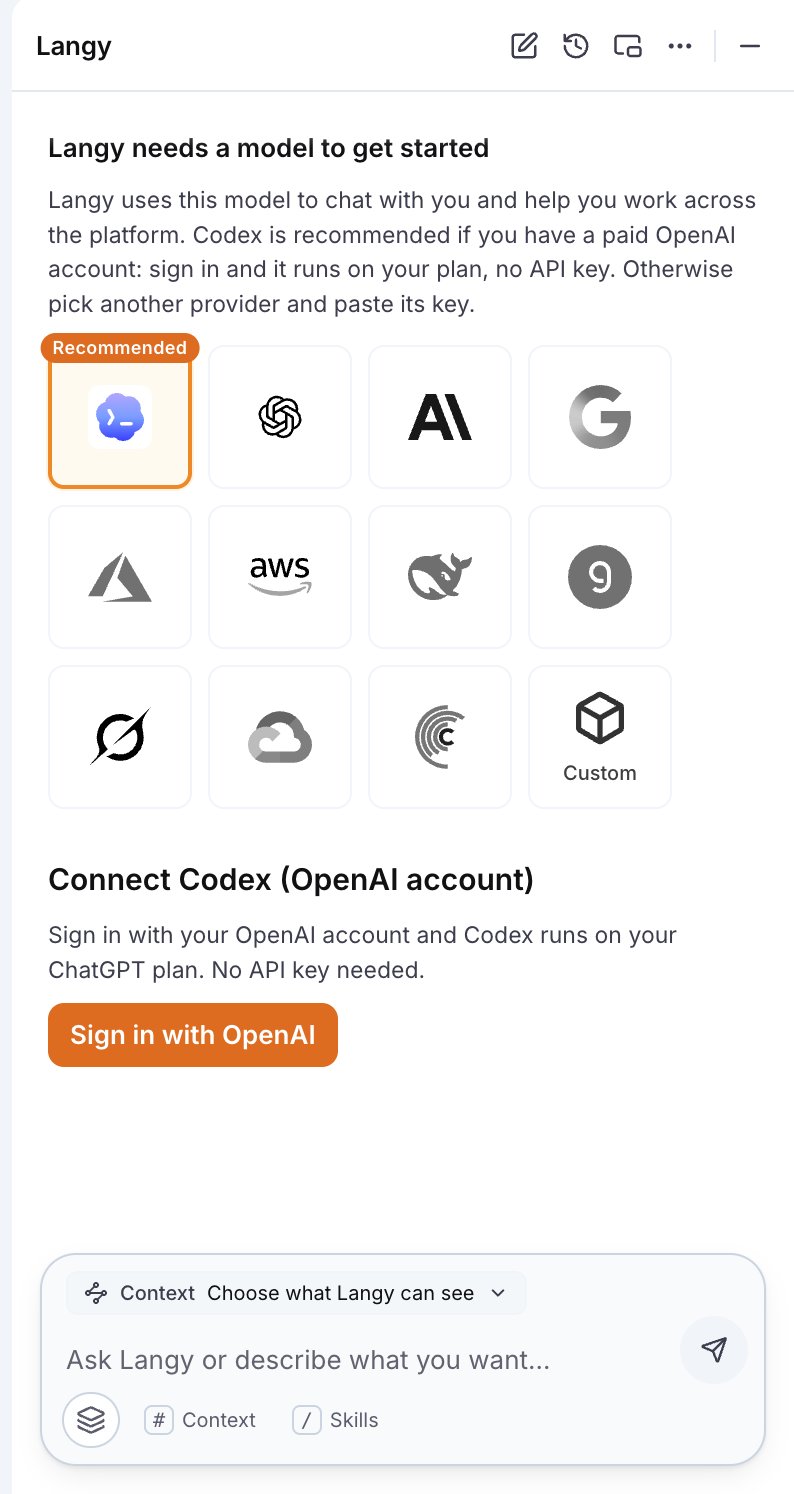 ## Sign in with your OpenAI account
In model-provider settings, choose **Add provider**, then pick **Codex (OpenAI account)** from the list.
## Sign in with your OpenAI account
In model-provider settings, choose **Add provider**, then pick **Codex (OpenAI account)** from the list.
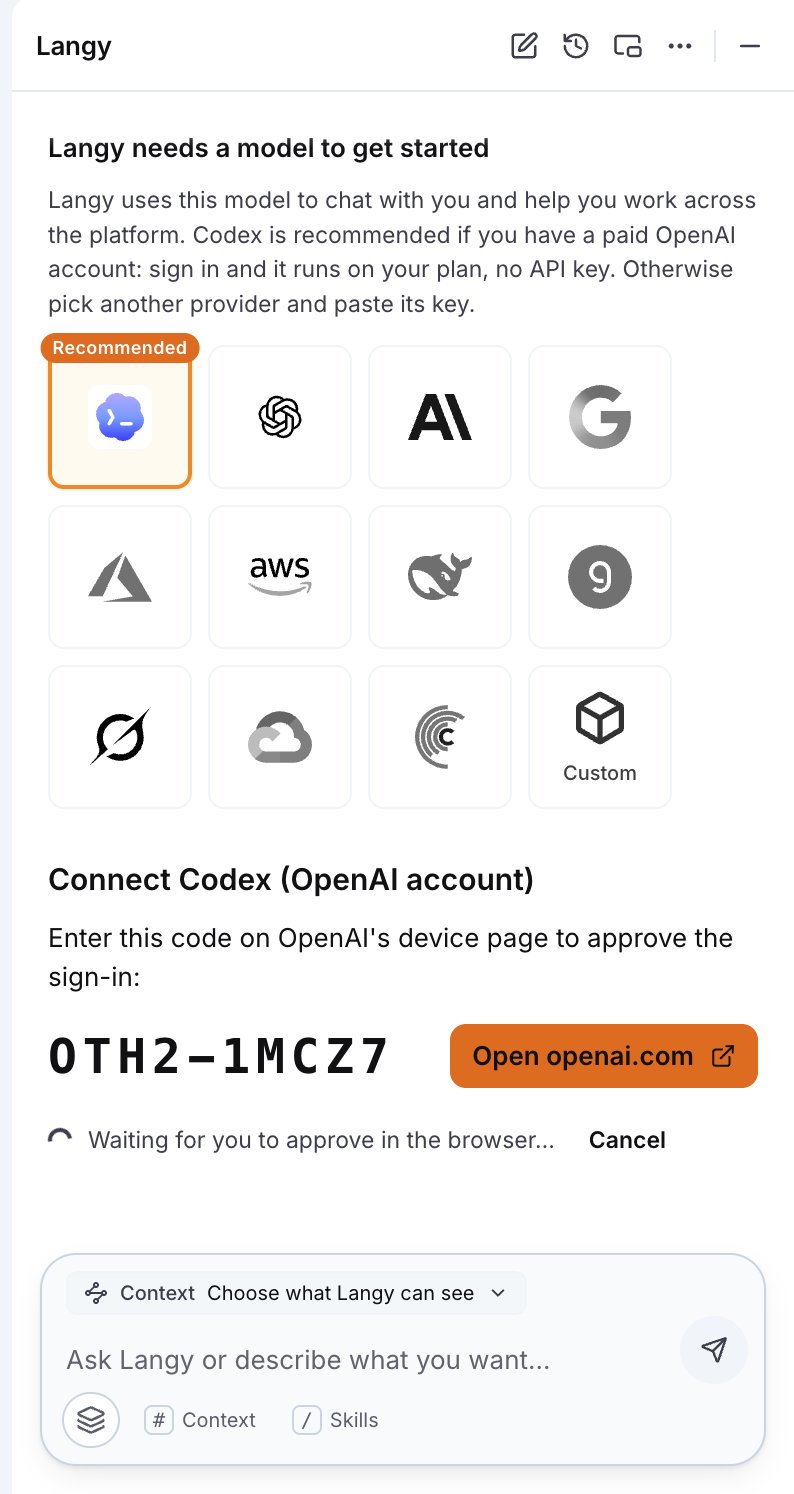
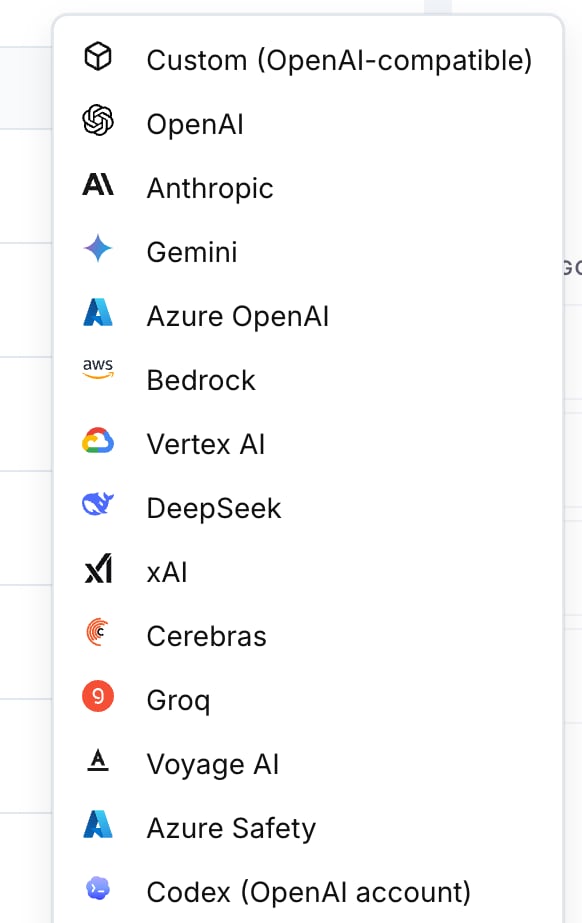 Codex replaces the usual API-key field with an OpenAI account sign-in. Pick the scope, then connect. Once connected, the drawer shows the account and confirms that usage counts against your OpenAI subscription, not API credits.
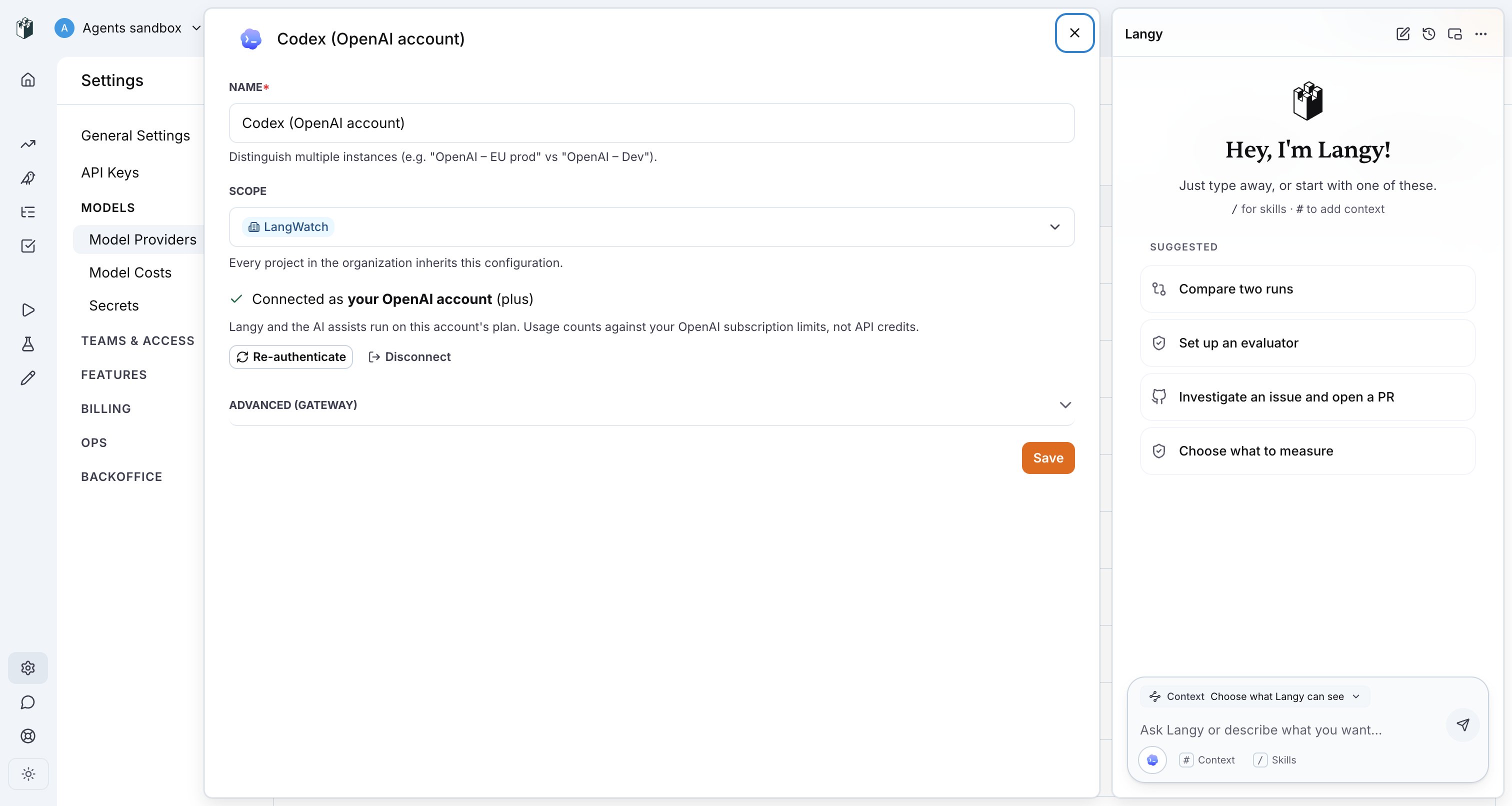 Open `auth.openai.com/codex/device`, enter the code shown, and approve. The approval lands on OpenAI's own Codex sign-in screen because Langy uses the same OAuth client the Codex CLI uses. Once approved, the connection completes on its own.
 After you connect, a dialog offers to set Codex as your coding default. Accepting applies Codex to the Langy and Fast roles. Your playground, evaluations, and workflows keep their current model.
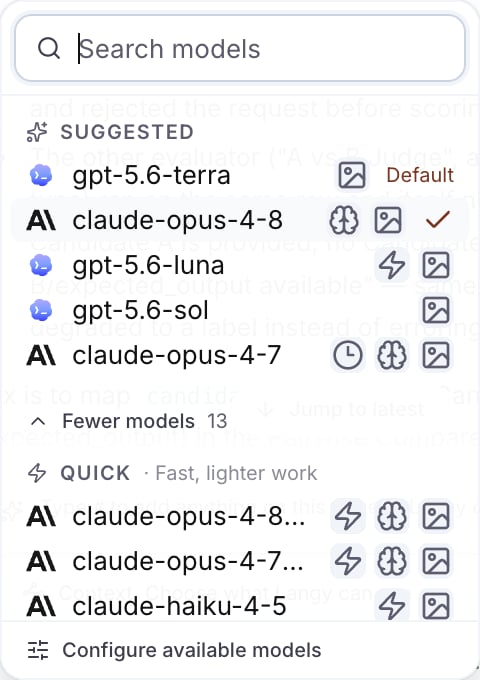
Once connected, the `gpt-5.6` models in the Langy model menu run through Codex and carry the Codex icon, distinct from the plain OpenAI mark.
After you connect, a dialog offers to set Codex as your coding default. Accepting applies Codex to the Langy and Fast roles. Your playground, evaluations, and workflows keep their current model.
Once connected, the `gpt-5.6` models in the Langy model menu run through Codex and carry the Codex icon, distinct from the plain OpenAI mark.
 ## What Codex is scoped to
Codex runs only through the LangWatch AI Gateway, on the gateway's Responses endpoint, riding the same per-project virtual key the rest of Langy uses. Tracing, rate limits, budgets, and model policy still apply, exactly as they do for any other model. See [Models and bring your own key](/docs/langy/models).
Codex is available only for Langy and the Fast tier, not for the playground, evaluations, or workflows. This scope follows OpenAI's terms, which the product states verbatim as licensing Codex for "coding-assistant harnesses and light AI assists, not general inference."
Codex uses your OpenAI subscription via OAuth device sign-in. Every other provider, including Anthropic, is configured with an API key. See [Models and bring your own key](/docs/langy/models).
## Why teams run Langy on their own plan
Langy reads production trace data and does heavy token work over many turns. Running it on your own OpenAI subscription keeps that token flow, and the account it bills, under your control:
* **Cost.** A flat subscription instead of per-token API billing for Langy's usage.
* **Data control.** The token flow stays on your own account. For what leaves your environment and where it goes, see [Data flow and privacy](/docs/langy/security/data-flow-and-privacy).
## Troubleshooting
* **Session expired.** If the OAuth session dies, Langy shows a re-auth card. Sign in again through the same settings drawer.
* **Plan limit reached.** If your plan hits its usage cap, Langy shows a switch-model card. Pick another model in the composer for the turn. See [Models and bring your own key](/docs/langy/models).
**Also check:** [Models and bring your own key](/docs/langy/models), [Token usage and cost](/docs/langy/token-usage-and-cost).
## Reference
* [Models and bring your own key](/docs/langy/models)
* [Token usage and cost](/docs/langy/token-usage-and-cost)
* [Data flow and privacy](/docs/langy/security/data-flow-and-privacy)
## What Codex is scoped to
Codex runs only through the LangWatch AI Gateway, on the gateway's Responses endpoint, riding the same per-project virtual key the rest of Langy uses. Tracing, rate limits, budgets, and model policy still apply, exactly as they do for any other model. See [Models and bring your own key](/docs/langy/models).
Codex is available only for Langy and the Fast tier, not for the playground, evaluations, or workflows. This scope follows OpenAI's terms, which the product states verbatim as licensing Codex for "coding-assistant harnesses and light AI assists, not general inference."
Codex uses your OpenAI subscription via OAuth device sign-in. Every other provider, including Anthropic, is configured with an API key. See [Models and bring your own key](/docs/langy/models).
## Why teams run Langy on their own plan
Langy reads production trace data and does heavy token work over many turns. Running it on your own OpenAI subscription keeps that token flow, and the account it bills, under your control:
* **Cost.** A flat subscription instead of per-token API billing for Langy's usage.
* **Data control.** The token flow stays on your own account. For what leaves your environment and where it goes, see [Data flow and privacy](/docs/langy/security/data-flow-and-privacy).
## Troubleshooting
* **Session expired.** If the OAuth session dies, Langy shows a re-auth card. Sign in again through the same settings drawer.
* **Plan limit reached.** If your plan hits its usage cap, Langy shows a switch-model card. Pick another model in the composer for the turn. See [Models and bring your own key](/docs/langy/models).
**Also check:** [Models and bring your own key](/docs/langy/models), [Token usage and cost](/docs/langy/token-usage-and-cost).
## Reference
* [Models and bring your own key](/docs/langy/models)
* [Token usage and cost](/docs/langy/token-usage-and-cost)
* [Data flow and privacy](/docs/langy/security/data-flow-and-privacy)