> ## Documentation Index
> Fetch the complete documentation index at: https://langwatch.ai/docs/llms.txt
> Use this file to discover all available pages before exploring further.
> ## Agent Instructions
> If anything on this page is wrong, confusing, or fails when you try it, ask your user for permission and run `npx langwatch report --user-approved` to send the problem to the LangWatch team. No login is needed and secrets are redacted locally. `npx langwatch report --help` has the details.
# Move to your own identity provider
> Replace the single sign-on LangWatch set up for your organization with a connection you run yourself, without interrupting anybody's sign-in.
This page is for organizations whose single sign-on LangWatch set up on their
behalf, usually after a request to support. If you connected your identity
provider yourself in **Settings > Authentication**, you already run it and
this guide does not apply to you. Single sign-on is an Enterprise feature.
Until now, changing anything about that sign-in meant asking us. You can now
connect your organization's own identity provider from **Settings**, test it,
move everybody across at your own pace, and retire the provider LangWatch set
up when you are ready. Nobody is signed out along the way.
## What changes, and what does not
* **Sign-in stays the same until you switch over.** Registering your identity provider
puts it beside the sign-in you have today. Everyone keeps signing in the way
they do now until an administrator switches sign-in over.
* **You can switch back.** After switching over, one action returns everybody
to the previous provider. That stays available until you start finishing the
update.
* **Finishing is the only one-way step.** Finishing takes access through the
previous provider away. LangWatch refuses to finish while any condition on
the page is still outstanding, so your organization always keeps a way in.
It never waits for members: each one moves across at their next sign-in.
* **Data, roles and teams are untouched.** Members keep their accounts, role
assignments and history. The update changes how they sign in, not who they
are.
## Before you start
* You need to be an organization administrator, or hold the `sso:manage`
permission. Someone who can only view single sign-on sees the status of the
update, but no form.
* Your organization must be on an Enterprise plan. Otherwise the page tells
you the plan is what refuses, not a generic error.
* You need access to your identity provider's admin console to create an
application for LangWatch. The page tells you which addresses to give it.
* Pick a colleague who has set a password on their LangWatch account. Before
the update can finish, at least one person must be able to sign in without
your identity provider.
* If directory sync (SCIM) provisions your people today, it keeps working for
you. It moves to the new connection when you finish. See [Directory
sync](#directory-sync).
## 1. Open the Authentication overview
Open **Settings > Authentication**. When LangWatch set your single sign-on up,
the **Single sign-on** card says so and offers **Update single sign-on**.
Nobody else in your organization sees this action.
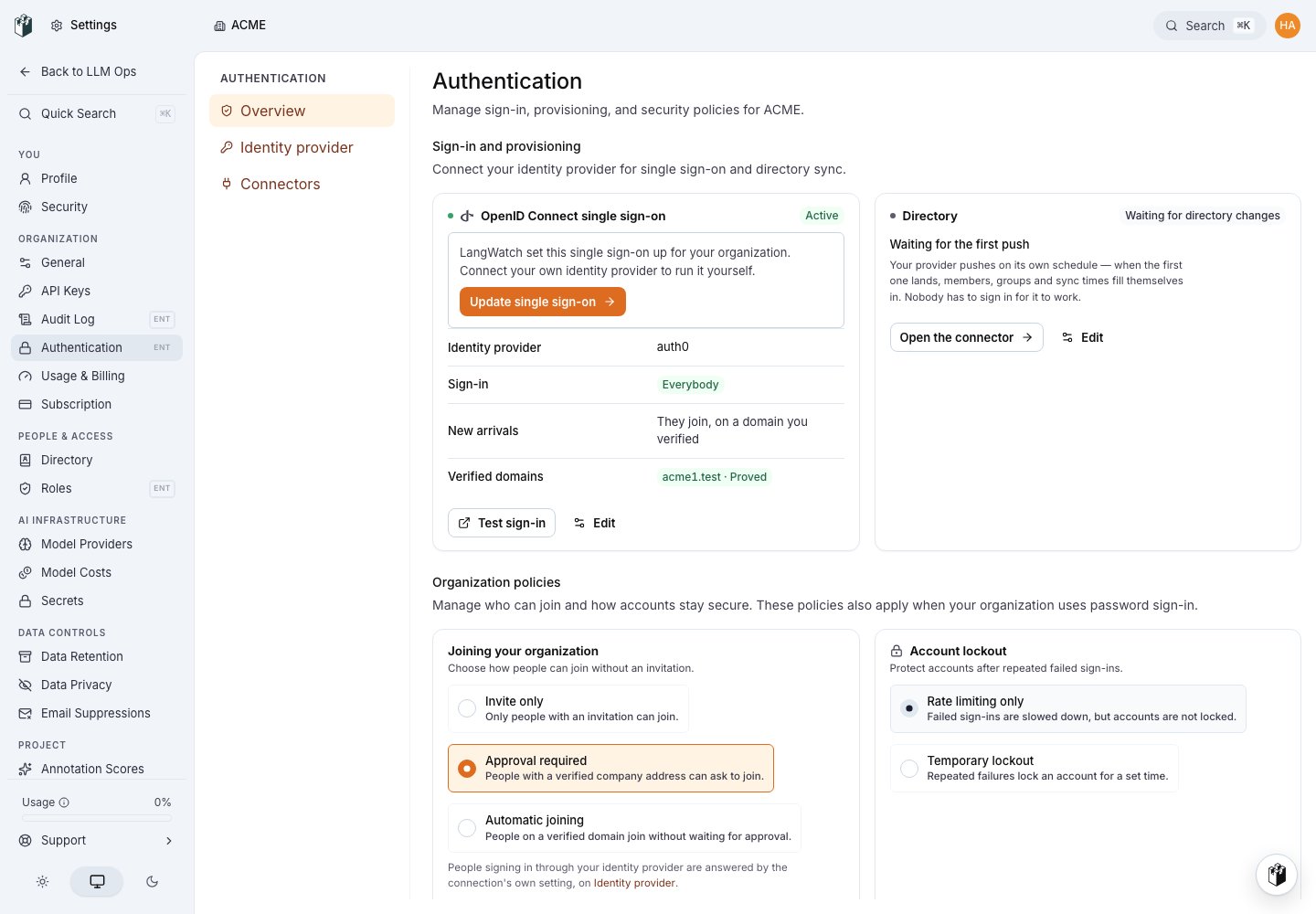
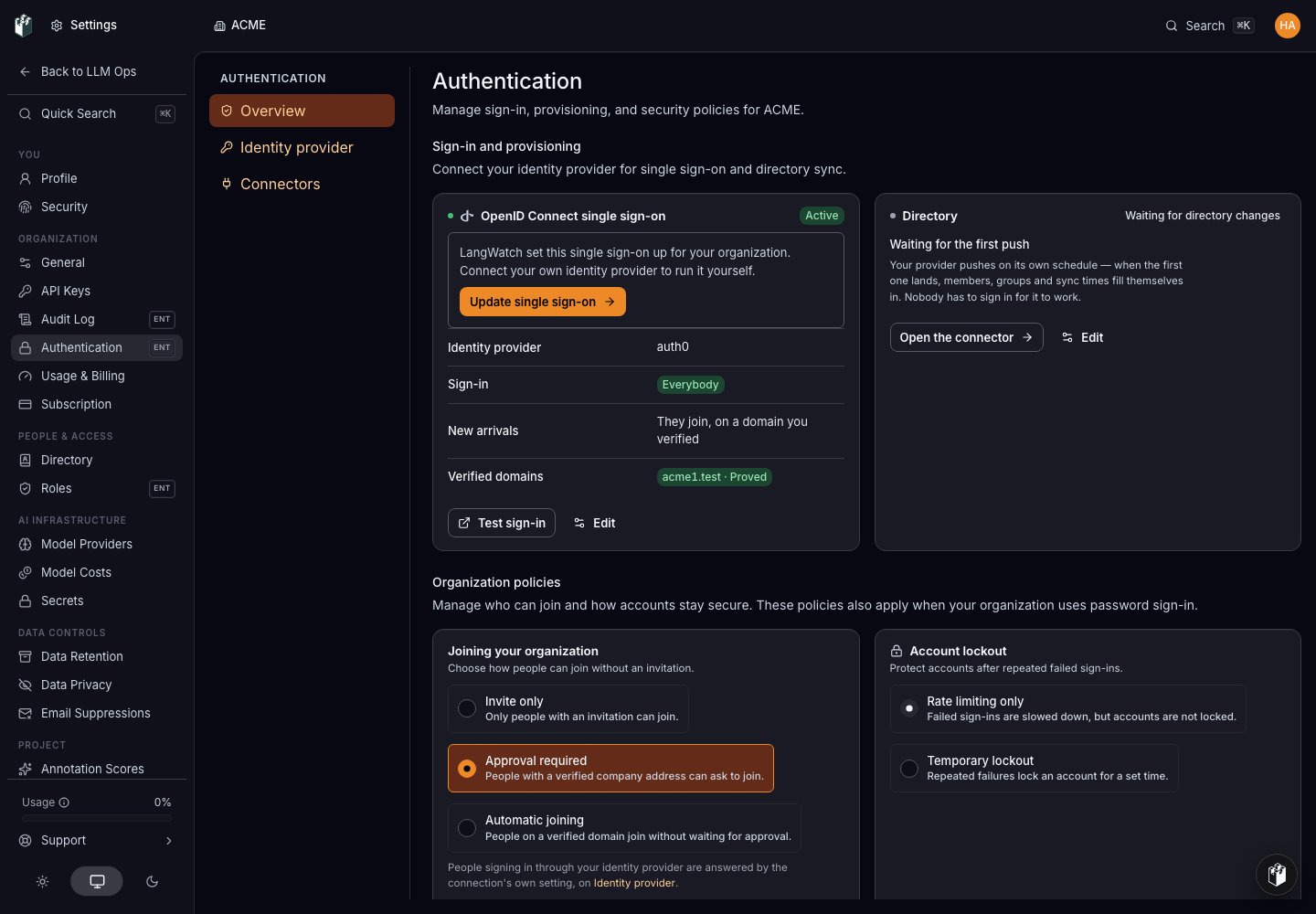 Select the action, or open **Settings > Authentication > Identity provider**
directly.
## 2. Register your identity provider
The **Single sign-on** page confirms that single sign-on is active and shows
which provider signs your people in today. Below it, **Update single sign-on**
repeats the promises above, then asks for the same details as a first-time
setup.
Select the action, or open **Settings > Authentication > Identity provider**
directly.
## 2. Register your identity provider
The **Single sign-on** page confirms that single sign-on is active and shows
which provider signs your people in today. Below it, **Update single sign-on**
repeats the promises above, then asks for the same details as a first-time
setup.
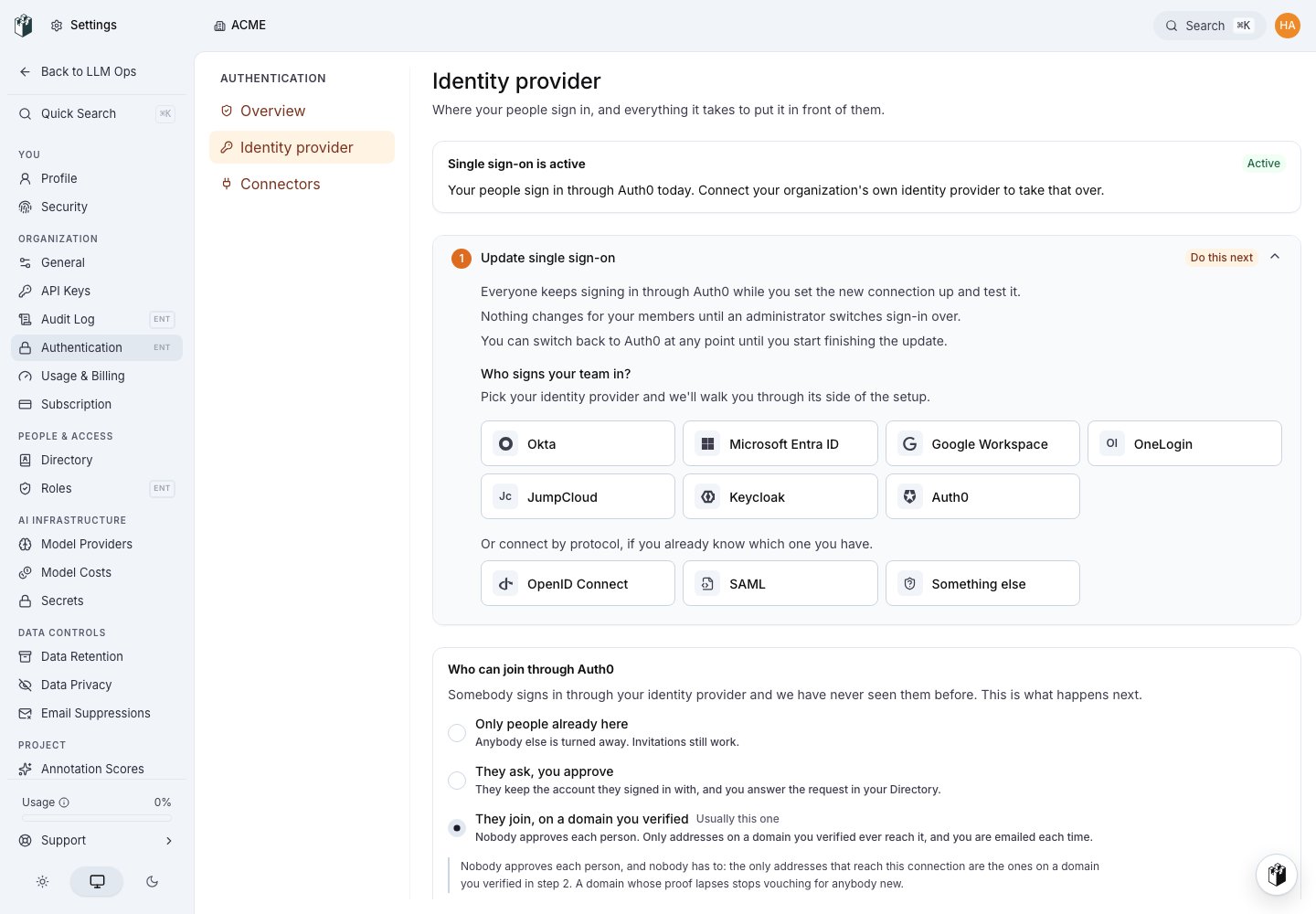
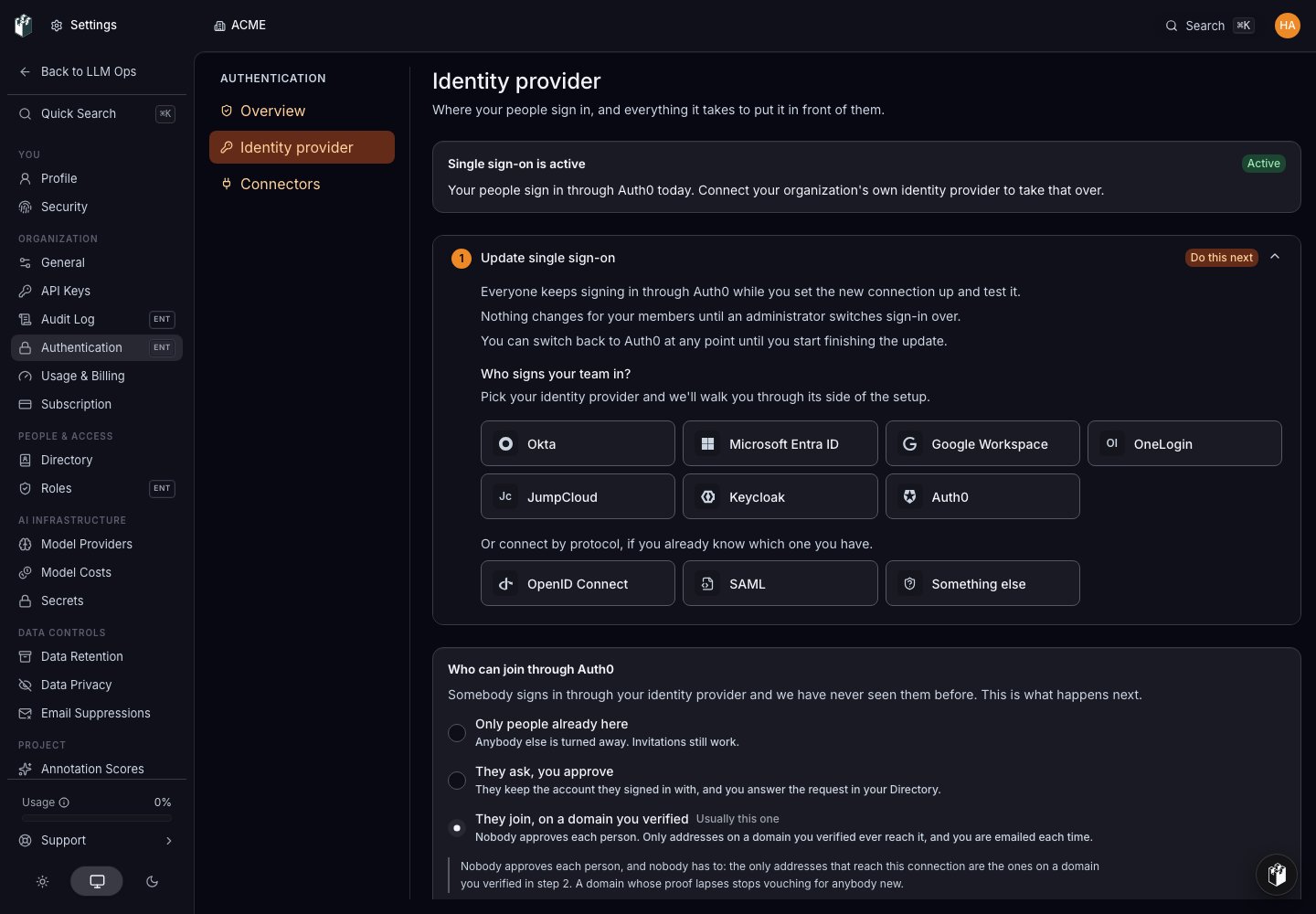
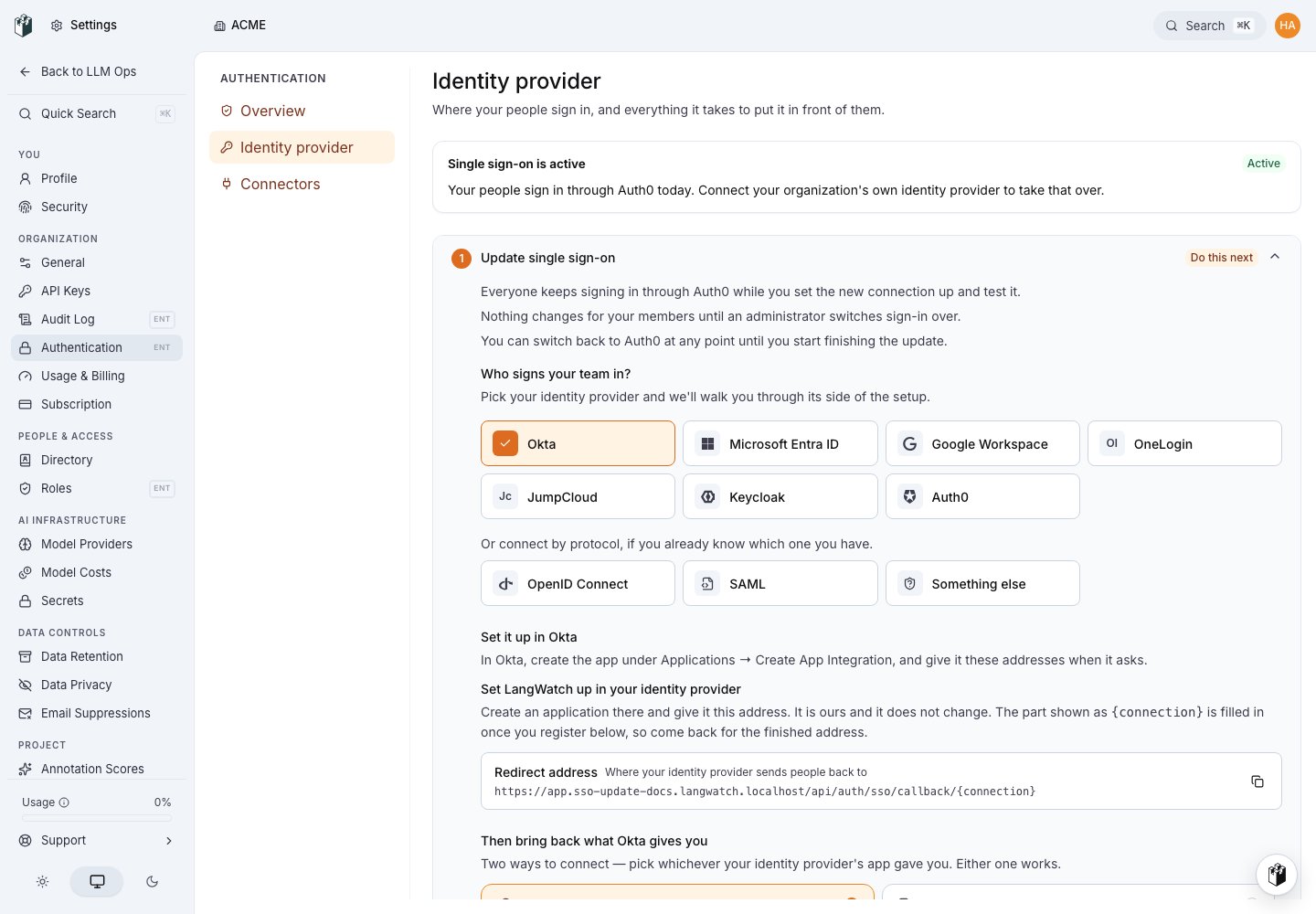
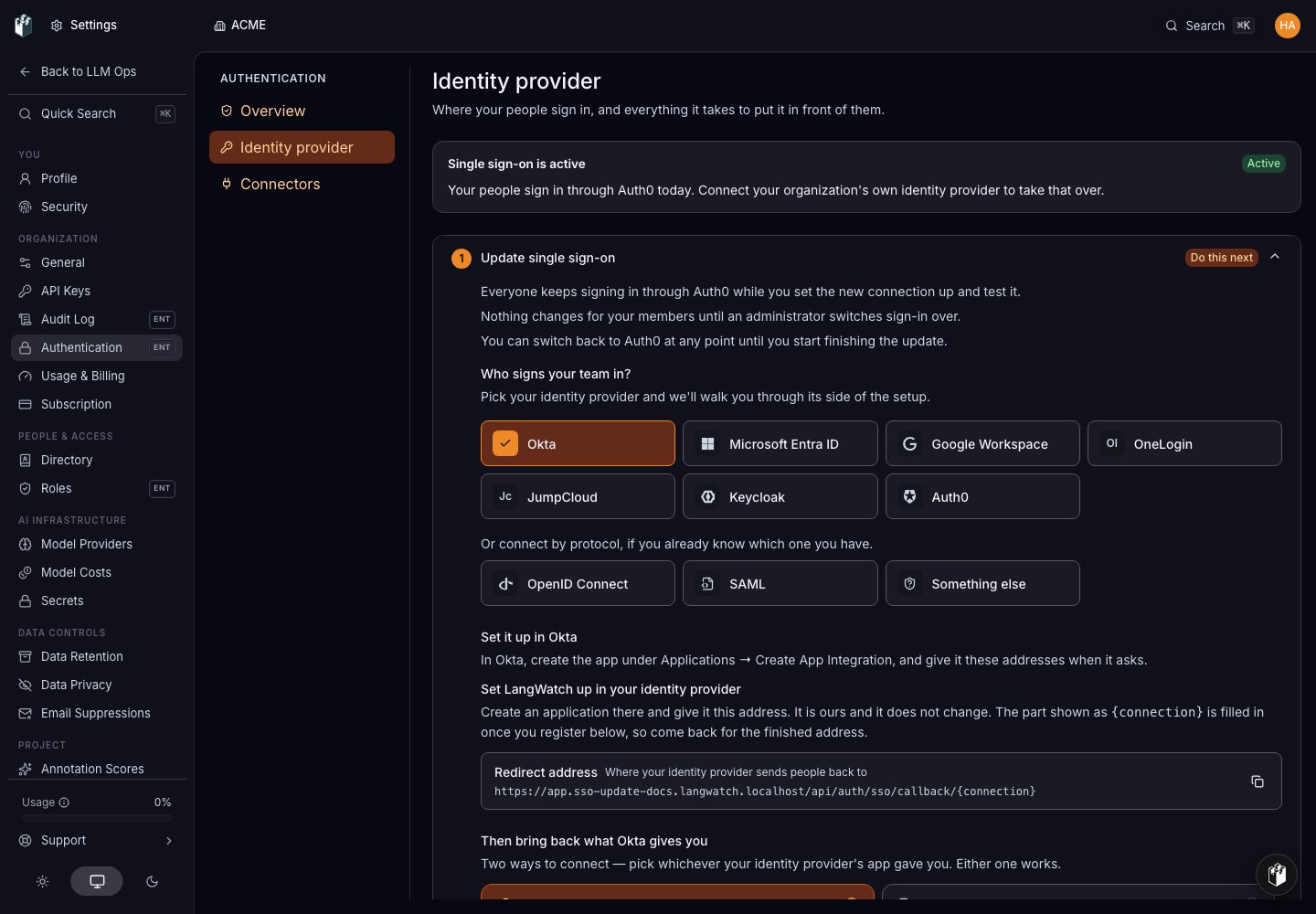 1. Under **Who signs your team in?**, pick your provider. If it is not listed,
pick **OpenID Connect** or **SAML** by protocol.
2. **Give it our addresses.** Create an application for LangWatch in your
identity provider and paste the addresses the page shows when it asks for
them. The table below says where that screen lives in the common providers.
3. **Then bring back what it gives you.** Choose how you will connect: a
client id and secret (OpenID Connect), or a metadata file, sign-in address
and signing certificate (SAML). Either works. Fill the fields in with the
values your provider's application shows.
4. Give the connection a name your administrators will recognize, for example
the provider's name, and select **Register**.
If your provider refuses the details, the reason is shown with the fields you
filled in. Correct them and register again.
Once registered, the page confirms **Replacement registered** and reminds you
that your current sign-in keeps working until you switch everyone over.
### Where to find the equivalent screens
| Provider | Create the application under | What to bring back |
| ------------------ | --------------------------------------------------------------------------- | ------------------------------------------------------------------------------------------------------------------------------------------------------------------------- |
| Okta | Applications → Create App Integration (OIDC - Web Application, or SAML 2.0) | Issuer address (your Okta domain), client id, client secret; or the SAML metadata |
| Microsoft Entra ID | Enterprise applications → New application → Create your own application | Issuer address (`https://login.microsoftonline.com//v2.0`), application (client) id, client secret from **Certificates & secrets**; or the federation metadata |
| Google Workspace | Admin console → Apps → Web and mobile apps → Add app | For OpenID Connect, a client id and secret from Google Cloud **Credentials**; for SAML, the metadata download |
| OneLogin | Applications → Add App | Issuer address, client id, client secret; or the SAML metadata |
| JumpCloud | SSO Applications → Add New Application | Issuer address, client id, client secret; or the SAML metadata |
| Keycloak | Clients → Create client | Issuer address (`https:///realms/`), client id, client secret |
Any other provider that speaks OpenID Connect or SAML works with the protocol
tiles.
## 3. Set the new connection up
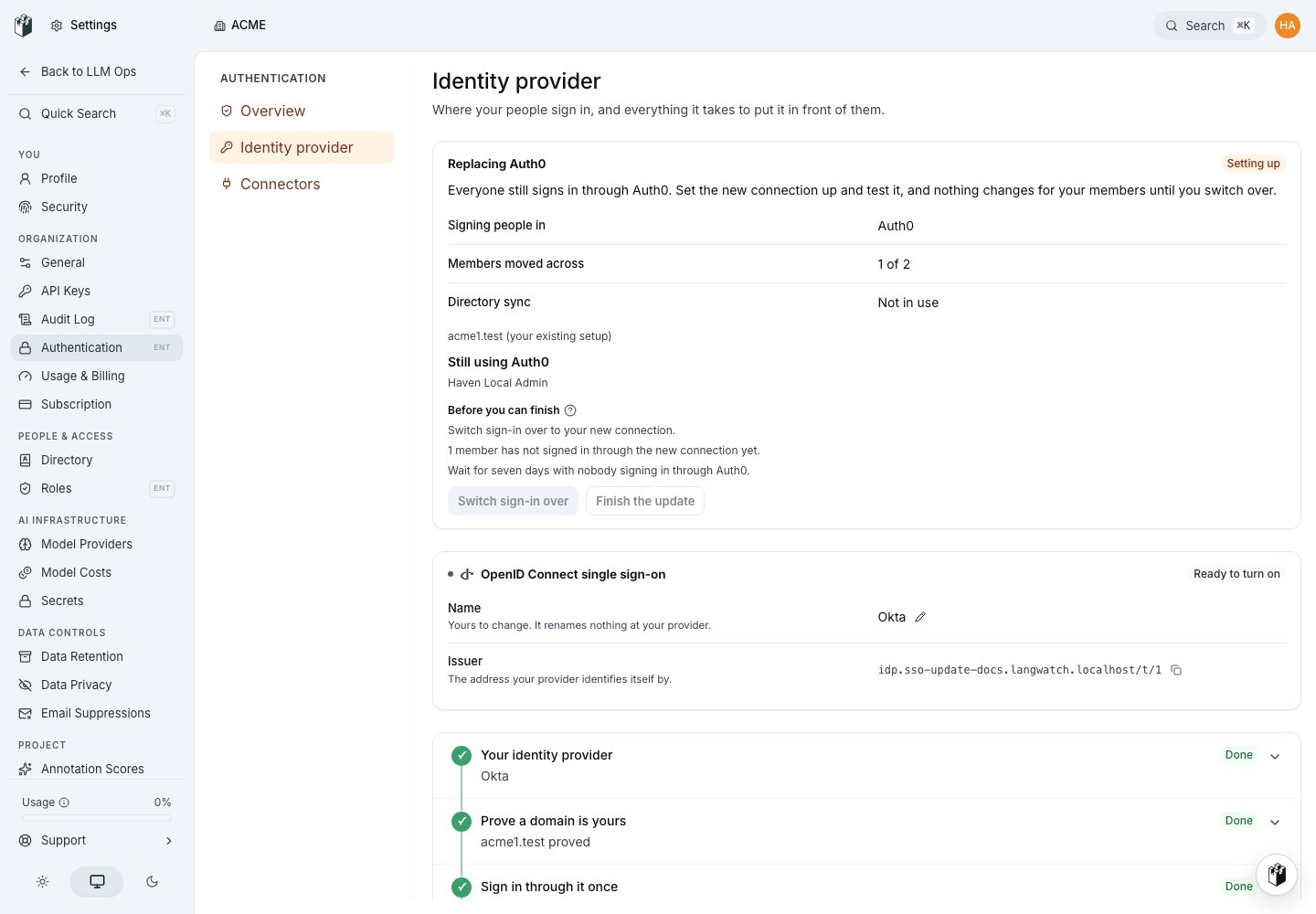
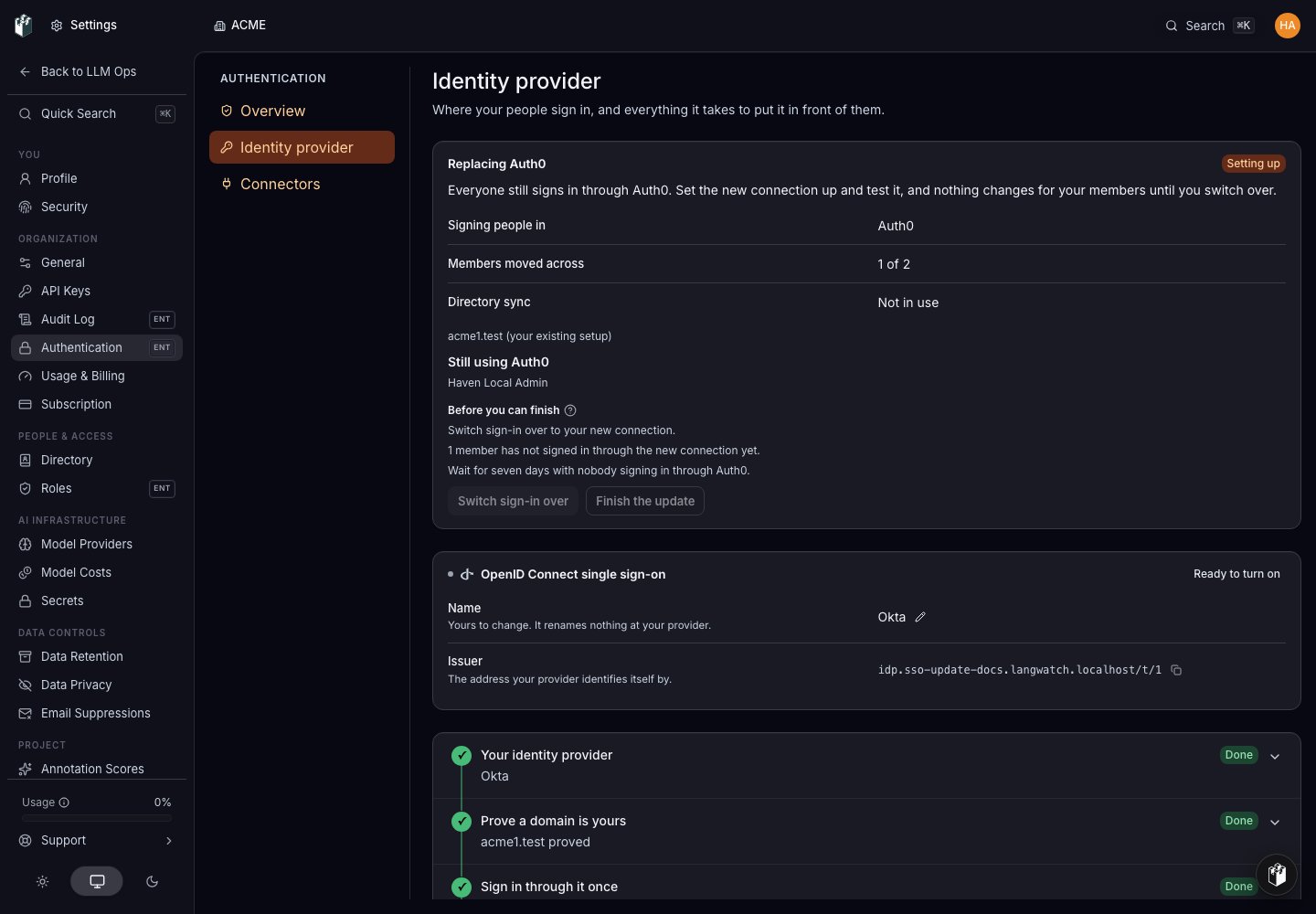
The page now shows the setup steps for the new connection and, above them, an
**Update** status. It reads **Setting up** until the connection is ready to
test, and the **Signing people in** row still names your previous provider.
1. Under **Who signs your team in?**, pick your provider. If it is not listed,
pick **OpenID Connect** or **SAML** by protocol.
2. **Give it our addresses.** Create an application for LangWatch in your
identity provider and paste the addresses the page shows when it asks for
them. The table below says where that screen lives in the common providers.
3. **Then bring back what it gives you.** Choose how you will connect: a
client id and secret (OpenID Connect), or a metadata file, sign-in address
and signing certificate (SAML). Either works. Fill the fields in with the
values your provider's application shows.
4. Give the connection a name your administrators will recognize, for example
the provider's name, and select **Register**.
If your provider refuses the details, the reason is shown with the fields you
filled in. Correct them and register again.
Once registered, the page confirms **Replacement registered** and reminds you
that your current sign-in keeps working until you switch everyone over.
### Where to find the equivalent screens
| Provider | Create the application under | What to bring back |
| ------------------ | --------------------------------------------------------------------------- | ------------------------------------------------------------------------------------------------------------------------------------------------------------------------- |
| Okta | Applications → Create App Integration (OIDC - Web Application, or SAML 2.0) | Issuer address (your Okta domain), client id, client secret; or the SAML metadata |
| Microsoft Entra ID | Enterprise applications → New application → Create your own application | Issuer address (`https://login.microsoftonline.com//v2.0`), application (client) id, client secret from **Certificates & secrets**; or the federation metadata |
| Google Workspace | Admin console → Apps → Web and mobile apps → Add app | For OpenID Connect, a client id and secret from Google Cloud **Credentials**; for SAML, the metadata download |
| OneLogin | Applications → Add App | Issuer address, client id, client secret; or the SAML metadata |
| JumpCloud | SSO Applications → Add New Application | Issuer address, client id, client secret; or the SAML metadata |
| Keycloak | Clients → Create client | Issuer address (`https:///realms/`), client id, client secret |
Any other provider that speaks OpenID Connect or SAML works with the protocol
tiles.
## 3. Set the new connection up
The page now shows the setup steps for the new connection and, above them, an
**Update** status. It reads **Setting up** until the connection is ready to
test, and the **Signing people in** row still names your previous provider.
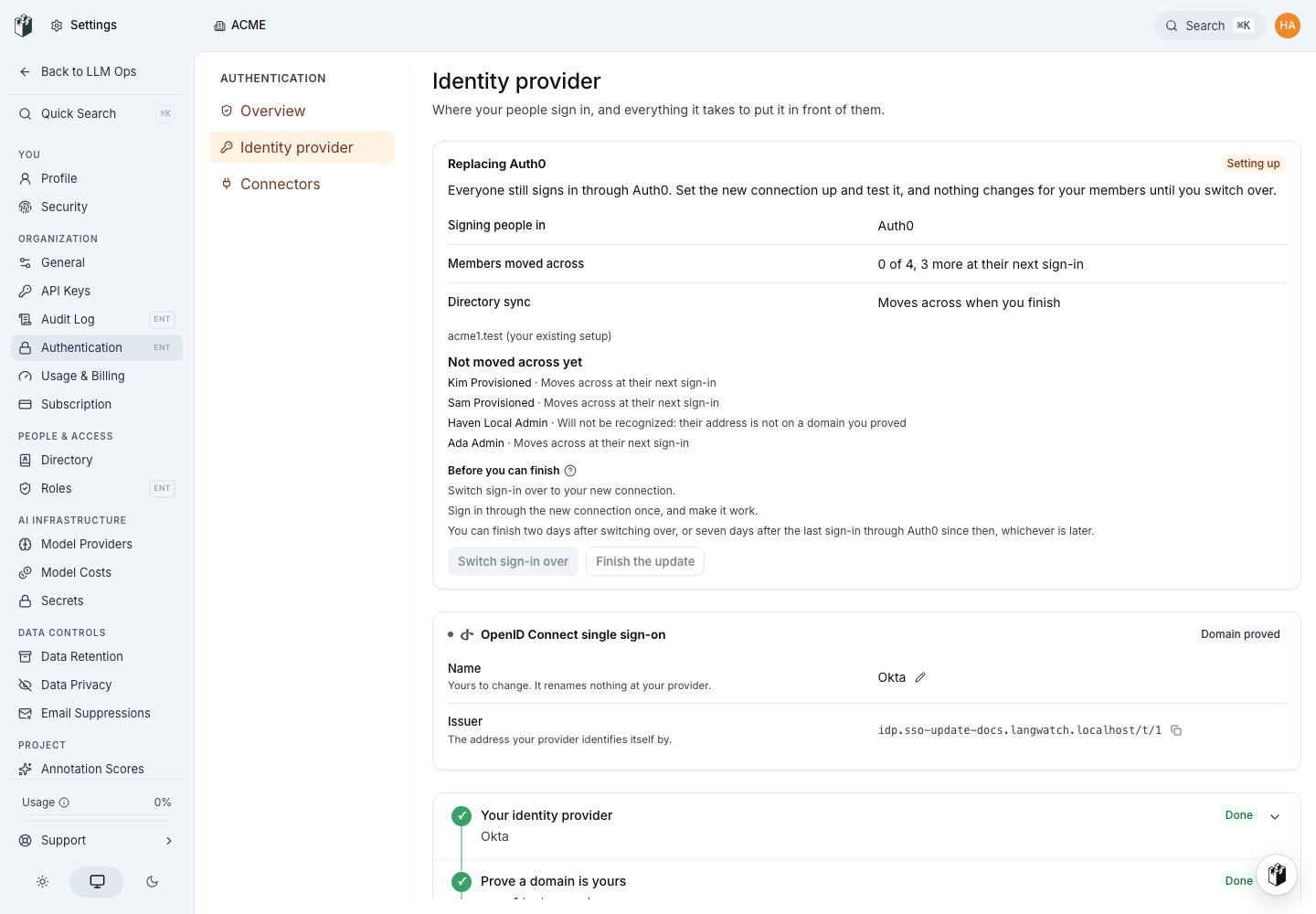
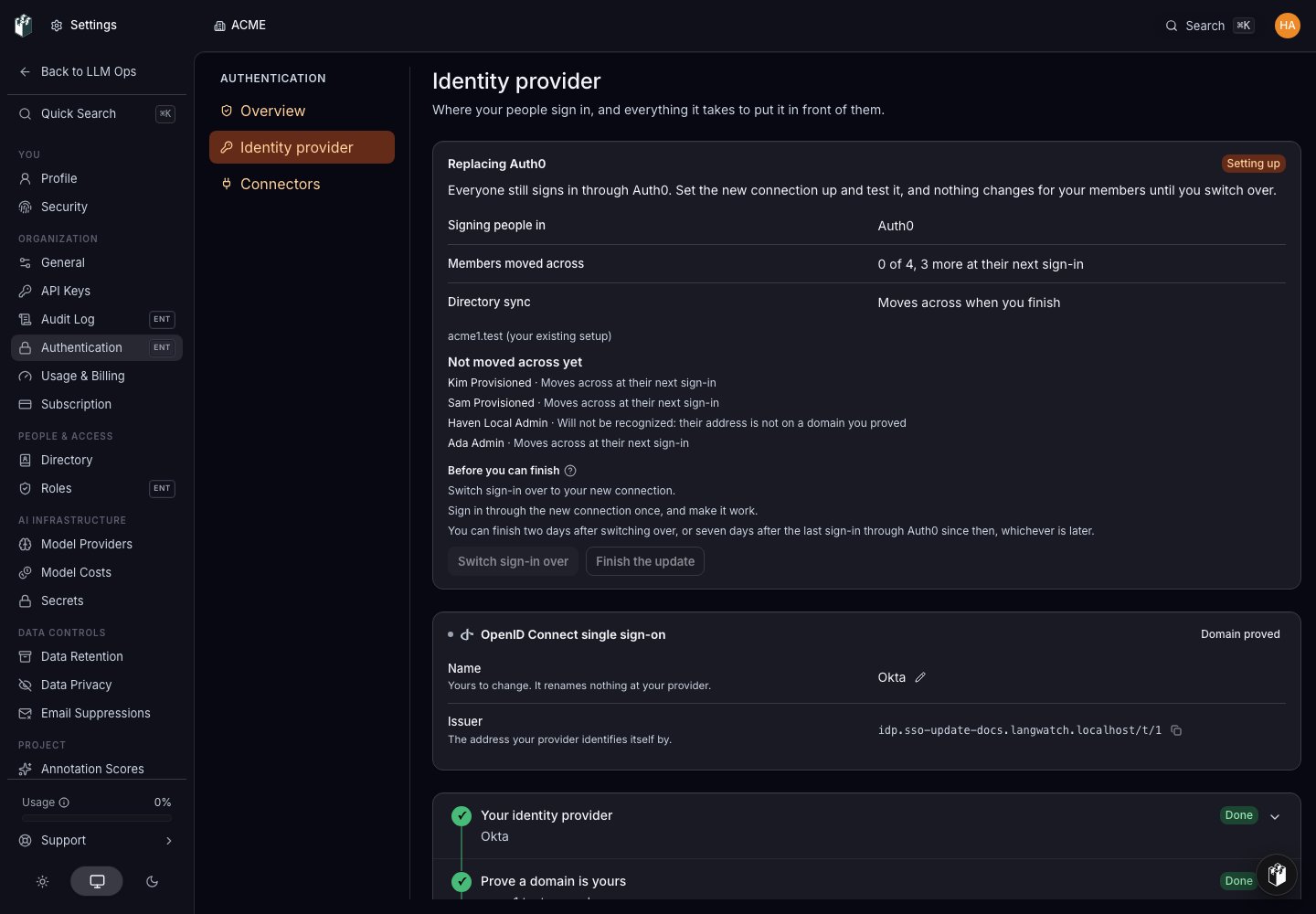 Work through the steps the same way as a first-time setup, described in
[Single sign-on and provisioning](/docs/platform/sso#set-up-the-identity-provider):
1. **Prove a domain is yours.** Add the domain your people sign in with and
complete the DNS or file check.
2. **Sign in through it once.** Complete a test sign-in through the new
connection. This replaces your current browser session on purpose; the
completion screen explains how to get back.
3. **Name someone who can still get in.** Choose the administrator who keeps a
password route if the provider is unavailable.
4. **Say who it lets in.** Choose the arrival policy for the new connection and
confirm it.
5. **Turn it on.** Select **Go live**. This makes the new connection available
to switch to. It does not move anybody yet.
Work through the steps the same way as a first-time setup, described in
[Single sign-on and provisioning](/docs/platform/sso#set-up-the-identity-provider):
1. **Prove a domain is yours.** Add the domain your people sign in with and
complete the DNS or file check.
2. **Sign in through it once.** Complete a test sign-in through the new
connection. This replaces your current browser session on purpose; the
completion screen explains how to get back.
3. **Name someone who can still get in.** Choose the administrator who keeps a
password route if the provider is unavailable.
4. **Say who it lets in.** Choose the arrival policy for the new connection and
confirm it.
5. **Turn it on.** Select **Go live**. This makes the new connection available
to switch to. It does not move anybody yet.
 ## 4. Switch sign-in over
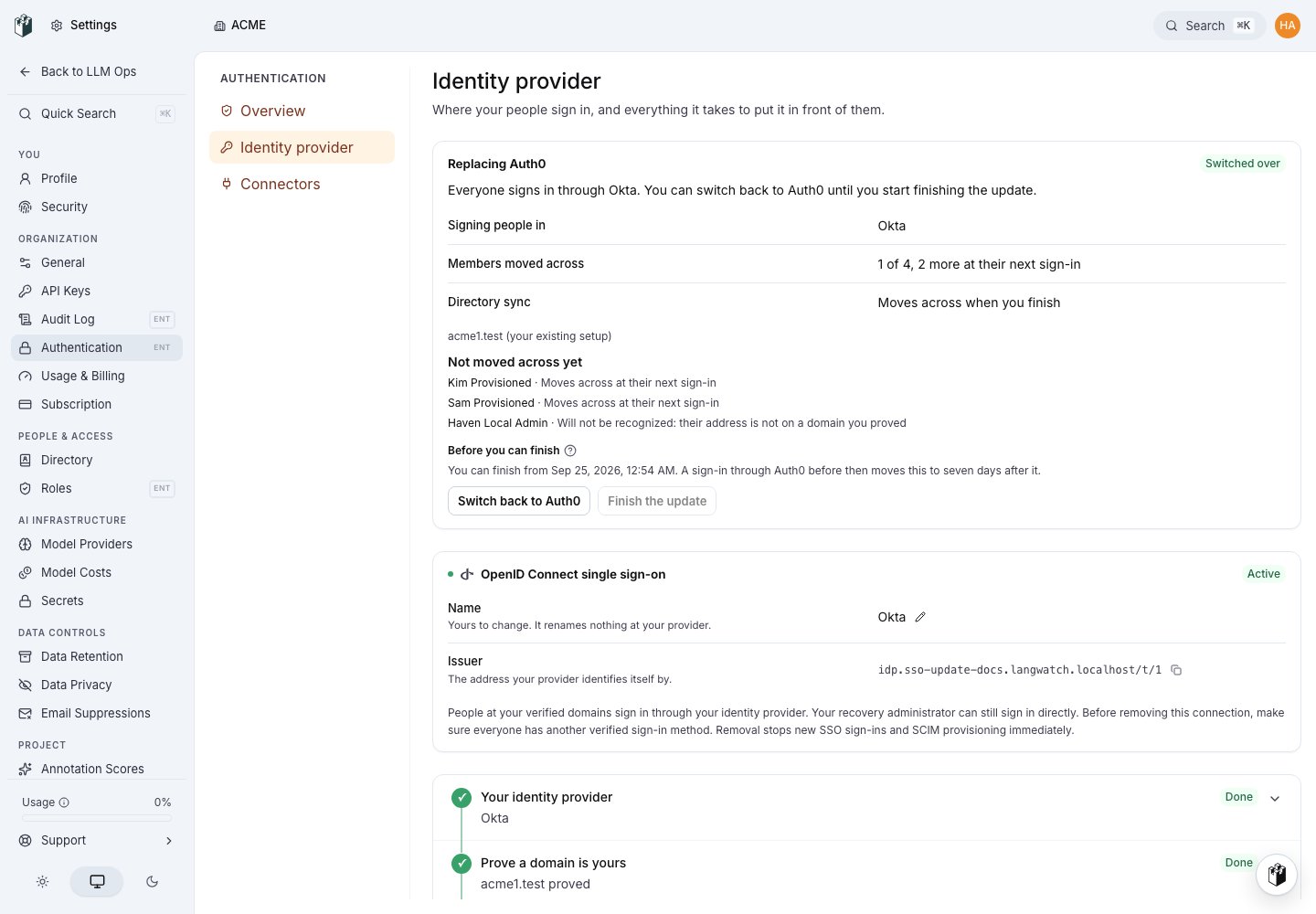
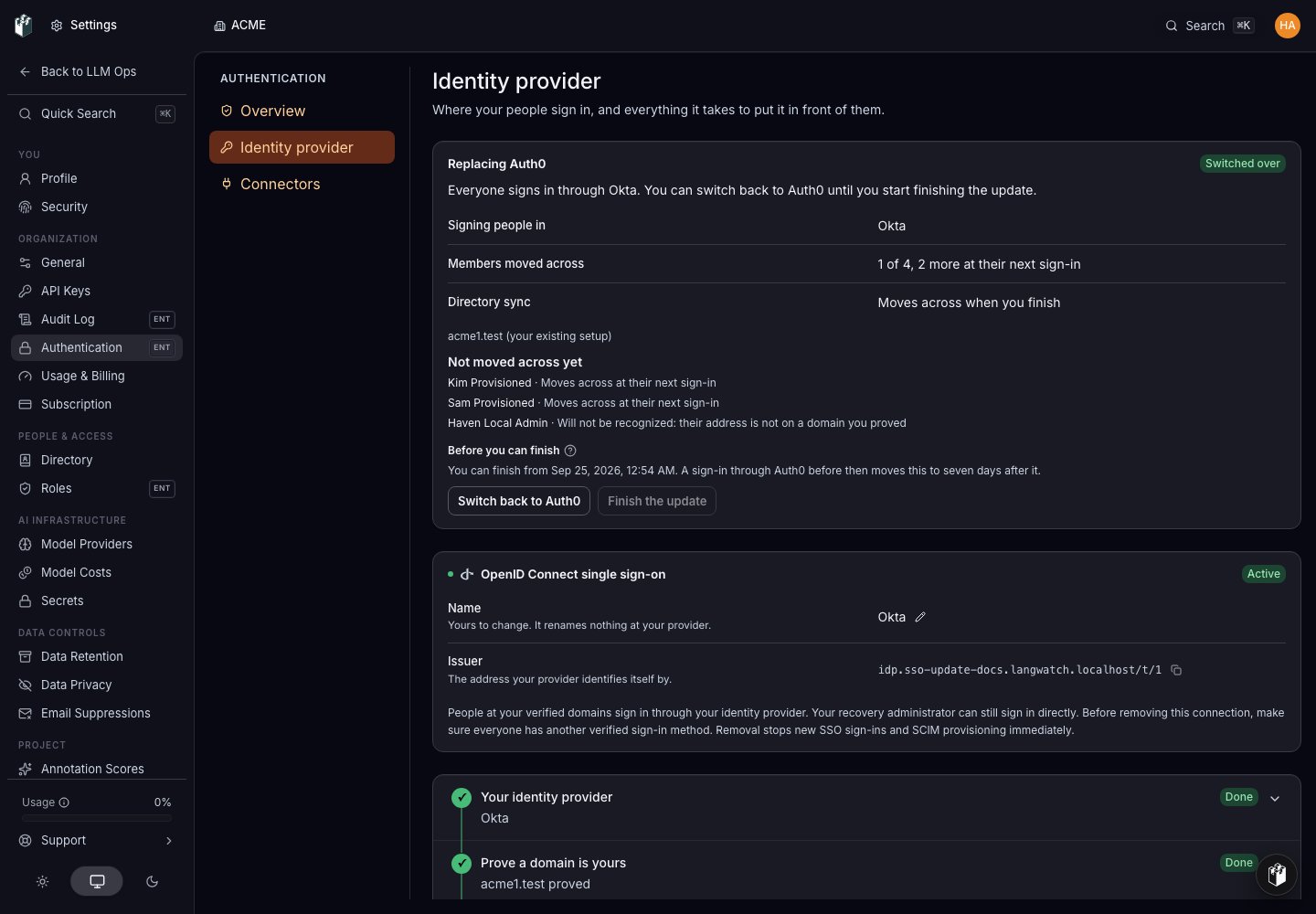
When the new connection is on and a test sign-in through it has worked, the
update offers **Switch sign-in over**. Select it. From that moment every
sign-in from your verified domains goes through your identity provider, and
the status reads **Switched over**.
## 4. Switch sign-in over
When the new connection is on and a test sign-in through it has worked, the
update offers **Switch sign-in over**. Select it. From that moment every
sign-in from your verified domains goes through your identity provider, and
the status reads **Switched over**.
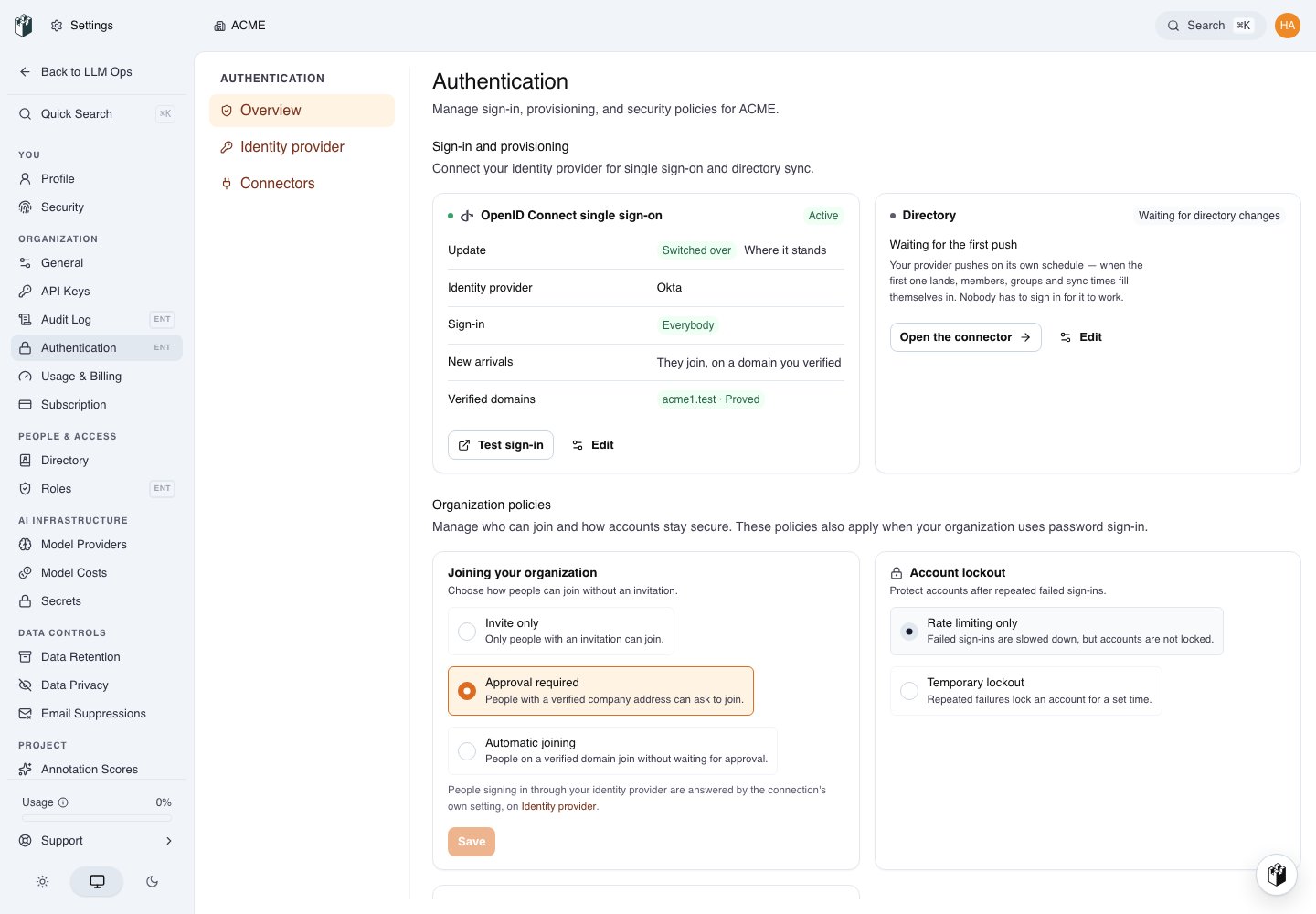
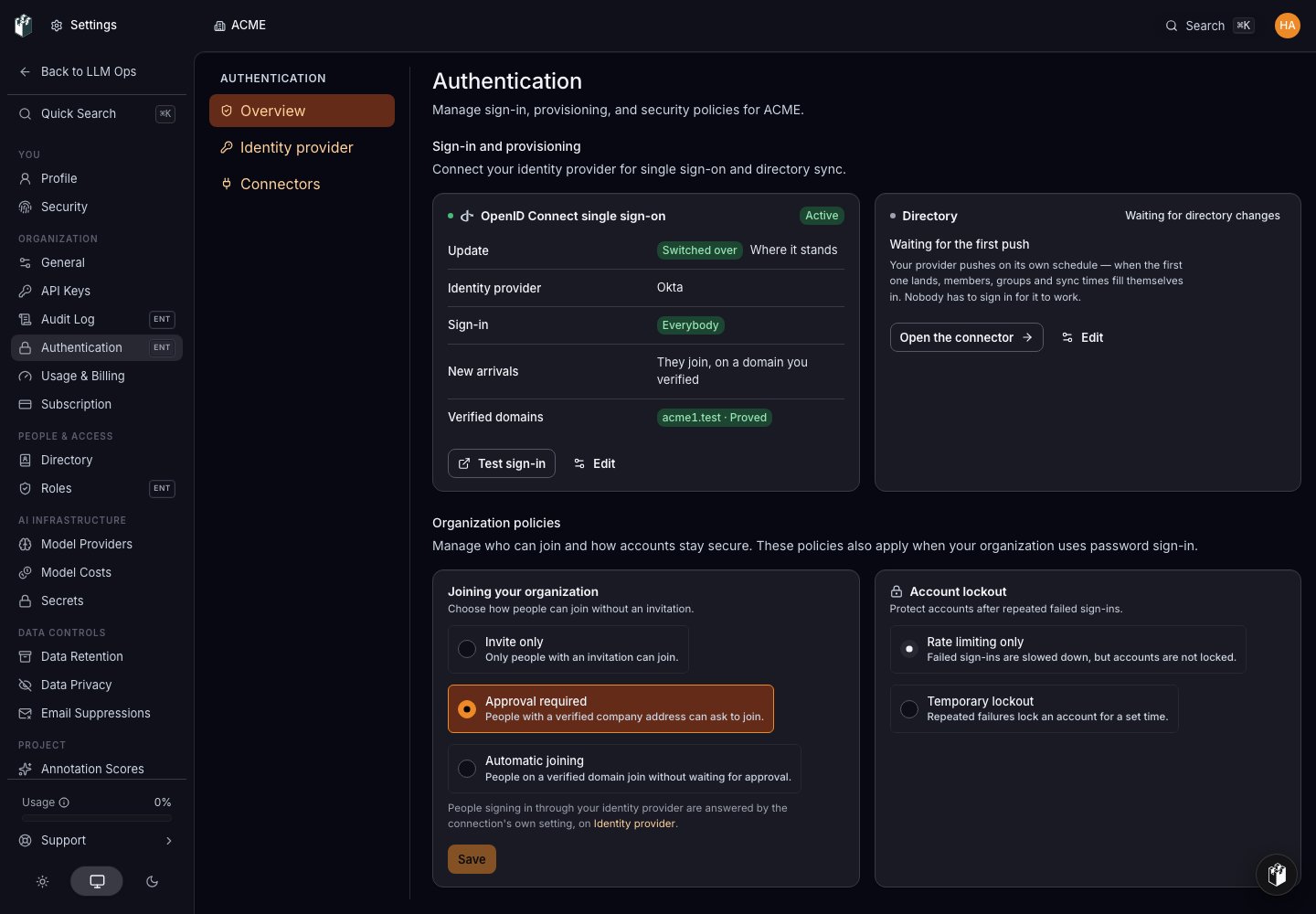
 The **Authentication** overview reflects the switch too: its single sign-on
card shows where the update stands and offers **Test sign-in** through the new
connection.
The **Authentication** overview reflects the switch too: its single sign-on
card shows where the update stands and offers **Test sign-in** through the new
connection.
 Members do not need to do anything, and you do not need to wait for them.
The next time each person signs in, they arrive through the new connection and
are matched to their existing account by their email address, on any domain
you proved, whether or not they ever confirmed that address. That works before
and after you finish, including for someone who only ever signed in through
the previous provider.
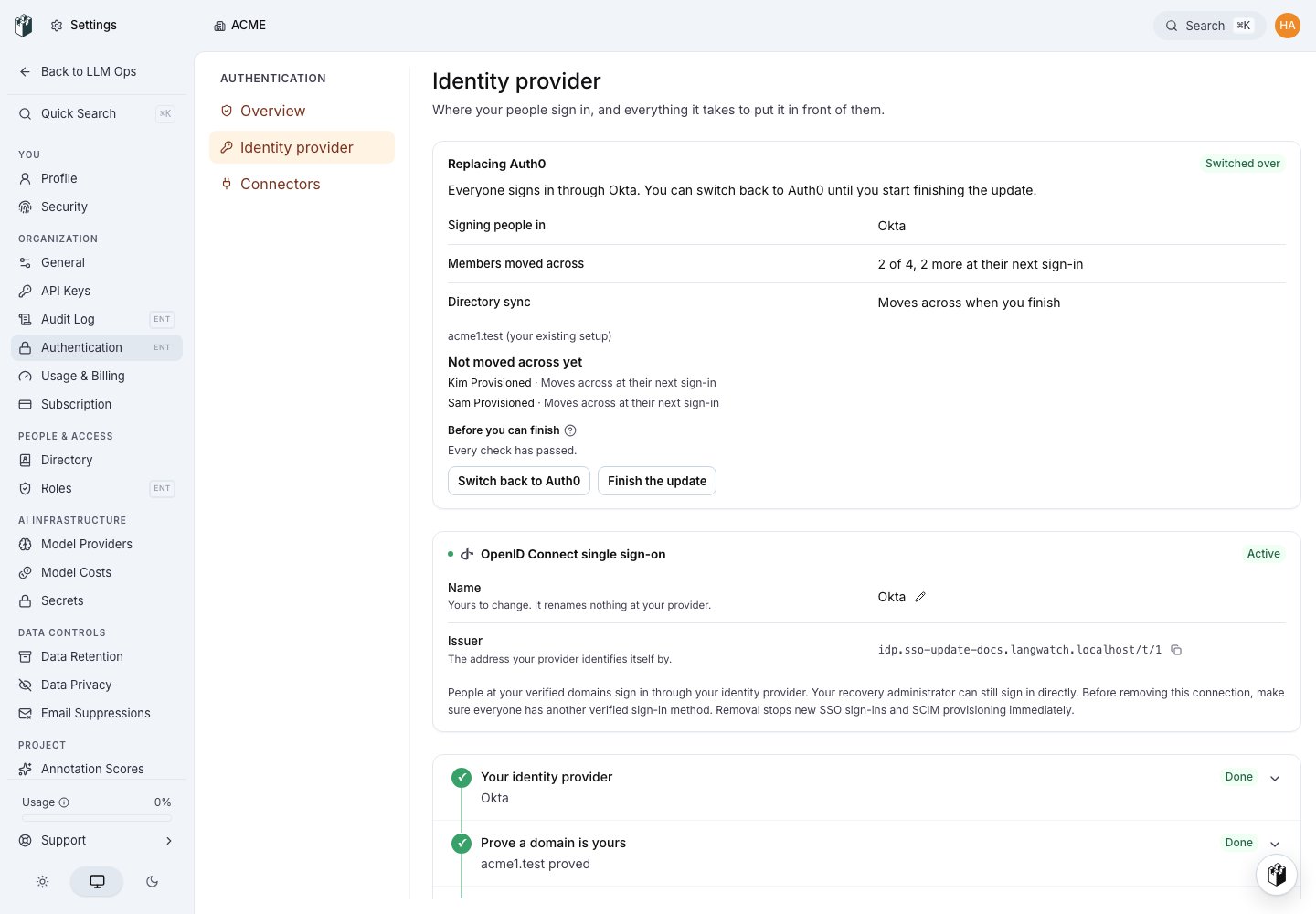
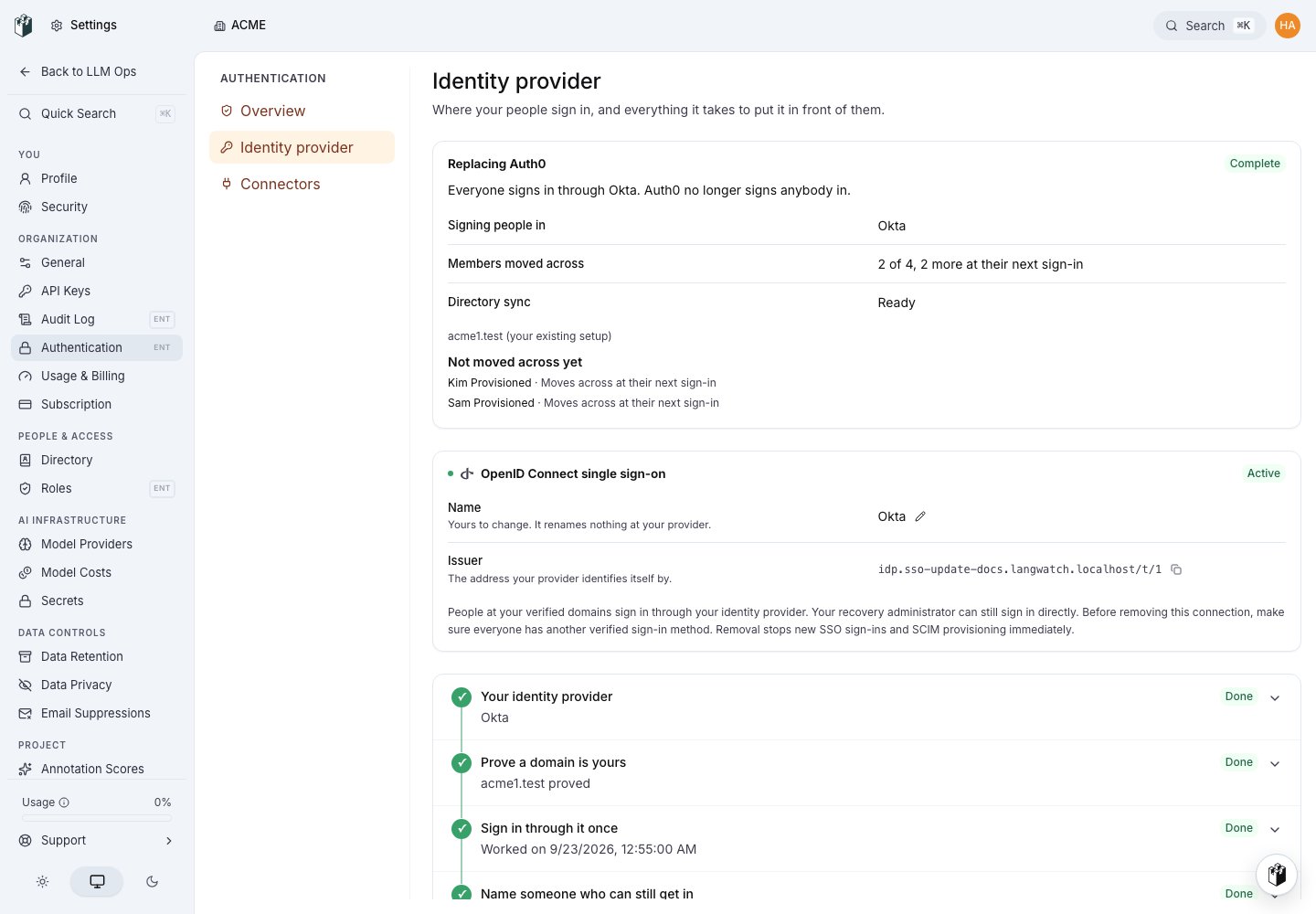
The **Members moved across** row counts who has signed in through the new connection, and how many
more will be moved across at their next sign-in.
Under **Not moved across yet**, each remaining member is listed with whether
the new connection will recognize them. None of these stops you finishing:
| Beside a member | What to do |
| ------------------------------------------------------------------- | ----------------------------------------------------------------------------------------------- |
| Moves across at their next sign-in | No action needed. |
| Will not be recognized: their account has no email address | Contact support if they still need access. |
| Will not be recognized: another account has the same address | Contact support if they still need access. |
| Will not be recognized: their address is not on a domain you proved | Prove that domain on the new connection, or they will need support to sign in after the update. |
If something is wrong, **Switch back to *your previous provider*** returns
everybody to it immediately. You can switch back and forth until you start
finishing.
## 5. Clear what is outstanding
Finishing the update is refused until every condition below is true. Under
**Before you can finish**, the page lists only the ones still outstanding,
each with what to do about it. Once they are all met it reads **Every check
has passed**.
Members do not need to do anything, and you do not need to wait for them.
The next time each person signs in, they arrive through the new connection and
are matched to their existing account by their email address, on any domain
you proved, whether or not they ever confirmed that address. That works before
and after you finish, including for someone who only ever signed in through
the previous provider.
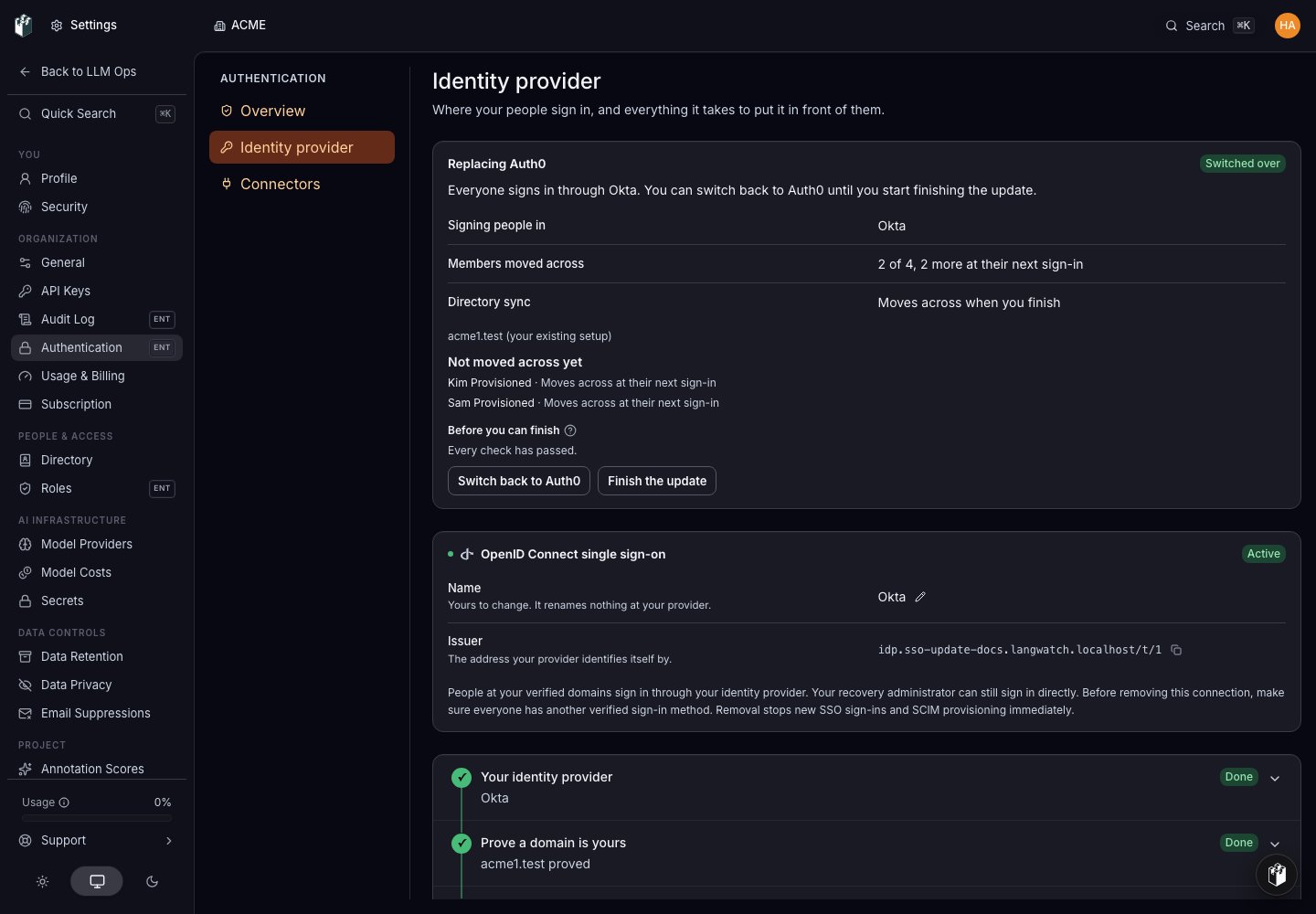
The **Members moved across** row counts who has signed in through the new connection, and how many
more will be moved across at their next sign-in.
Under **Not moved across yet**, each remaining member is listed with whether
the new connection will recognize them. None of these stops you finishing:
| Beside a member | What to do |
| ------------------------------------------------------------------- | ----------------------------------------------------------------------------------------------- |
| Moves across at their next sign-in | No action needed. |
| Will not be recognized: their account has no email address | Contact support if they still need access. |
| Will not be recognized: another account has the same address | Contact support if they still need access. |
| Will not be recognized: their address is not on a domain you proved | Prove that domain on the new connection, or they will need support to sign in after the update. |
If something is wrong, **Switch back to *your previous provider*** returns
everybody to it immediately. You can switch back and forth until you start
finishing.
## 5. Clear what is outstanding
Finishing the update is refused until every condition below is true. Under
**Before you can finish**, the page lists only the ones still outstanding,
each with what to do about it. Once they are all met it reads **Every check
has passed**.
 | Condition | What to do |
| --------------------------------------------------------------------------------------------------------------- | ----------------------------------------------------------------------------------------------------------------------------------------------------------------------------------------------------- |
| Your people sign in through the new connection | Switch sign-in over, as above. |
| A sign-in through the new connection has worked | Complete the test sign-in step, or sign in through it yourself once. |
| The new connection is on | Turn it on in the setup steps. |
| The new connection holds a current proof of your domain | Prove the domain again if the proof lapsed. |
| Somebody can still sign in without your identity provider, with a password set | Name a recovery administrator who has set a password. A password can only be set while somebody is still signed in, so do this before finishing. |
| Two days have passed since switching over, and seven since anybody last signed in through the previous provider | Wait. The page shows the time you can finish from. A sign-in through the previous provider after the switch moves that to seven days after the sign-in, and switching back starts the two days again. |
| No account is shared with another organization, and no account is covered by another organization's provider | Contact support. These are cases LangWatch cannot resolve safely on its own. |
### Directory sync
If your identity provider pushes people into LangWatch through SCIM today,
that sync was set up together with your sign-in, and you never held its token.
So the update does not ask you to touch it. The **Directory sync** row reads
**Moves across when you finish** while the update is in progress, and
**Ready** once it has finished.
Finishing moves the sync to the new connection: the token your identity
provider already presents keeps working, the people and groups it provisioned
stay provisioned, and the next push lands on the new connection. Nobody is
deprovisioned by the switch.
People the sync provisioned who have never signed in do not hold the update
either. The new connection recognizes them by their address like everyone
else, and the page lists each of them the same way it lists any other
member.
If you had already issued a token for the new connection yourself under
**Settings > Authentication > Connectors**, both tokens work after finishing.
You can revoke the one you no longer use there.
## 6. Finish the update
When every check has passed, select **Finish the update**. The status reads
**Finishing** while access through the previous provider is taken away, then
**Complete**: your new connection is the only way your people sign in.
| Condition | What to do |
| --------------------------------------------------------------------------------------------------------------- | ----------------------------------------------------------------------------------------------------------------------------------------------------------------------------------------------------- |
| Your people sign in through the new connection | Switch sign-in over, as above. |
| A sign-in through the new connection has worked | Complete the test sign-in step, or sign in through it yourself once. |
| The new connection is on | Turn it on in the setup steps. |
| The new connection holds a current proof of your domain | Prove the domain again if the proof lapsed. |
| Somebody can still sign in without your identity provider, with a password set | Name a recovery administrator who has set a password. A password can only be set while somebody is still signed in, so do this before finishing. |
| Two days have passed since switching over, and seven since anybody last signed in through the previous provider | Wait. The page shows the time you can finish from. A sign-in through the previous provider after the switch moves that to seven days after the sign-in, and switching back starts the two days again. |
| No account is shared with another organization, and no account is covered by another organization's provider | Contact support. These are cases LangWatch cannot resolve safely on its own. |
### Directory sync
If your identity provider pushes people into LangWatch through SCIM today,
that sync was set up together with your sign-in, and you never held its token.
So the update does not ask you to touch it. The **Directory sync** row reads
**Moves across when you finish** while the update is in progress, and
**Ready** once it has finished.
Finishing moves the sync to the new connection: the token your identity
provider already presents keeps working, the people and groups it provisioned
stay provisioned, and the next push lands on the new connection. Nobody is
deprovisioned by the switch.
People the sync provisioned who have never signed in do not hold the update
either. The new connection recognizes them by their address like everyone
else, and the page lists each of them the same way it lists any other
member.
If you had already issued a token for the new connection yourself under
**Settings > Authentication > Connectors**, both tokens work after finishing.
You can revoke the one you no longer use there.
## 6. Finish the update
When every check has passed, select **Finish the update**. The status reads
**Finishing** while access through the previous provider is taken away, then
**Complete**: your new connection is the only way your people sign in.
 Finishing is not reversible. Switching back is no longer offered once it
starts. If a check fails part-way, the page says which one and offers **Try
finishing again**.
After it completes you can remove the LangWatch application from your previous
identity provider's console if one existed there. Keep the recovery
administrator's password route available; it remains the way back in if your
provider is ever unavailable.
## If you get stuck
* **You see the status but no form.** You hold `sso:view` but not `sso:manage`.
Ask an organization administrator to do the update.
* **Registering is refused because of the plan.** The organization is not on
an Enterprise plan. Contact us to change plan.
* **A member is asked to sign in through single sign-on and cannot.** Until the
update finishes they can still sign in the way they did before. Once it has
finished, they sign in through your identity provider; if they have been
removed from it, they need to be added there first.
* **Finishing is refused for a reason you cannot resolve.** Shared accounts and
accounts covered by another organization's provider need a hand from us.
Contact support with your organization name.
Finishing is not reversible. Switching back is no longer offered once it
starts. If a check fails part-way, the page says which one and offers **Try
finishing again**.
After it completes you can remove the LangWatch application from your previous
identity provider's console if one existed there. Keep the recovery
administrator's password route available; it remains the way back in if your
provider is ever unavailable.
## If you get stuck
* **You see the status but no form.** You hold `sso:view` but not `sso:manage`.
Ask an organization administrator to do the update.
* **Registering is refused because of the plan.** The organization is not on
an Enterprise plan. Contact us to change plan.
* **A member is asked to sign in through single sign-on and cannot.** Until the
update finishes they can still sign in the way they did before. Once it has
finished, they sign in through your identity provider; if they have been
removed from it, they need to be added there first.
* **Finishing is refused for a reason you cannot resolve.** Shared accounts and
accounts covered by another organization's provider need a hand from us.
Contact support with your organization name.