> ## Documentation Index
> Fetch the complete documentation index at: https://langwatch.ai/docs/llms.txt
> Use this file to discover all available pages before exploring further.
> ## Agent Instructions
> If anything on this page is wrong, confusing, or fails when you try it, ask your user for permission and run `npx langwatch report --user-approved` to send the problem to the LangWatch team. No login is needed and secrets are redacted locally. `npx langwatch report --help` has the details.
# Single sign-on and provisioning
> Set up your identity provider, directory provisioning and sign-in policies in LangWatch.
Single sign-on and SCIM provisioning are Enterprise features. A self-hosted
deployment also needs an Enterprise license. See [SSO configuration](/docs/self-hosting/configuration/sso)
for environment variables and provider settings.
Use **Settings > Authentication** to manage how people sign in and how they
arrive in your organization. The page has an overview, an **Identity provider**
journey and **Connectors** for SCIM provisioning.
## Before you start
You need `sso:manage` to set up or change an identity provider. A person with
`sso:view` can read the provider and provisioning status. You need
`organization:manage` to manage members, groups and organization policies.
Your identity provider must support OpenID Connect or direct SAML, or be one of
the providers listed in the [self-hosted provider
configuration](/docs/self-hosting/configuration/sso). You can prepare one provider
for an organization. Keep a separate way back in for administrators before you
turn it on.
## Set up the identity provider
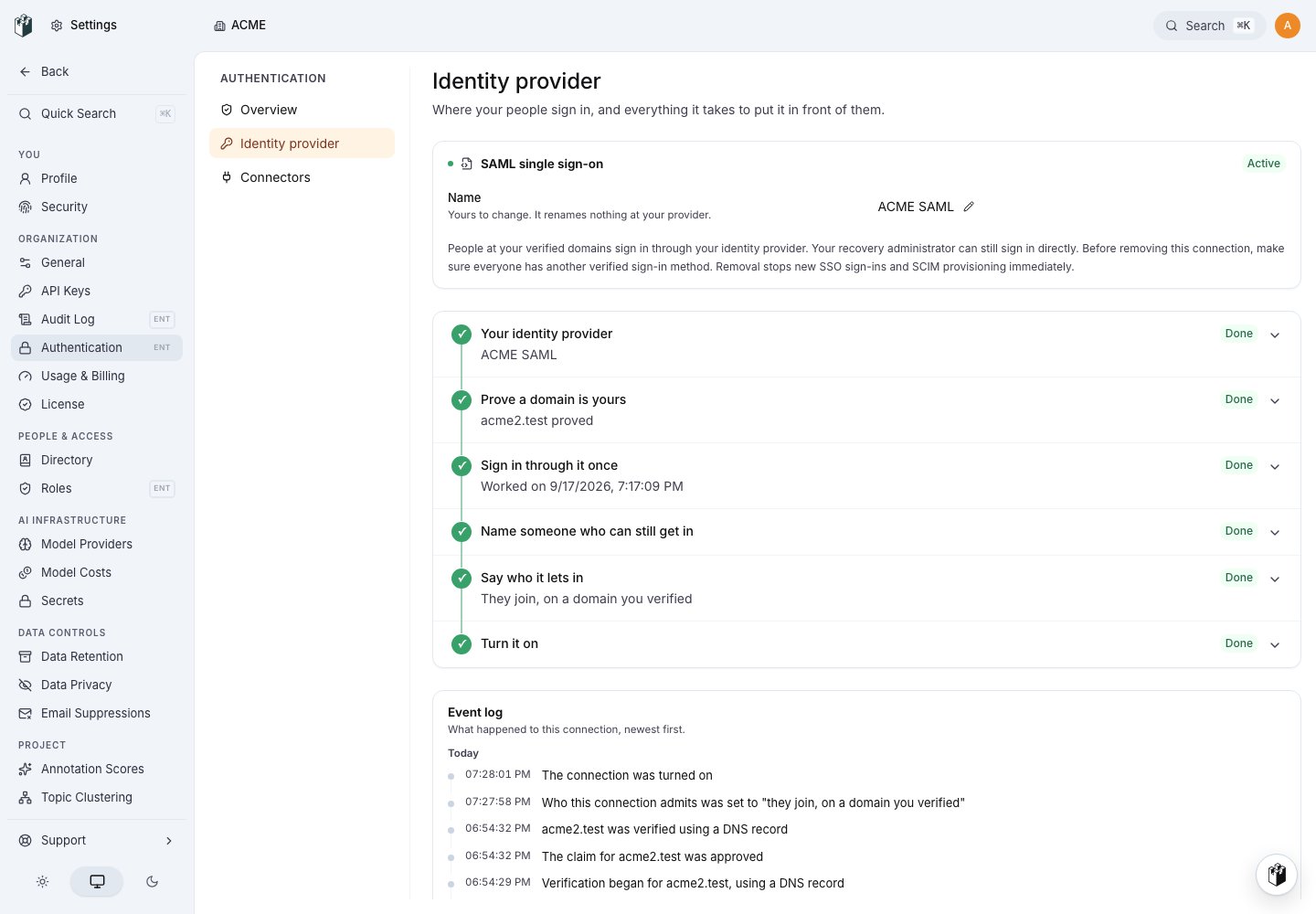
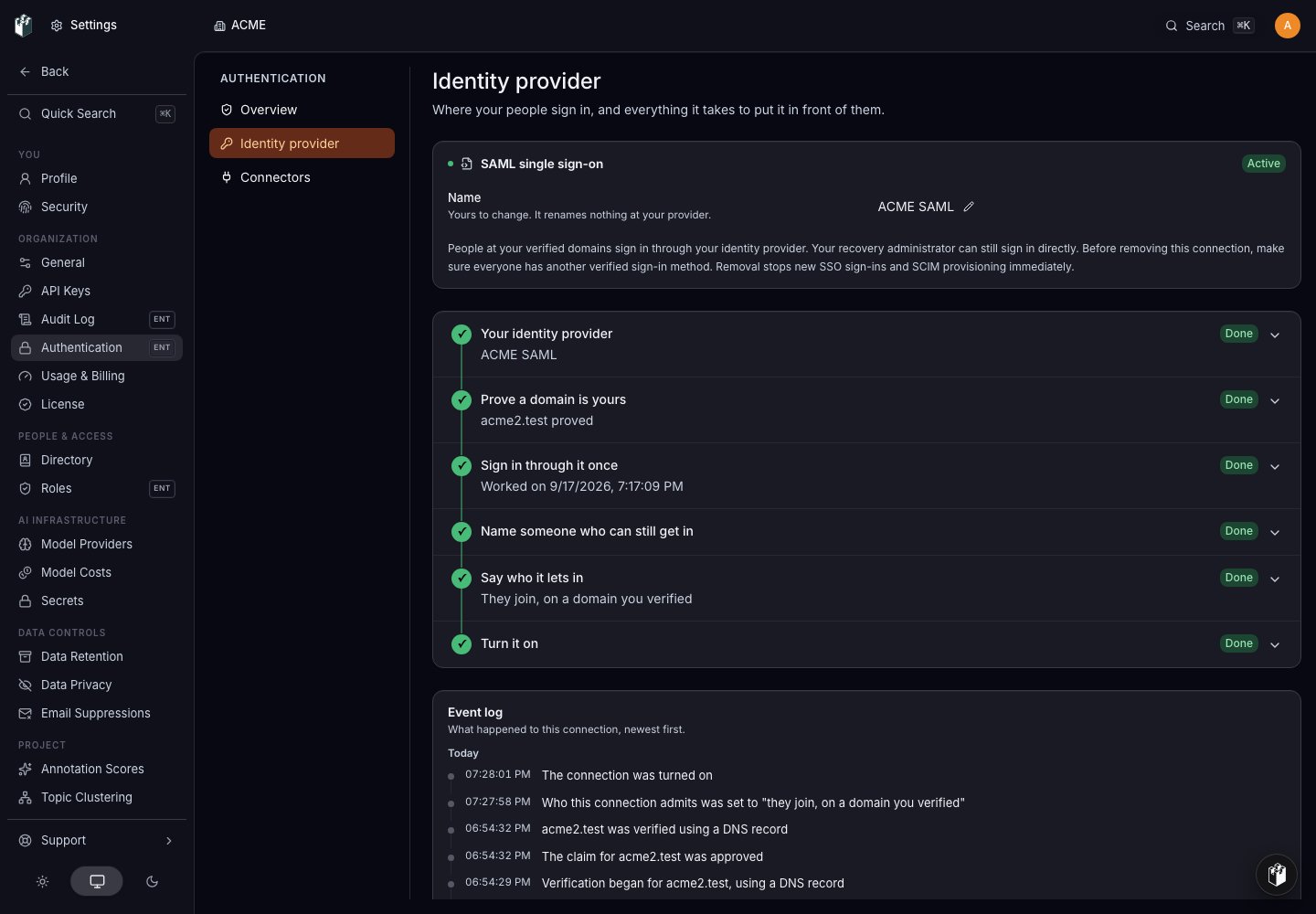
1. Open **Settings > Authentication > Identity provider**.
2. Choose your provider and enter its client details. LangWatch creates a
connection for this organization.
3. In **Prove a domain is yours**, add each domain that should be allowed to
use this connection. Complete the DNS or file check shown by LangWatch.
4. In **Sign in through it once**, complete a test sign-in with the email of
the administrator who registered the connection. This verifies the callback
and account details before anybody else is routed there. During setup,
LangWatch accepts this original registrant as the test account; later
sign-ins follow the arrival policy you choose below.
5. In **Name someone who can still get in**, choose an administrator who can
use the local sign-in route if the provider is unavailable.
6. In **Say who it lets in**, choose the arrival policy for this connection:
refuse unlisted people, ask an administrator to approve them, or admit
people who match the verified domains. Select **Confirm choice**.
7. Select **Go live** when the setup checks are complete.
The connection stays in its current setup state when you leave the page. A
connection that is not active does not route sign-ins yet. An active connection
routes people who match its verified domains; the local way back in remains
available to the person you named.
 To change the provider, open the same page and prepare a replacement. Read the
state shown on the page before removing the old connection. The removal action
explains whether the connection is still being prepared, active or already
being removed.
## Disable or remove a connection
Suspending an active connection stops it from routing sign-ins immediately and
can be resumed by a LangWatch staff operator. A recovery administrator can
still use local sign-in, but cannot resume the connection themselves. Suspension
leaves that connection's SCIM directory writes available.
Removing a live
connection also stops routing immediately, then schedules final teardown after
the grace period shown in the page. The removal is refused while a person would
be left without another verified sign-in method. The removal page offers no
cancel action while teardown is pending.
Arrange and verify alternate sign-in
methods before you remove the connection. A suspended connection has already
stopped routing, so removing it does not need a routing grace period.
Connection removal does not sign out existing browser sessions or deprovision
people. While teardown is pending, SCIM requests through that connection are
refused immediately even though its token rows remain until final teardown.
Teardown then revokes the SCIM tokens issued for that connection; tokens for
other connections are unchanged.
To end a person's sessions and organization access through your directory, use
SCIM `DELETE` or `PATCH active: false`. Those operations revoke the person's
browser sessions and CLI tokens, remove organization membership and role
bindings, and keep their LangWatch data.
In **Directory**, **Disable** is reversible: it refuses the person's requests,
preserves their role and bindings, and frees their seat. **Remove from
organization** ends membership and access.
Reactivating through a later directory push does not restore access that was
assigned by hand; the new push must assert membership and mapped access again.
The recovery administrator you named during setup keeps the local sign-in route
while the connection is active. Organization policies, password rate limits
and lockout rules continue to apply to that route. Keep that recovery path
available before suspending or removing the provider.
## Provision people with SCIM
Open **Settings > Authentication > Connectors**. This page shows directory
sync status, the people the connectors manage and the provisioning address.
1. Copy the provisioning address ending in `/api/scim/v2`.
2. Choose **Issue token**, select the identity provider connection and give the
token a description.
3. Copy the token when it is shown. LangWatch cannot show it again.
4. Paste the address and token into your identity provider's SCIM settings.
Each token belongs to one connection. It can create, update and remove the
people that connection provisioned, and can take on a member that no connector
has claimed yet. It cannot manage people owned by another connection. Revoke a
token from the **Provisioning tokens** table when that integration should stop.
SCIM creates an organization Member. Use **Settings > Directory > People** to
give the person a different organization role or direct access. Use
**Settings > Directory > Groups** to assign access through a group. A SCIM
`PATCH` with `active: false` deactivates the account, removes its organization
membership and role bindings, and revokes browser sessions and CLI tokens. A
SCIM `DELETE` has the same access and session effects while keeping the
person's data.
`active: true` or a later directory create can restore the
account, but it does not restore access that was assigned by hand; the
directory must assert membership and mapped access again.
See [SCIM provisioning](/docs/platform/scim) for the endpoint contract and
[SCIM groups](/docs/platform/scim-groups) for group membership and role mapping.
## Set organization policies
The **Organization policies** section on the Authentication overview applies
to the organization independently of whether single sign-on is active. These
controls govern people who use the local password route as well as the general
organization admission rules.
To change the provider, open the same page and prepare a replacement. Read the
state shown on the page before removing the old connection. The removal action
explains whether the connection is still being prepared, active or already
being removed.
## Disable or remove a connection
Suspending an active connection stops it from routing sign-ins immediately and
can be resumed by a LangWatch staff operator. A recovery administrator can
still use local sign-in, but cannot resume the connection themselves. Suspension
leaves that connection's SCIM directory writes available.
Removing a live
connection also stops routing immediately, then schedules final teardown after
the grace period shown in the page. The removal is refused while a person would
be left without another verified sign-in method. The removal page offers no
cancel action while teardown is pending.
Arrange and verify alternate sign-in
methods before you remove the connection. A suspended connection has already
stopped routing, so removing it does not need a routing grace period.
Connection removal does not sign out existing browser sessions or deprovision
people. While teardown is pending, SCIM requests through that connection are
refused immediately even though its token rows remain until final teardown.
Teardown then revokes the SCIM tokens issued for that connection; tokens for
other connections are unchanged.
To end a person's sessions and organization access through your directory, use
SCIM `DELETE` or `PATCH active: false`. Those operations revoke the person's
browser sessions and CLI tokens, remove organization membership and role
bindings, and keep their LangWatch data.
In **Directory**, **Disable** is reversible: it refuses the person's requests,
preserves their role and bindings, and frees their seat. **Remove from
organization** ends membership and access.
Reactivating through a later directory push does not restore access that was
assigned by hand; the new push must assert membership and mapped access again.
The recovery administrator you named during setup keeps the local sign-in route
while the connection is active. Organization policies, password rate limits
and lockout rules continue to apply to that route. Keep that recovery path
available before suspending or removing the provider.
## Provision people with SCIM
Open **Settings > Authentication > Connectors**. This page shows directory
sync status, the people the connectors manage and the provisioning address.
1. Copy the provisioning address ending in `/api/scim/v2`.
2. Choose **Issue token**, select the identity provider connection and give the
token a description.
3. Copy the token when it is shown. LangWatch cannot show it again.
4. Paste the address and token into your identity provider's SCIM settings.
Each token belongs to one connection. It can create, update and remove the
people that connection provisioned, and can take on a member that no connector
has claimed yet. It cannot manage people owned by another connection. Revoke a
token from the **Provisioning tokens** table when that integration should stop.
SCIM creates an organization Member. Use **Settings > Directory > People** to
give the person a different organization role or direct access. Use
**Settings > Directory > Groups** to assign access through a group. A SCIM
`PATCH` with `active: false` deactivates the account, removes its organization
membership and role bindings, and revokes browser sessions and CLI tokens. A
SCIM `DELETE` has the same access and session effects while keeping the
person's data.
`active: true` or a later directory create can restore the
account, but it does not restore access that was assigned by hand; the
directory must assert membership and mapped access again.
See [SCIM provisioning](/docs/platform/scim) for the endpoint contract and
[SCIM groups](/docs/platform/scim-groups) for group membership and role mapping.
## Set organization policies
The **Organization policies** section on the Authentication overview applies
to the organization independently of whether single sign-on is active. These
controls govern people who use the local password route as well as the general
organization admission rules.
 ### Joining your organization
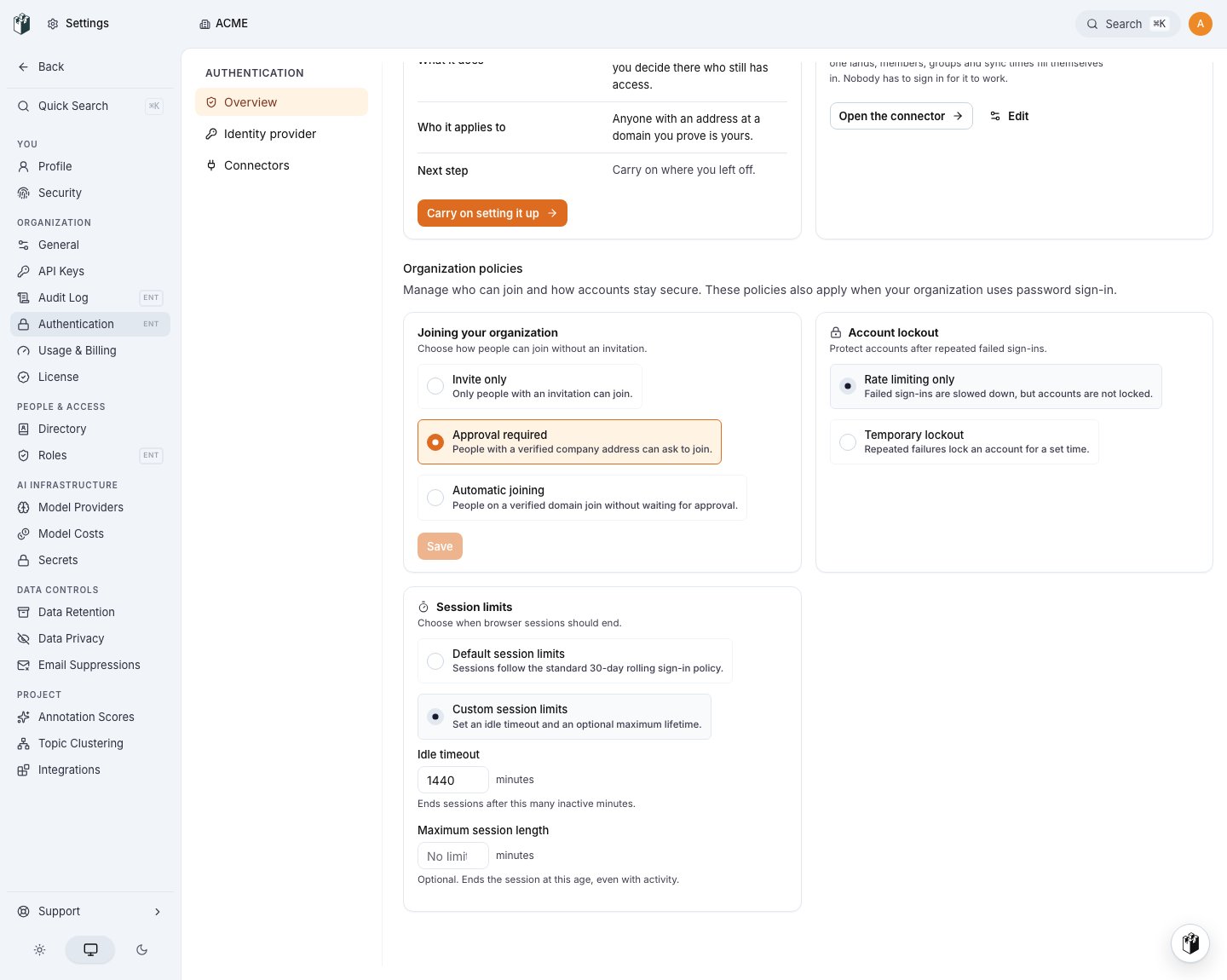
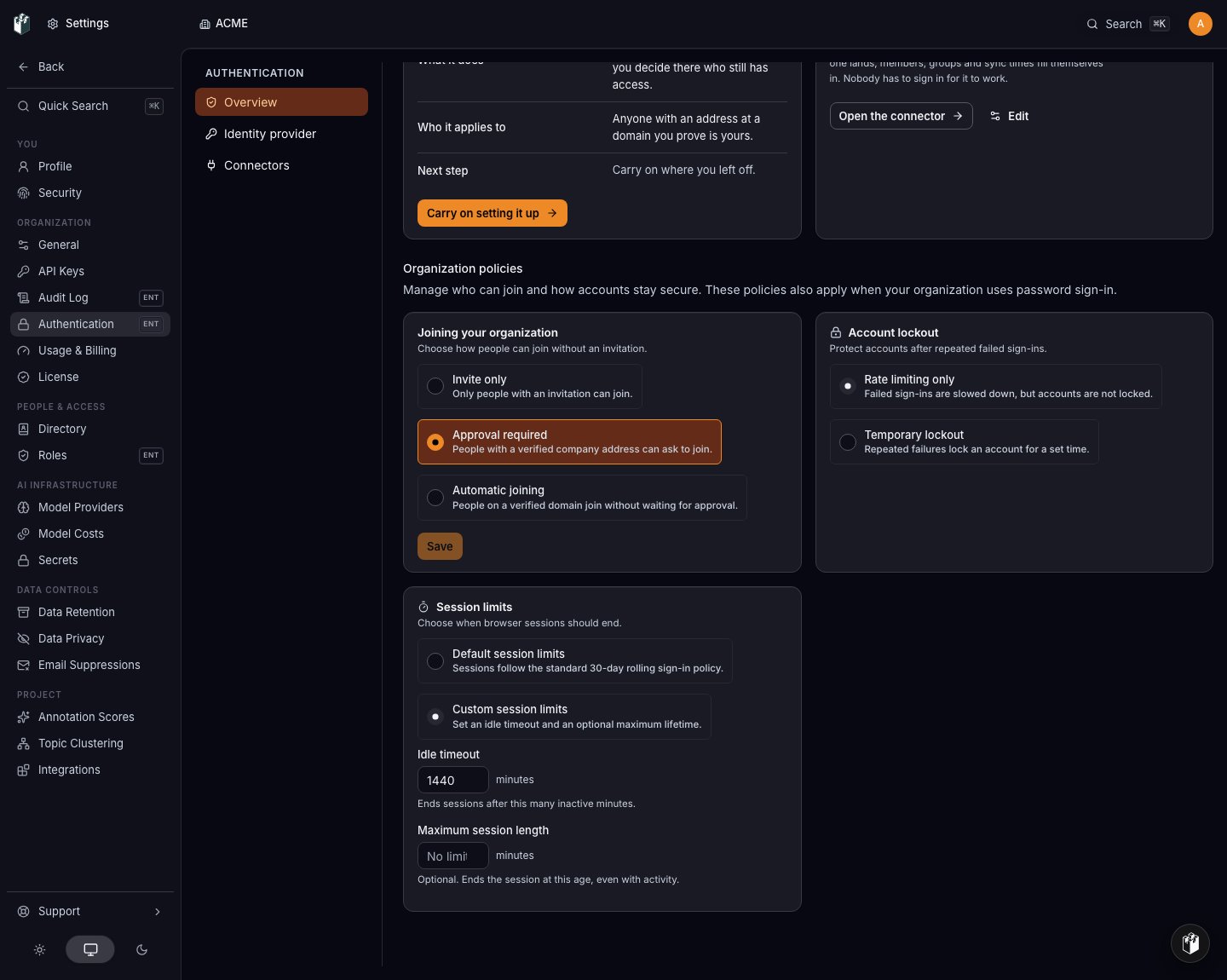
Choose one option in the **Joining your organization** card:
| Option | What happens |
| --------------------- | ------------------------------------------------------------------------------------------------------------------------------------- |
| **Invite only** | Only people with an invitation can join. |
| **Approval required** | A person with a verified company address can ask to join. An administrator approves or rejects the request in **Directory > People**. |
| **Automatic joining** | A person on a domain verified by your organization joins without approval. |
### Account lockout
**Rate limiting only** slows repeated failed sign-ins without locking the
account. **Temporary lockout** locks the account after the configured number of
failed attempts and allows new sign-ins again after the configured minutes.
Existing sessions are not signed out by an account lockout.
### Session limits
**Default session limits** uses LangWatch's standard 30-day rolling sign-in
policy. **Custom session limits** lets you set an idle timeout and an optional
maximum lifetime, both in minutes. Activity extends the idle window; the
maximum lifetime still ends the session. Saving a new limit signs out sessions
that are already past it.
## Find the right page
| You want to... | Open |
| ------------------------------------------------------ | -------------------------------------------------------------------------------- |
| Set up or replace the identity provider | **Settings > Authentication > Identity provider** |
| Check directory sync or issue a provisioning token | **Settings > Authentication > Connectors** |
| Change who can join, account lockout or session limits | **Settings > Authentication > Overview > Organization policies** |
| Edit a person, team or project assignment | **Settings > Directory > People** or **Settings > Directory > Teams & projects** |
| Define roles or review assignments | **Settings > Roles > Roles** or **Settings > Roles > Role assignments** |
### Joining your organization
Choose one option in the **Joining your organization** card:
| Option | What happens |
| --------------------- | ------------------------------------------------------------------------------------------------------------------------------------- |
| **Invite only** | Only people with an invitation can join. |
| **Approval required** | A person with a verified company address can ask to join. An administrator approves or rejects the request in **Directory > People**. |
| **Automatic joining** | A person on a domain verified by your organization joins without approval. |
### Account lockout
**Rate limiting only** slows repeated failed sign-ins without locking the
account. **Temporary lockout** locks the account after the configured number of
failed attempts and allows new sign-ins again after the configured minutes.
Existing sessions are not signed out by an account lockout.
### Session limits
**Default session limits** uses LangWatch's standard 30-day rolling sign-in
policy. **Custom session limits** lets you set an idle timeout and an optional
maximum lifetime, both in minutes. Activity extends the idle window; the
maximum lifetime still ends the session. Saving a new limit signs out sessions
that are already past it.
## Find the right page
| You want to... | Open |
| ------------------------------------------------------ | -------------------------------------------------------------------------------- |
| Set up or replace the identity provider | **Settings > Authentication > Identity provider** |
| Check directory sync or issue a provisioning token | **Settings > Authentication > Connectors** |
| Change who can join, account lockout or session limits | **Settings > Authentication > Overview > Organization policies** |
| Edit a person, team or project assignment | **Settings > Directory > People** or **Settings > Directory > Teams & projects** |
| Define roles or review assignments | **Settings > Roles > Roles** or **Settings > Roles > Role assignments** |