> ## Documentation Index
> Fetch the complete documentation index at: https://langwatch.ai/docs/llms.txt
> Use this file to discover all available pages before exploring further.
> ## Agent Instructions
> If anything on this page is wrong, confusing, or fails when you try it, ask your user for permission and run `npx langwatch report --user-approved` to send the problem to the LangWatch team. No login is needed and secrets are redacted locally. `npx langwatch report --help` has the details.
# Use Prompts in Workflows
> Pick a prompt from the prompt library in an LLM node of a workflow, edit it in the same drawer, and save the result as a new prompt version.
## Pick a prompt for an LLM node
Drag **Prompt** from the **Components** panel onto the canvas. The **Choose Prompt** drawer lists the prompts of the project. Pick one, or click **New Prompt** to start from an empty prompt. The node on the canvas is named after the prompt.
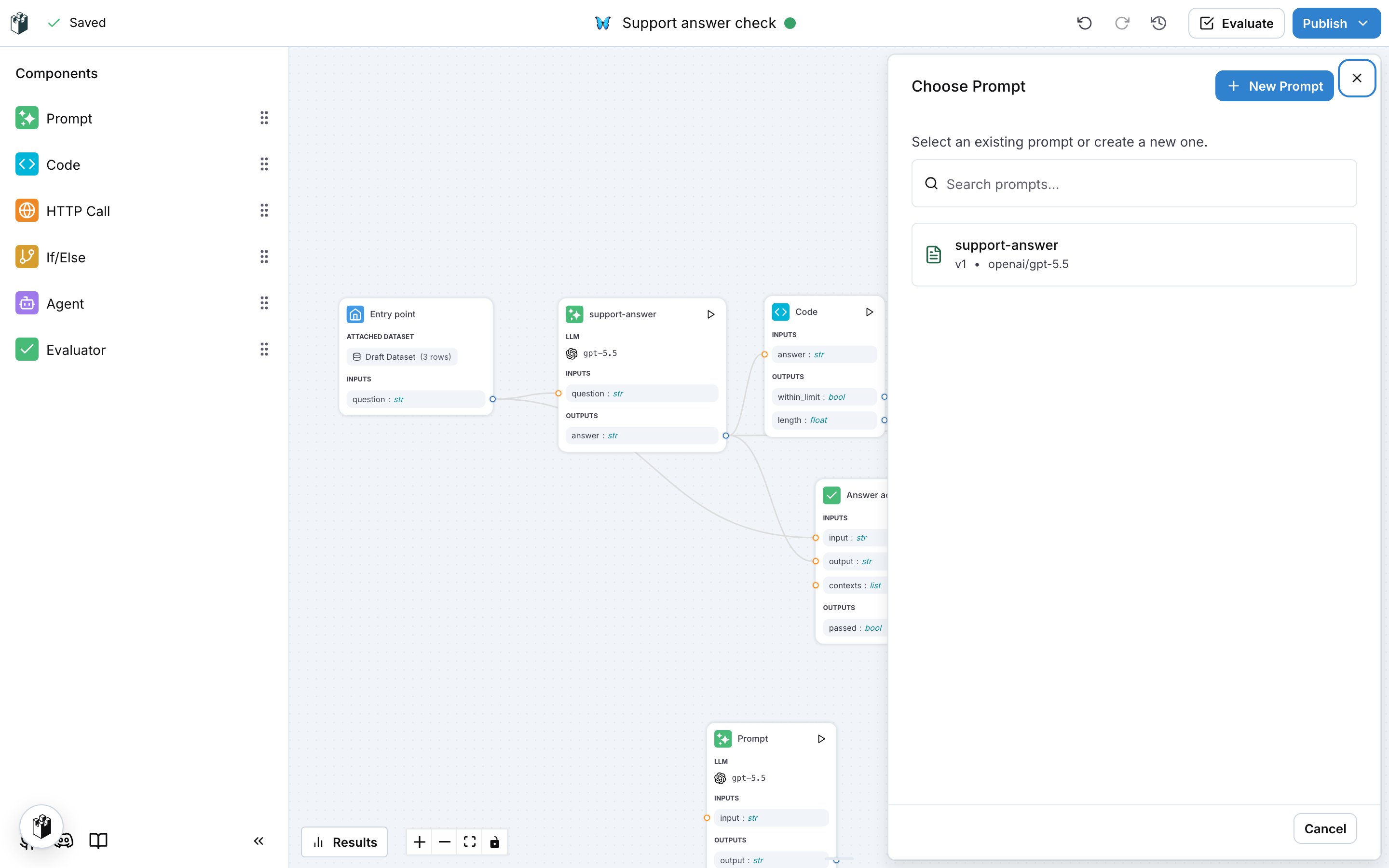 Click the node to open the prompt in the drawer. It is the same editor as the prompt page: the model, the system prompt, the messages, the variables and the outputs.
## Apply or save
The drawer has two ways to keep a change:
| Button | Effect |
| --------- | ---------------------------------------------------------------------------------------------------------------------------------------------------------------------------------- |
| **Apply** | Keeps the change on this node only. The prompt in the library does not change. An orange dot on the node marks a node whose prompt differs from the saved version. |
| **Save** | Creates a new version of the prompt in the library, with the model, the messages and the variables the drawer holds. Every place that uses the prompt can move to the new version. |
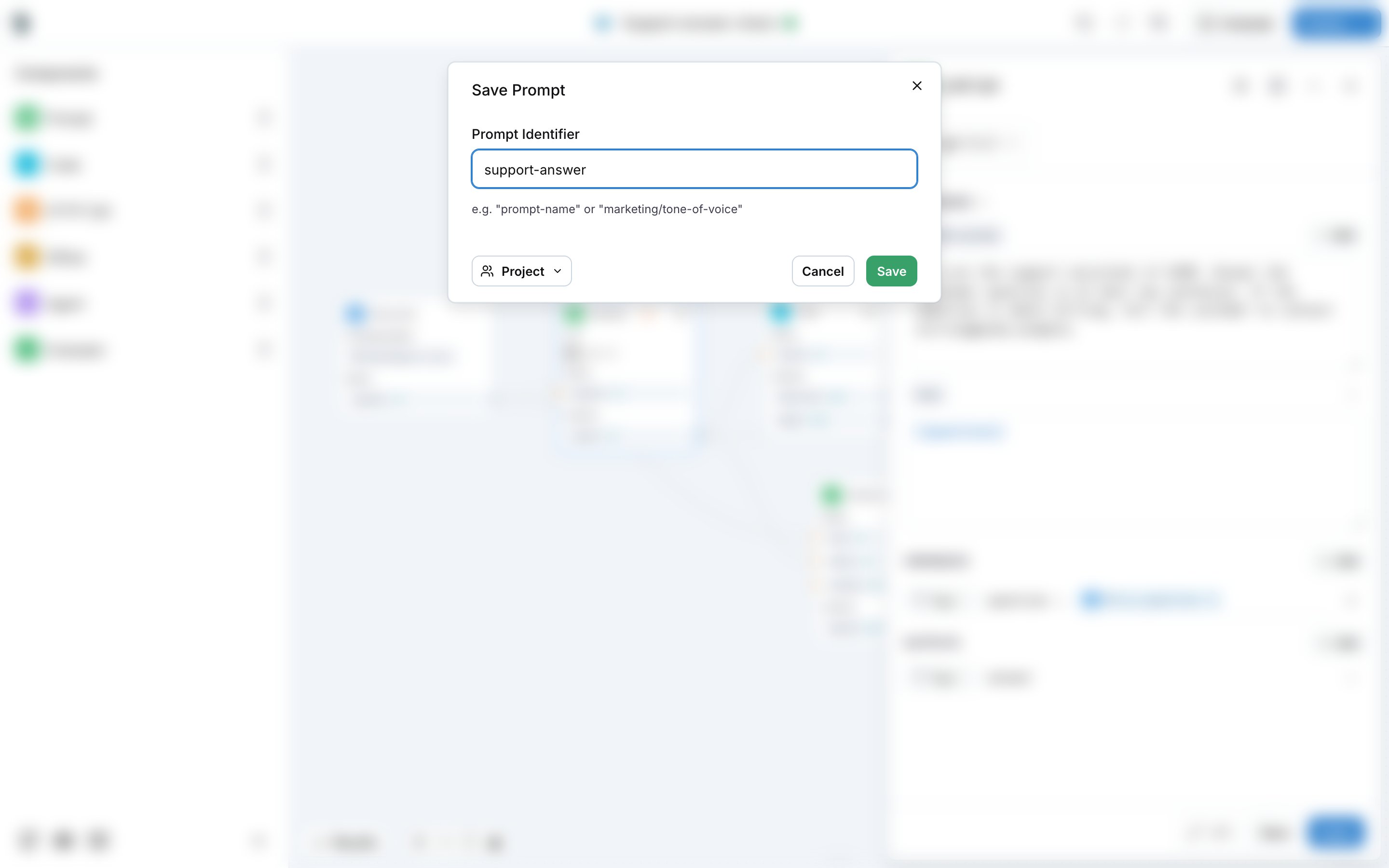
The first **Save** on a node that started from **New Prompt** opens **Save Prompt**, which asks for the prompt identifier, for example `support-answer` or `marketing/tone-of-voice`, and the scope of the prompt.
Click the node to open the prompt in the drawer. It is the same editor as the prompt page: the model, the system prompt, the messages, the variables and the outputs.
## Apply or save
The drawer has two ways to keep a change:
| Button | Effect |
| --------- | ---------------------------------------------------------------------------------------------------------------------------------------------------------------------------------- |
| **Apply** | Keeps the change on this node only. The prompt in the library does not change. An orange dot on the node marks a node whose prompt differs from the saved version. |
| **Save** | Creates a new version of the prompt in the library, with the model, the messages and the variables the drawer holds. Every place that uses the prompt can move to the new version. |
The first **Save** on a node that started from **New Prompt** opens **Save Prompt**, which asks for the prompt identifier, for example `support-answer` or `marketing/tone-of-voice`, and the scope of the prompt.
 ## Run the workflow with the prompt
The workflow runs the node with the prompt the drawer shows: the applied changes when there are any, otherwise the saved version. Evaluate the workflow on a dataset to compare prompt versions on the same rows, see [Building a workflow](/docs/workflows/building-a-workflow).
**Also check:** [Version control](/docs/prompt-management/features/essential/version-control) for how prompt versions work, and [Workflows](/docs/workflows/overview).
## Run the workflow with the prompt
The workflow runs the node with the prompt the drawer shows: the applied changes when there are any, otherwise the saved version. Evaluate the workflow on a dataset to compare prompt versions on the same rows, see [Building a workflow](/docs/workflows/building-a-workflow).
**Also check:** [Version control](/docs/prompt-management/features/essential/version-control) for how prompt versions work, and [Workflows](/docs/workflows/overview).