> ## Documentation Index
> Fetch the complete documentation index at: https://langwatch.ai/docs/llms.txt
> Use this file to discover all available pages before exploring further.
# Prompt Playground
> Use LangWatch’s Prompt Playground to edit, test, and iterate prompts with versioning, analytics, and AI agent test feedback loops.
# Prompt Playground
The Prompt Playground is an interactive workspace for editing, testing, and iterating on prompts with real-time AI assistance. Work with multiple prompts simultaneously in a browser-like tab interface, test variations with variables, and get instant feedback through conversation testing.
 ## Key Features
* **Multi-tab editing** - Open and edit multiple prompts simultaneously in separate tabs
* **Split view** - Compare prompts side-by-side by splitting tabs into multiple windows
* **AI-powered testing** - Test prompts in real-time with an integrated chat interface
* **Variable testing** - Test prompts with different variable values without saving
* **Trace integration** - Load prompts from execution traces to iterate on real conversations
* **Version history** - Access and restore previous prompt versions directly from the editor
* **API code generation** - Generate code snippets for using prompts in your application
## Getting started
### Access the Playground
1. Navigate to your project dashboard
2. Click **Prompt Management** in the sidebar
3. Select **Prompt Playground** (or navigate to `/prompt-studio`)
### Open a prompt
Prompts are organized in the left sidebar by folder:
1. Click any prompt in the sidebar to open it in a new tab
2. Prompts are grouped by folder (e.g., `customer-support/`, `agent/`)
3. Click the **+** button to create a new prompt
## Edit prompts
Each prompt tab contains three main sections:
### Header Bar
The header provides quick access to essential controls:
* **Handle Editor** - Edit the prompt handle (identifier)
* **Model Selector** - Choose the LLM model for this prompt
* **API Snippet** - Generate code snippets for TypeScript, Python, or REST API
* **Version History** - View and restore previous versions
* **Save Button** - Save changes (creates a new version)
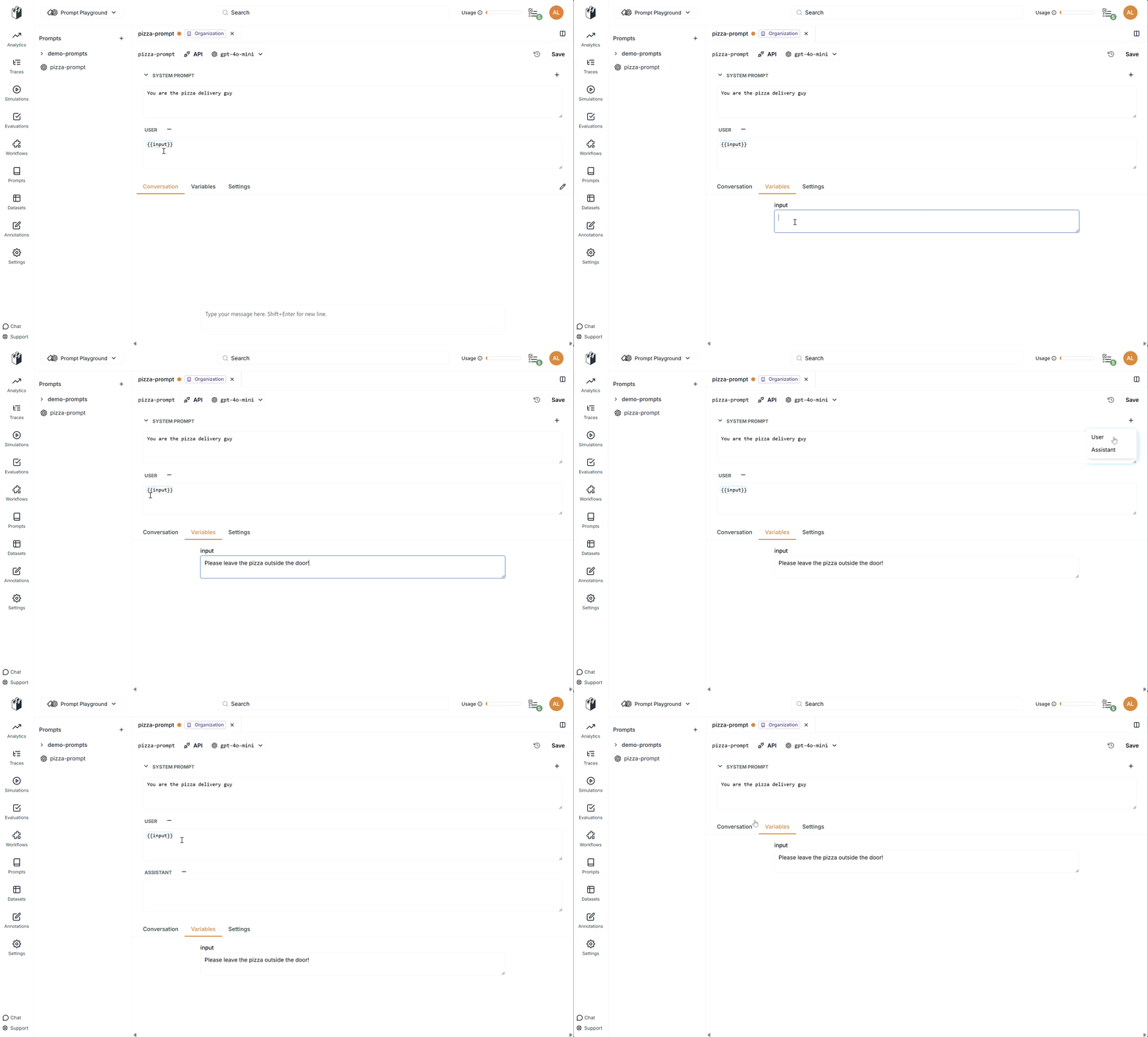
### Messages Editor
Edit your prompt messages directly in the messages editor:
* Add system, user, and assistant messages
* Use variables with the `{{variable_name}}` syntax
* Reorder messages by dragging
* Delete messages with the remove button
## Key Features
* **Multi-tab editing** - Open and edit multiple prompts simultaneously in separate tabs
* **Split view** - Compare prompts side-by-side by splitting tabs into multiple windows
* **AI-powered testing** - Test prompts in real-time with an integrated chat interface
* **Variable testing** - Test prompts with different variable values without saving
* **Trace integration** - Load prompts from execution traces to iterate on real conversations
* **Version history** - Access and restore previous prompt versions directly from the editor
* **API code generation** - Generate code snippets for using prompts in your application
## Getting started
### Access the Playground
1. Navigate to your project dashboard
2. Click **Prompt Management** in the sidebar
3. Select **Prompt Playground** (or navigate to `/prompt-studio`)
### Open a prompt
Prompts are organized in the left sidebar by folder:
1. Click any prompt in the sidebar to open it in a new tab
2. Prompts are grouped by folder (e.g., `customer-support/`, `agent/`)
3. Click the **+** button to create a new prompt
## Edit prompts
Each prompt tab contains three main sections:
### Header Bar
The header provides quick access to essential controls:
* **Handle Editor** - Edit the prompt handle (identifier)
* **Model Selector** - Choose the LLM model for this prompt
* **API Snippet** - Generate code snippets for TypeScript, Python, or REST API
* **Version History** - View and restore previous versions
* **Save Button** - Save changes (creates a new version)
### Messages Editor
Edit your prompt messages directly in the messages editor:
* Add system, user, and assistant messages
* Use variables with the `{{variable_name}}` syntax
* Reorder messages by dragging
* Delete messages with the remove button
 ### Tabbed Sections
Each prompt tab includes three tabs for different aspects of prompt management:
#### Conversation Tab
Test your prompt interactively:
* Chat with the prompt using the current configuration
* See real-time responses as you edit
* Reset the conversation to start fresh
The conversation tab uses your current prompt configuration, including model settings and variables. Changes to your prompt are reflected in real-time.
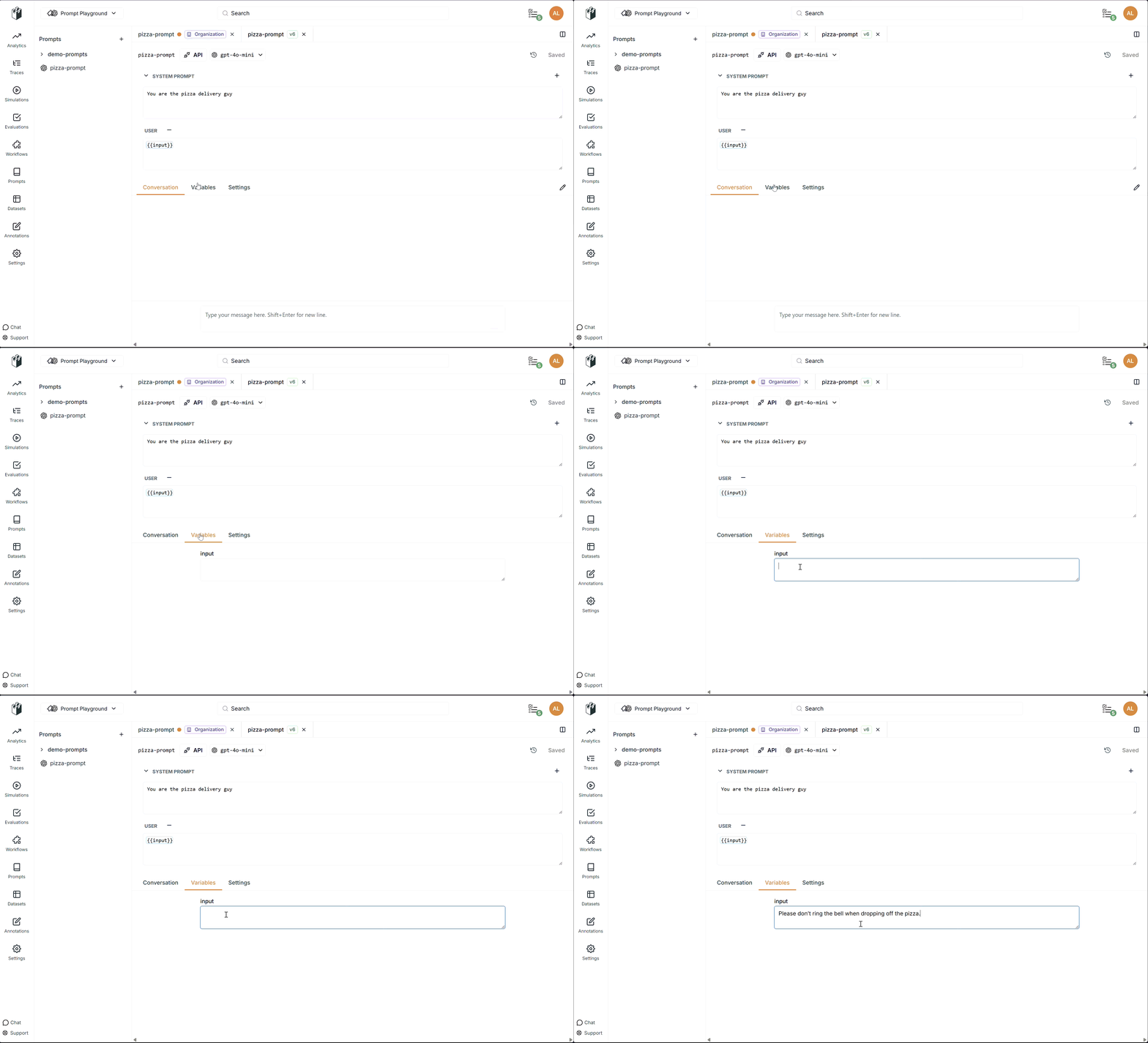
#### Variables Tab
Test your prompt with different variable values:
* Set values for all prompt variables
* Variables are automatically extracted from your prompt template
* Test multiple scenarios without saving changes
* Values persist while the tab is open
### Tabbed Sections
Each prompt tab includes three tabs for different aspects of prompt management:
#### Conversation Tab
Test your prompt interactively:
* Chat with the prompt using the current configuration
* See real-time responses as you edit
* Reset the conversation to start fresh
The conversation tab uses your current prompt configuration, including model settings and variables. Changes to your prompt are reflected in real-time.
#### Variables Tab
Test your prompt with different variable values:
* Set values for all prompt variables
* Variables are automatically extracted from your prompt template
* Test multiple scenarios without saving changes
* Values persist while the tab is open
 #### Settings Tab
Configure advanced prompt settings:
* **Model Parameters** - Temperature, max tokens, response format
* **Input/Output Types** - Define expected input and output schemas
* **Scope** - Set prompt visibility (PROJECT or ORGANIZATION)
* **Metadata** - Add descriptions and tags
## Multi-tab workflow
### Open multiple prompts
1. Click prompts in the sidebar to open them in new tabs
2. Each tab operates independently
3. Switch between tabs by clicking the tab header
4. Close tabs by clicking the × button
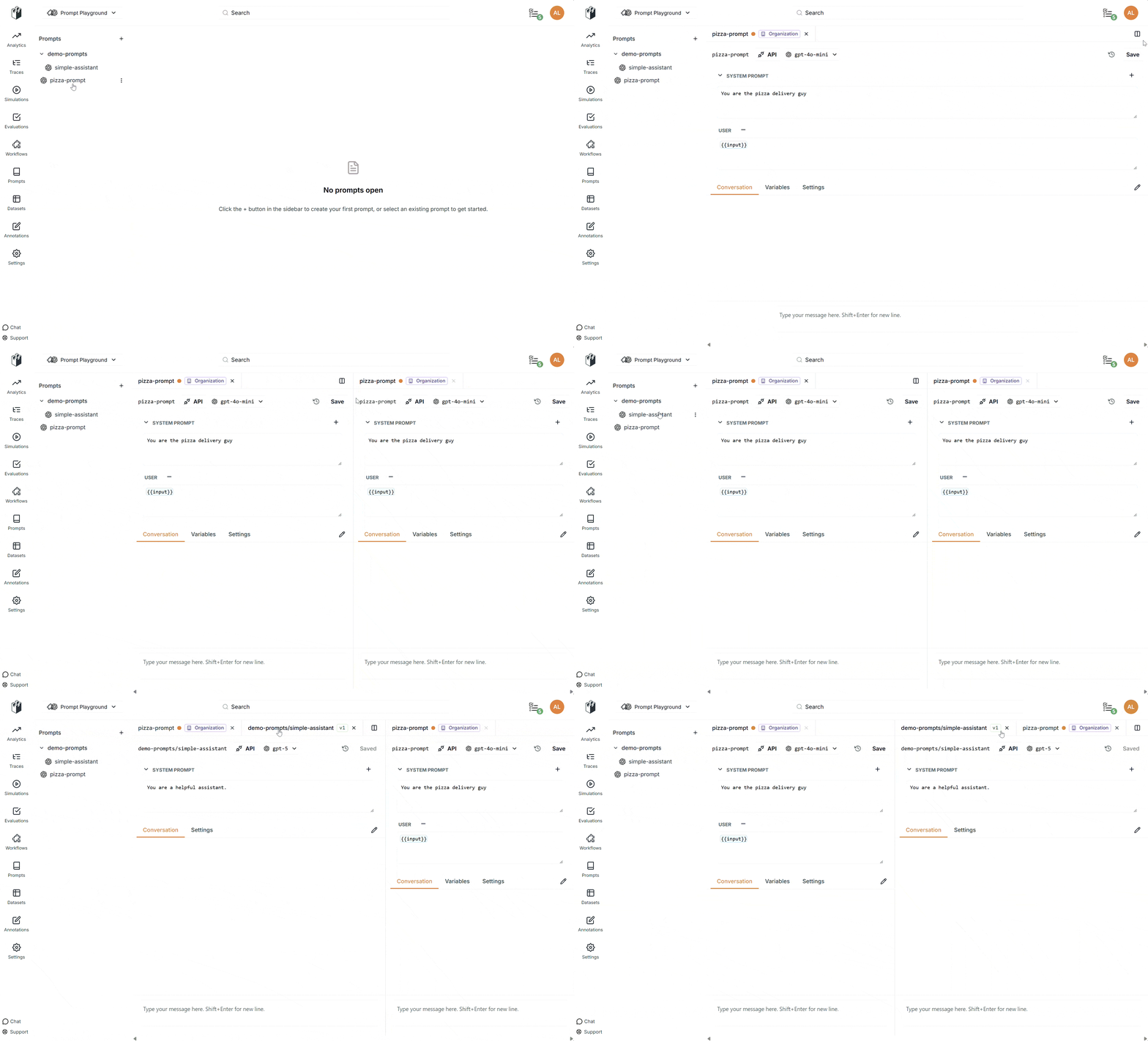
### Split tabs
Compare prompts side-by-side:
1. Click the split icon (columns icon) in the active tab
2. The tab opens in a new window pane
3. Drag tabs between panes to reorganize
4. Each pane can contain multiple tabs
#### Settings Tab
Configure advanced prompt settings:
* **Model Parameters** - Temperature, max tokens, response format
* **Input/Output Types** - Define expected input and output schemas
* **Scope** - Set prompt visibility (PROJECT or ORGANIZATION)
* **Metadata** - Add descriptions and tags
## Multi-tab workflow
### Open multiple prompts
1. Click prompts in the sidebar to open them in new tabs
2. Each tab operates independently
3. Switch between tabs by clicking the tab header
4. Close tabs by clicking the × button
### Split tabs
Compare prompts side-by-side:
1. Click the split icon (columns icon) in the active tab
2. The tab opens in a new window pane
3. Drag tabs between panes to reorganize
4. Each pane can contain multiple tabs
 ### Drag tabs
* Drag tabs within the same window to reorder
* Drag tabs between windows to move them
* Drag tabs to create new windows
## Import prompts from traces
Import prompts from execution traces to iterate on real conversations:
1. Navigate to a trace in LangWatch
2. Click on an LLM span
3. Select **"Open in Prompt Playground"**
4. The prompt configuration loads automatically with:
* System prompt from the trace
* Model and parameters
* Conversation history in the chat tab
Use this feature to debug and improve prompts based on actual production usage.
## Manage versions
### View version history
1. Click the version history icon in the header
2. Browse all versions with timestamps
3. See commit messages for each version
4. Click a version to preview it
### Restore versions
1. Open version history
2. Select the version you want to restore
3. Click **Restore** to load it into the editor
4. Make any additional changes and save
Restoring a version loads it into the editor but doesn't create a new version
until you save.
## Generate API code
Generate ready-to-use code snippets:
1. Click the **API Snippet** button in the header
2. Select your preferred language (TypeScript, Python, or REST)
3. Copy the generated code
4. Use it directly in your application
The generated code includes:
* Proper authentication headers
* Variable compilation
* Model configuration
* Error handling
## Best practices
### Testing workflow
1. **Edit** your prompt in the messages editor
2. **Set variables** in the Variables tab
3. **Test** in the Conversation tab
4. **Iterate** based on results
5. **Save** when satisfied
### Comparison workflow
1. Open the original prompt in one tab
2. Create a new version or duplicate
3. Split tabs to view side-by-side
4. Test both versions with the same variables
5. Compare results before saving
### Trace-based iteration
1. Load a problematic trace into the playground
2. Review the conversation in the chat tab
3. Identify issues with the prompt
4. Edit and test improvements
5. Save the improved version
## Keyboard shortcuts
* **Cmd/Ctrl + S** - Save current prompt
* **Cmd/Ctrl + W** - Close current tab
* **Tab** - Navigate between form fields
## Troubleshooting
### Chat Not Responding
* Check that your prompt has a valid model selected
* Ensure variables are set if required
* Verify your API key has proper permissions
* Check browser console for errors
### Changes Not Saving
* Ensure you have `prompts:edit` permission
* Check that the prompt handle is valid
* Verify network connectivity
* Look for validation errors in the form
### Tab Not Loading
* Refresh the page
* Check browser console for errors
* Ensure the prompt exists and is accessible
* Try opening the prompt from the sidebar again
***
## Related Documentation
* [Getting Started](/docs/prompt-management/getting-started) - Create your first prompt
* [Version Control](/docs/prompt-management/features/essential/version-control) - Manage prompt versions
* [Link to Traces](/docs/prompt-management/features/advanced/link-to-traces) - Connect prompts to execution traces
* [Analytics](/docs/prompt-management/features/essential/analytics) - Monitor prompt performance
[← Back to Prompt Management Overview](/docs/prompt-management/overview)
### Drag tabs
* Drag tabs within the same window to reorder
* Drag tabs between windows to move them
* Drag tabs to create new windows
## Import prompts from traces
Import prompts from execution traces to iterate on real conversations:
1. Navigate to a trace in LangWatch
2. Click on an LLM span
3. Select **"Open in Prompt Playground"**
4. The prompt configuration loads automatically with:
* System prompt from the trace
* Model and parameters
* Conversation history in the chat tab
Use this feature to debug and improve prompts based on actual production usage.
## Manage versions
### View version history
1. Click the version history icon in the header
2. Browse all versions with timestamps
3. See commit messages for each version
4. Click a version to preview it
### Restore versions
1. Open version history
2. Select the version you want to restore
3. Click **Restore** to load it into the editor
4. Make any additional changes and save
Restoring a version loads it into the editor but doesn't create a new version
until you save.
## Generate API code
Generate ready-to-use code snippets:
1. Click the **API Snippet** button in the header
2. Select your preferred language (TypeScript, Python, or REST)
3. Copy the generated code
4. Use it directly in your application
The generated code includes:
* Proper authentication headers
* Variable compilation
* Model configuration
* Error handling
## Best practices
### Testing workflow
1. **Edit** your prompt in the messages editor
2. **Set variables** in the Variables tab
3. **Test** in the Conversation tab
4. **Iterate** based on results
5. **Save** when satisfied
### Comparison workflow
1. Open the original prompt in one tab
2. Create a new version or duplicate
3. Split tabs to view side-by-side
4. Test both versions with the same variables
5. Compare results before saving
### Trace-based iteration
1. Load a problematic trace into the playground
2. Review the conversation in the chat tab
3. Identify issues with the prompt
4. Edit and test improvements
5. Save the improved version
## Keyboard shortcuts
* **Cmd/Ctrl + S** - Save current prompt
* **Cmd/Ctrl + W** - Close current tab
* **Tab** - Navigate between form fields
## Troubleshooting
### Chat Not Responding
* Check that your prompt has a valid model selected
* Ensure variables are set if required
* Verify your API key has proper permissions
* Check browser console for errors
### Changes Not Saving
* Ensure you have `prompts:edit` permission
* Check that the prompt handle is valid
* Verify network connectivity
* Look for validation errors in the form
### Tab Not Loading
* Refresh the page
* Check browser console for errors
* Ensure the prompt exists and is accessible
* Try opening the prompt from the sidebar again
***
## Related Documentation
* [Getting Started](/docs/prompt-management/getting-started) - Create your first prompt
* [Version Control](/docs/prompt-management/features/essential/version-control) - Manage prompt versions
* [Link to Traces](/docs/prompt-management/features/advanced/link-to-traces) - Connect prompts to execution traces
* [Analytics](/docs/prompt-management/features/essential/analytics) - Monitor prompt performance
[← Back to Prompt Management Overview](/docs/prompt-management/overview)