> ## Documentation Index
> Fetch the complete documentation index at: https://langwatch.ai/docs/llms.txt
> Use this file to discover all available pages before exploring further.
# Scope
> Understand how prompt scope affects access, sharing, and collaboration across projects and organizations
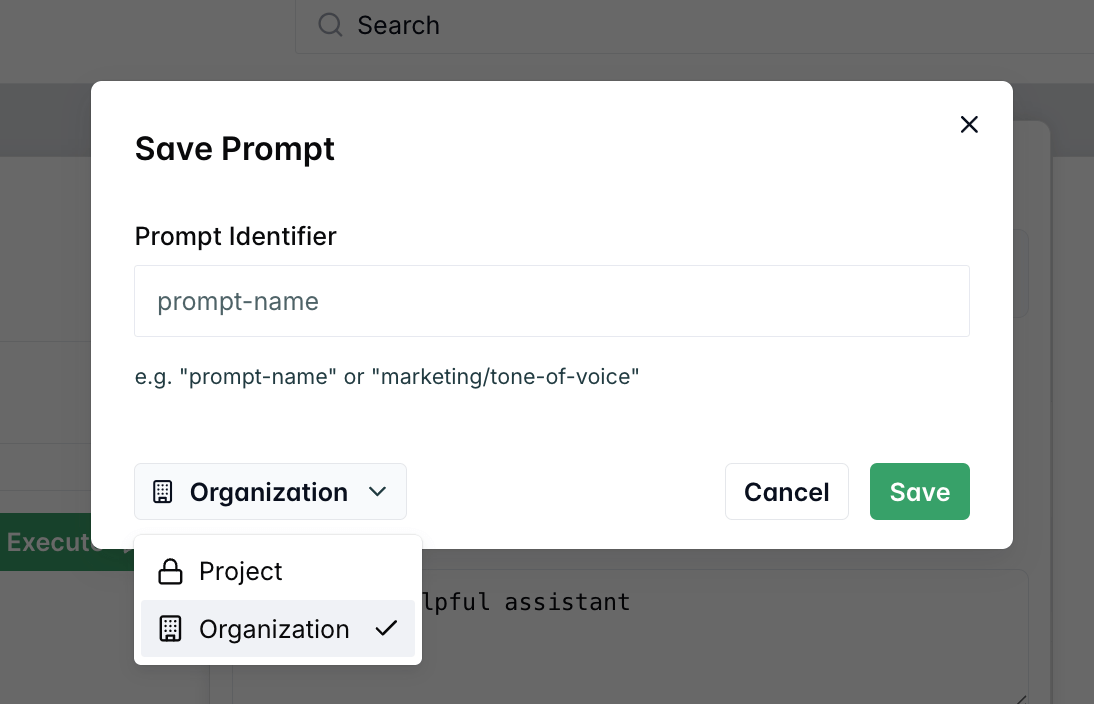
Scope determines where your prompts are accessible and how they can be shared across your LangWatch projects and organization. Understanding scope is crucial for effective prompt management and team collaboration.
## Overview
Every prompt in LangWatch has a **scope** that defines its visibility and accessibility:
* **PROJECT scope** - Prompts accessible only within a single project
* **ORGANIZATION scope** - Prompts shared across all projects in your organization
 ## Project Scope (Default)
**Project scope** is the default setting for all new prompts. Prompts with project scope **are**:
* **Isolated** to a single project
* **Private** to project members only
* **Independent** from other projects
* **Fully controlled** by the project team
### Example: Project-Scoped Prompt
```json theme={null}
{
"id": "prompt_abc123",
"handle": "internal-chatbot",
"scope": "PROJECT",
"projectId": "proj_456",
"organizationId": null
}
```
This prompt is only accessible within `proj_456` and cannot be seen or used by other projects.
## Organization Scope
**Organization scope** makes prompts available across all projects in your organization. Organization-scoped prompts are:
* **Shared** across all organization projects
* **Collaborative** for cross-project teams
### When to Use Organization Scope
* **Brand guidelines** and company voice
* **Legal compliance** prompts (privacy policies, terms of service)
* **Common workflows** used across multiple projects
* **Shared knowledge** and best practices
* **Standard operating procedures**
### Example: Organization-Scoped Prompt
```json theme={null}
{
"id": "prompt_def789",
"handle": "company-brand-voice",
"scope": "ORGANIZATION",
"projectId": "proj_456",
"organizationId": "org_123"
}
```
This prompt is accessible to all projects within `org_123` but can only be modified by the original project (`proj_456`).
## Scope Management
### Creating Scoped Prompts
1. Navigate to **Prompt Management**
2. Click **"Create New Prompt"**
3. Fill in prompt details
4. Select **Scope** from the dropdown:
* **Project** - Only visible in current project
* **Organization** - Visible across all organization projects
5. Save your prompt
```typescript theme={null}
import { LangWatch } from "langwatch";
const langwatch = new LangWatch({
apiKey: process.env.LANGWATCH_API_KEY
});
// Create project-scoped prompt (default)
const projectPrompt = await langwatch.prompts.create({
handle: "project-specific-bot",
scope: "PROJECT", // Default, can be omitted
prompt: "You are a project-specific assistant...",
// ... other fields
});
// Create organization-scoped prompt
const orgPrompt = await langwatch.prompts.create({
handle: "company-guidelines",
scope: "ORGANIZATION",
prompt: "You represent our company brand...",
// ... other fields
});
```
```python theme={null}
import langwatch
# Create project-scoped prompt (default)
project_prompt = langwatch.prompts.create(
handle="project-specific-bot",
scope="PROJECT", # Default, can be omitted
prompt="You are a project-specific assistant...",
# ... other fields
)
# Create organization-scoped prompt
org_prompt = langwatch.prompts.create(
handle="company-guidelines",
scope="ORGANIZATION",
prompt="You represent our company brand...",
# ... other fields
)
```
```bash theme={null}
# Create project-scoped prompt
curl -X POST "https://app.langwatch.ai/api/prompts" \
-H "Content-Type: application/json" \
-H "X-Auth-Token: your-api-key" \
-d '{
"handle": "project-specific-bot",
"scope": "PROJECT",
"prompt": "You are a project-specific assistant...",
"messages": [...],
"inputs": [...],
"outputs": [...]
}'
# Create organization-scoped prompt
curl -X POST "https://app.langwatch.ai/api/prompts" \
-H "Content-Type: application/json" \
-H "X-Auth-Token: your-api-key" \
-d '{
"handle": "company-guidelines",
"scope": "ORGANIZATION",
"prompt": "You represent our company brand...",
"messages": [...],
"inputs": [...],
"outputs": [...]
}'
```
### Changing Prompt Scope
A prompt handle that is unique within a project might not be unique across projects in an organization.
When you change the scope of a prompt, you might need to change the handle to avoid conflicts.
To change prompt scope:
1. **Navigate** to the prompt in Prompt Management
2. **Click** the scope dropdown
3. **Select** the new scope
4. **Confirm** the change
5. **Save** the prompt
Only prompt owners can change scope.
## Project Scope (Default)
**Project scope** is the default setting for all new prompts. Prompts with project scope **are**:
* **Isolated** to a single project
* **Private** to project members only
* **Independent** from other projects
* **Fully controlled** by the project team
### Example: Project-Scoped Prompt
```json theme={null}
{
"id": "prompt_abc123",
"handle": "internal-chatbot",
"scope": "PROJECT",
"projectId": "proj_456",
"organizationId": null
}
```
This prompt is only accessible within `proj_456` and cannot be seen or used by other projects.
## Organization Scope
**Organization scope** makes prompts available across all projects in your organization. Organization-scoped prompts are:
* **Shared** across all organization projects
* **Collaborative** for cross-project teams
### When to Use Organization Scope
* **Brand guidelines** and company voice
* **Legal compliance** prompts (privacy policies, terms of service)
* **Common workflows** used across multiple projects
* **Shared knowledge** and best practices
* **Standard operating procedures**
### Example: Organization-Scoped Prompt
```json theme={null}
{
"id": "prompt_def789",
"handle": "company-brand-voice",
"scope": "ORGANIZATION",
"projectId": "proj_456",
"organizationId": "org_123"
}
```
This prompt is accessible to all projects within `org_123` but can only be modified by the original project (`proj_456`).
## Scope Management
### Creating Scoped Prompts
1. Navigate to **Prompt Management**
2. Click **"Create New Prompt"**
3. Fill in prompt details
4. Select **Scope** from the dropdown:
* **Project** - Only visible in current project
* **Organization** - Visible across all organization projects
5. Save your prompt
```typescript theme={null}
import { LangWatch } from "langwatch";
const langwatch = new LangWatch({
apiKey: process.env.LANGWATCH_API_KEY
});
// Create project-scoped prompt (default)
const projectPrompt = await langwatch.prompts.create({
handle: "project-specific-bot",
scope: "PROJECT", // Default, can be omitted
prompt: "You are a project-specific assistant...",
// ... other fields
});
// Create organization-scoped prompt
const orgPrompt = await langwatch.prompts.create({
handle: "company-guidelines",
scope: "ORGANIZATION",
prompt: "You represent our company brand...",
// ... other fields
});
```
```python theme={null}
import langwatch
# Create project-scoped prompt (default)
project_prompt = langwatch.prompts.create(
handle="project-specific-bot",
scope="PROJECT", # Default, can be omitted
prompt="You are a project-specific assistant...",
# ... other fields
)
# Create organization-scoped prompt
org_prompt = langwatch.prompts.create(
handle="company-guidelines",
scope="ORGANIZATION",
prompt="You represent our company brand...",
# ... other fields
)
```
```bash theme={null}
# Create project-scoped prompt
curl -X POST "https://app.langwatch.ai/api/prompts" \
-H "Content-Type: application/json" \
-H "X-Auth-Token: your-api-key" \
-d '{
"handle": "project-specific-bot",
"scope": "PROJECT",
"prompt": "You are a project-specific assistant...",
"messages": [...],
"inputs": [...],
"outputs": [...]
}'
# Create organization-scoped prompt
curl -X POST "https://app.langwatch.ai/api/prompts" \
-H "Content-Type: application/json" \
-H "X-Auth-Token: your-api-key" \
-d '{
"handle": "company-guidelines",
"scope": "ORGANIZATION",
"prompt": "You represent our company brand...",
"messages": [...],
"inputs": [...],
"outputs": [...]
}'
```
### Changing Prompt Scope
A prompt handle that is unique within a project might not be unique across projects in an organization.
When you change the scope of a prompt, you might need to change the handle to avoid conflicts.
To change prompt scope:
1. **Navigate** to the prompt in Prompt Management
2. **Click** the scope dropdown
3. **Select** the new scope
4. **Confirm** the change
5. **Save** the prompt
Only prompt owners can change scope.