
Debug production AI agents from your editor with MCP
The LangWatch MCP server lets Claude Code, Cursor or Codex search your production traces, read the bad ones and write a scenario test that reproduces the failure, without you leaving the editor where the fix happens.
 Rogerio Chaves · · Agents
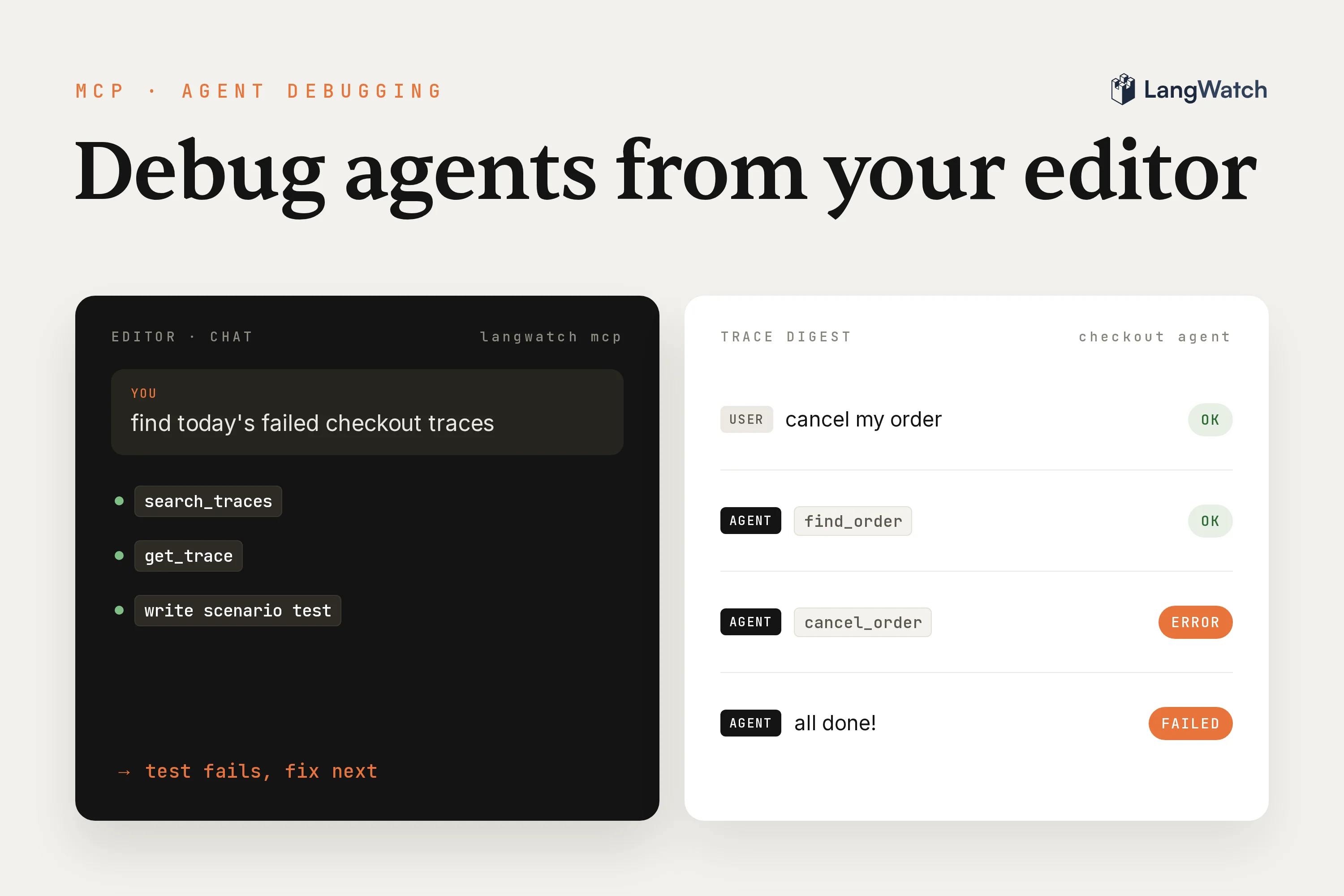
Short answer: The LangWatch MCP server lets Claude Code, Cursor or Codex read your production traces. Add it with one command or a few lines of config, sign in, ask for the bad traces in plain words, then have the coding agent turn the worst one into a scenario test that fails today and passes after the fix.
When a user complains about your agent, the evidence sits in a trace in one browser tab and the fix sits in your code in another window. So you copy a trace ID, paste bits of JSON into the chat, and your coding agent guesses at the parts you didn't paste. Connect the LangWatch MCP server and your coding agent reads the traces itself, with every span, tool call and evaluation result, so you skip the copy and paste.
Set up the LangWatch MCP server in Claude Code, Cursor or Codex
Connect your editor to the hosted server at https://app.langwatch.ai/mcp and sign in with OAuth. Your client opens a browser window, you sign in to LangWatch and approve one project, and there's no key to manage.
Claude Code. Add the server, then sign in:
claude mcp add --transport http langwatch https://app.langwatch.ai/mcp
Inside Claude Code, run /mcp, pick langwatch and choose Authenticate. If you'd rather use a personal API key, pass it as a header when you add the server:
claude mcp add --transport http langwatch https://app.langwatch.ai/mcp --header "Authorization: Bearer your-api-key"
Cursor. Add an entry to .cursor/mcp.json in your project, or to ~/.cursor/mcp.json to have it in every project. You can also add it from Cursor Settings, under Tools and MCP:
{
  "mcpServers": {
    "langwatch": {
      "url": "https://app.langwatch.ai/mcp"
    }
  }
}
Cursor signs you in through your browser the first time it connects. For an API key, add headers with Authorization set to Bearer and your key.
Codex. Codex keeps MCP servers in ~/.codex/config.toml, or in .codex/config.toml for one trusted project. The Codex CLI, the IDE extension and the ChatGPT desktop app all read the same file:
[mcp_servers.langwatch]
url = "https://app.langwatch.ai/mcp"
Then sign in from your terminal:
codex mcp login langwatch
To send an API key instead, add bearer_token_env_var = "LANGWATCH_API_KEY" to the same table, and Codex reads the key from that environment variable.
On a self-hosted LangWatch, use your own host followed by /mcp. There's also a local mode that runs the server on your machine with npx -y @langwatch/mcp-server and your API key and project ID. The MCP docs have the commands for it, plus the steps for Copilot, Claude Desktop and ChatGPT.
Ask for the bad traces from your editor
Ask your coding agent in plain words, like you'd ask a colleague who has the dashboard open. It picks the tools itself: search_traces to find traces by text, filters and date range, get_trace for the full span tree of one trace, and discover_schema to learn which fields it can filter on before it searches.
Start with the questions you'd otherwise click through the UI for:
Search for traces with errors in the last 24 hours
Find the traces from the last 7 days where our answer-quality evaluator failed,
group them by what went wrong, and show me three examples of each group
Get the full details of trace abc123 and explain what happened
The filters behind those questions are real fields: errors, evaluation pass or fail, labels, user ID, thread ID and model, among others. When the agent finds a conversation that spans several traces, ask for the whole thread ("find all traces for thread thread_xyz and show me the full conversation flow") and it reads the turns in order.
Traces come back as AI-readable digests by default: the span hierarchy with timing, inputs, outputs and errors, written for a model to read instead of a person scrolling raw JSON. So you get a diagnosis you can check: when it says the agent refused because the retrieval span came back empty, you can ask for that span and read it yourself.
If your coding agent already has the LangWatch skills installed, it can read the same traces through the langwatch CLI with langwatch trace get <traceId> --format json. The MCP server also works in clients with no terminal, like Claude Desktop and ChatGPT.
You can ask about trends from the same chat. get_analytics returns timeseries for cost, latency and token usage, so "what's the p95 completion time for the last 30 days, broken down by model?" gets the number from your data.
Read these conversations before you write any judge. Pull the failed ones and label them yourself. The MCP server has annotation tools for this (platform_create_annotation), so the agent can save your call on each trace as a thumbs up or down with a comment. Once you know what bad looks like in your own data, you know which judge to turn on and what it should ask.
Turn a trace into a scenario test
Once you've found the bad trace, have your coding agent write a Scenario test that reproduces it. The test should fail for the same reason the real conversation did. Then you fix the agent, watch the test pass, and commit it so CI catches the bug if it comes back.
Give it the trace ID and say what you want:
Get trace abc123. Write a scenario test that reproduces this conversation:
same situation, same kind of user, and judge criteria for what the agent
should have done. Mock the external tools so it runs offline.
The MCP server serves the Scenario docs too (fetch_scenario_docs), so your coding agent writes the test against the current API instead of from memory. For a support agent that refused an in-scope question, you get something like this, under pytest:
import pytest
import scenario

@pytest.mark.agent_test
@pytest.mark.asyncio
async def test_answers_account_email_question(agent_adapter):
    result = await scenario.run(
        name="refused an in-scope account question",
        description="""
            The customer wants to change the email address on their account.
            They are a bit annoyed, because they already tried the settings page.
        """,
        agents=[
            agent_adapter,
            scenario.UserSimulatorAgent(),
            scenario.JudgeAgent(criteria=[
                "Agent explains how to change the account email",
                "Agent does not say the question is outside what it can help with",
            ]),
        ],
        script=[
            scenario.user("how do I change the email on my account? settings won't let me"),
            scenario.agent(),
            scenario.judge(),
        ],
    )

    assert result.success, result.reasoning
The fixed first line comes from the real conversation, and the simulated user plays the customer from the description, with different wording on every run. The judge reads the conversation and passes or fails each criterion with its reasoning. Run it before you touch the agent and check that it fails, because a test you've only ever seen pass could be passing for the wrong reason. Our guide on how to test AI agents covers adapters, scripts and CI in full.
Then ask the same chat to fix it, and be picky about the fix. A failing scenario shows where the agent fails, and the prompt is the last place to look for the fix. Have the coding agent work out from the trace which part broke (a tool, the retrieval, the model or the prompt), and never let it paste the failing conversation into the system prompt, because that passes this one test and makes the agent worse everywhere else. Re-run the scenario a few times, since the simulated user words things differently each run, and a fix that survives one phrasing may only work for that phrasing.
If your PMs keep their tests in the LangWatch platform instead of in code, the same chat can put the scenario there. The MCP server has platform_create_scenario and platform_create_test_suite, so the reproduction ends up in the suite they already run.
The first trace worth this loop is the conversation your last support ticket was about.
Put this into production with LangWatch.
Trace your agents, run evaluations, and turn failures into repeatable tests.
Frequently asked questions
- What is the LangWatch MCP server?
- It is a Model Context Protocol server that gives coding assistants like Claude Code, Cursor and Codex access to your LangWatch project and docs. Through it the assistant can search and read traces, query cost and latency analytics, manage prompts, evaluators and datasets, and write Scenario agent tests. The hosted server runs at https://app.langwatch.ai/mcp.
- How do I connect Claude Code to LangWatch?
- Run claude mcp add --transport http langwatch https://app.langwatch.ai/mcp, then run /mcp inside Claude Code, pick langwatch and choose Authenticate. A browser window opens where you sign in to LangWatch and approve a project. To use a personal API key instead, add --header "Authorization: Bearer your-api-key" to the add command.
- Does the LangWatch MCP server need an API key?
- Not with the hosted server. You sign in with OAuth in the browser and approve one project, and the client refreshes its access on its own. Clients that cannot sign in send a personal API key as an Authorization: Bearer header. The local version you run with npx @langwatch/mcp-server needs LANGWATCH_API_KEY and LANGWATCH_PROJECT_ID.
- Which tools does the LangWatch MCP server expose for debugging?
- search_traces finds traces by text, filters and date range, get_trace returns one trace with its full span tree, evaluations and metadata, discover_schema lists the fields you can filter and group on, and get_analytics returns timeseries such as cost, latency and token usage. Traces come back as AI-readable digests by default, or as raw JSON.
- Does the LangWatch MCP server work with self-hosted LangWatch?
- Yes. Point your client at your own LangWatch host followed by /mcp instead of app.langwatch.ai/mcp. For the local npx version, set LANGWATCH_ENDPOINT to your host. If you connected a client before October 2026, update its URL to the current one.