

Groups are an Enterprise feature, whether they come from SCIM or are created by hand. Set up SCIM Provisioning for users first.
How it works
- Your identity provider pushes groups to the SCIM
/Groupsendpoint - The groups appear at Settings > Directory > Groups
- You bind roles to each group, for example Member on the Engineering team
- A user added to the group in the identity provider holds every binding of the group
- A user removed from the group, or deprovisioned, loses them
View groups
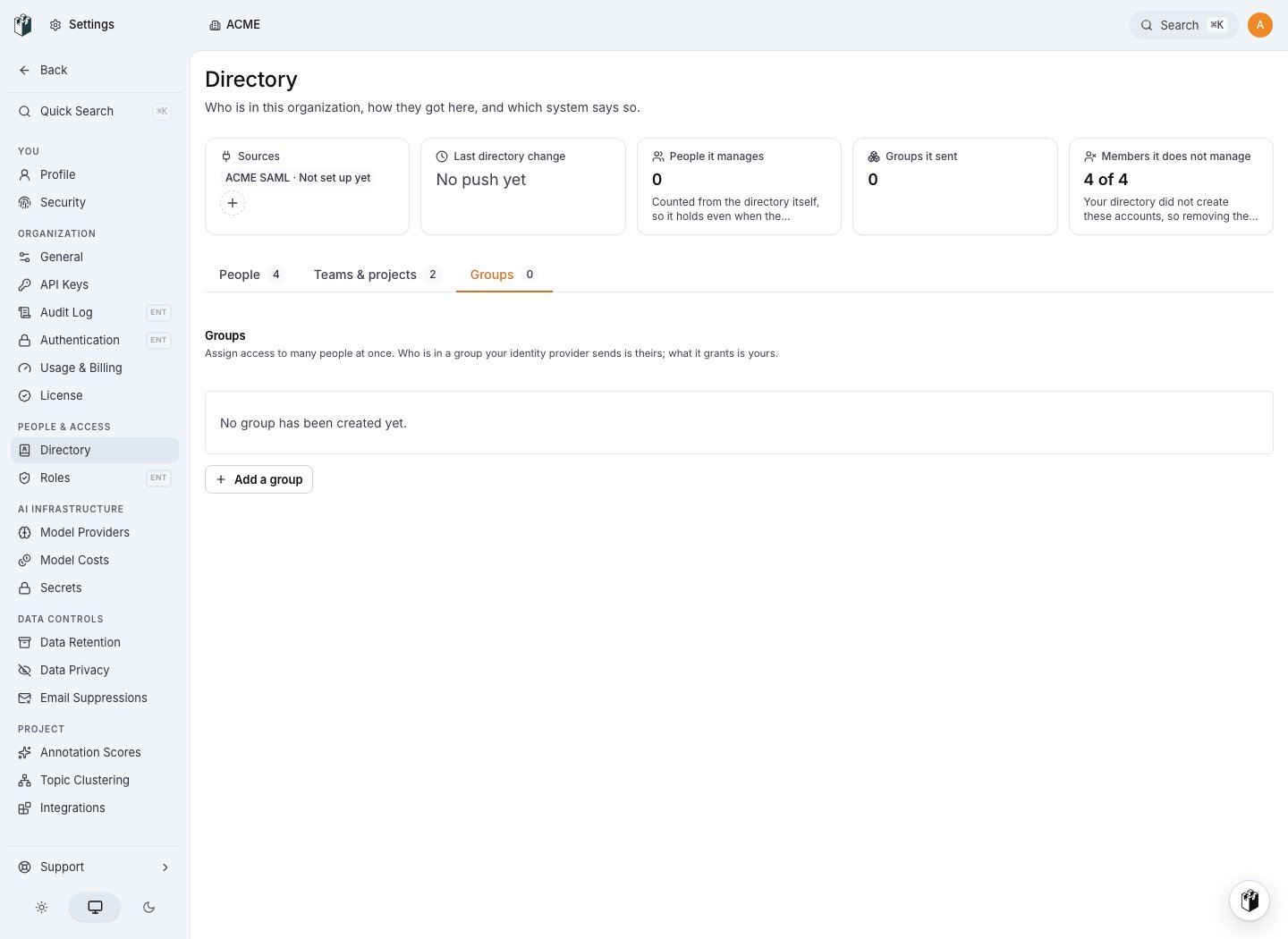
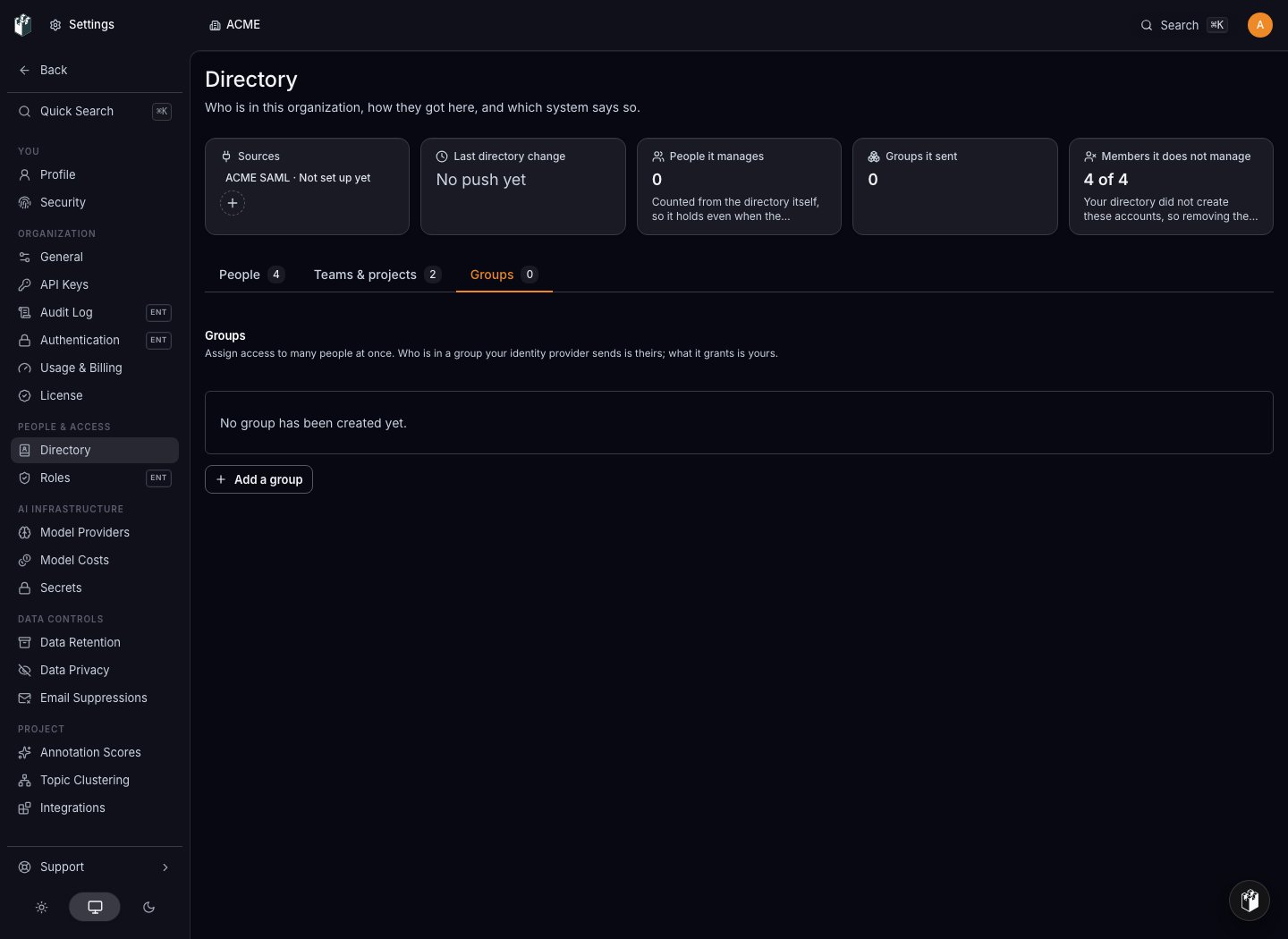
Click a row to open the group dialog, where you manage the bindings and, for manual groups, the members.
Bind roles to a group
Open a group. In the Access granted section:- Select a role (Admin, Member, Viewer, or a custom role)
- Select the scope: Organization, Team, or Project
- Select the team or the project for a Team or Project scope
- Click Add, then Save. The binding is written when you save
Binding scopes
How bindings add up
A user in several groups holds every binding of every group, plus the bindings set on the user directly at Settings > Directory > People. Permissions add up: a request is allowed when any binding on the project, its team or the organization grants it, and no binding removes what another one grants. For example, a user in Group A (Member on the Engineering team) and Group B (Admin on the Engineering team) holds both, and can do everything an Admin can on that team. Also check: Access Control (RBAC) for how a request is authorized.User lifecycle with groups
When a user is added to a group
The user holds every binding of the group at once. Group membership never creates a user: a member id that is not yet in your organization is skipped, so provision the user through/Users first (see User Provisioning).
When a user is removed from a group
The group’s bindings no longer apply to the user. With no other binding, the user stays in the organization and sees no team or project.When a group is deleted
LangWatch removes the group, its memberships and its role bindings.When a user is deprovisioned (DELETE)
BothDELETE and PATCH active: false remove the person’s organization membership and role assignments, deactivate their account, and revoke browser sessions and CLI tokens. Their data stays. Restoring the account does not restore access assigned by hand; the directory must assert membership and mapped access again. See SCIM provisioning.
Manual groups
You can also create groups manually without an identity provider:- At Settings > Directory > Groups, click Add a group below the list
- Enter a group name
- Add role bindings and members in the dialog if you want
- Click Create group
/Groups endpoint does not list it.
SCIM group endpoints
POST with the displayName of an existing group returns 409 Conflict. GET /Groups returns SCIM groups only, at most 100 per page.
Supported PATCH operations
A
replace clears the membership only when members is an empty list or an explicit null. A replace with no members value, a members value that is not a list, or a list with entries that have no usable string value leaves the membership unchanged, so a malformed payload cannot revoke access. The other attributes in the same operation, such as displayName, still apply, and the unapplied part is written to the server log.
Supported filter
GET /Groups filters by displayName with a case-insensitive eq:
Troubleshooting
Groups do not appear in LangWatch- Group push is enabled in the identity provider’s application settings
- The provisioning log of the identity provider shows no error on the Groups endpoint
- The bearer token is not revoked
- Open the group at Settings > Directory > Groups. The Access granted section needs at least one binding
- The user is in the group’s Members list. A user who was not in the organization when the identity provider pushed the group was skipped; push the group again after the user is provisioned
- The user is in several groups. Bindings add up across groups
- Bindings set on the user at Settings > Directory > People add up with the group bindings
- The identity provider pushes group membership changes, not only user changes
- The provisioning log shows no error on the group
PATCH
Manage groups through the REST API
The Groups REST API creates groups, sets their bindings and members, and deletes them, so you can script provisioning outside SCIM.The name and the members of a SCIM group belong to the identity provider. The REST API and the settings page refuse to change them.
For help, contact support@langwatch.ai.