An annotation is a human review attached to a trace, or to one part of it: a comment, one or more values per score type, and, for a suggestion, the output the model should have given. Annotations feed the review inbox, the trace list, and the datasets you build from reviewed traces.

Annotate a trace

Open a trace from the Trace Explorer. In the conversation view, hover over a reply. Translate, Annotate and Suggest appear next to it:
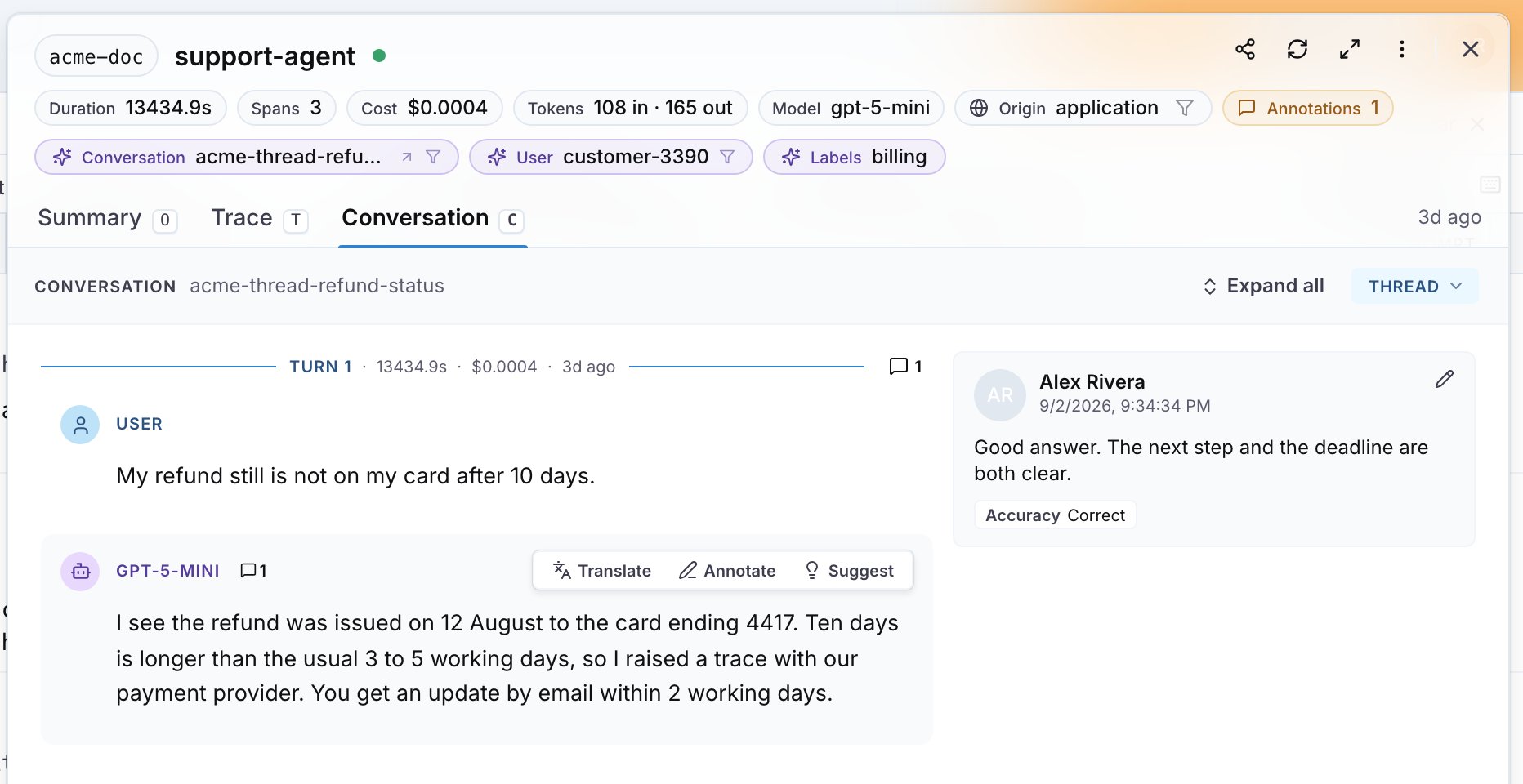
A reply in the conversation view with the Translate, Annotate and Suggest buttons, and a saved annotation with its comment and Accuracy score beside it
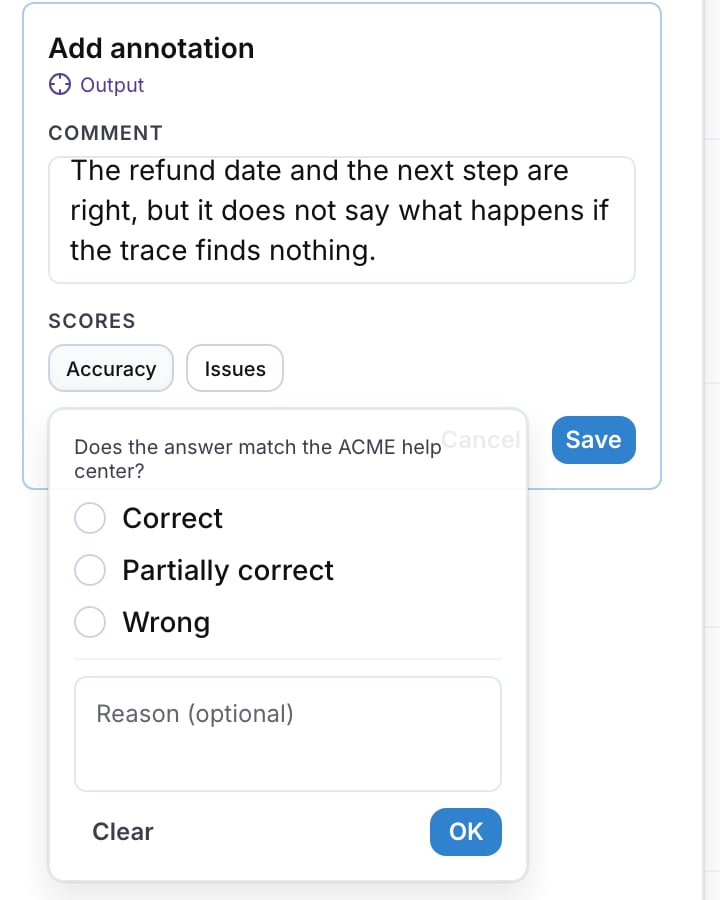
The composer names its target under the title, for example Output. Each score chip opens its question, its options and a Reason (optional) field. Click OK to set the score, or Clear to remove it, then Save. See Annotation scores to define the score types.
The Add annotation composer targeting Output, with a comment typed, the Accuracy and Issues score chips, and the Accuracy chip open on its question, the options Correct, Partially correct and Wrong, the Reason (optional) field, Clear and OK
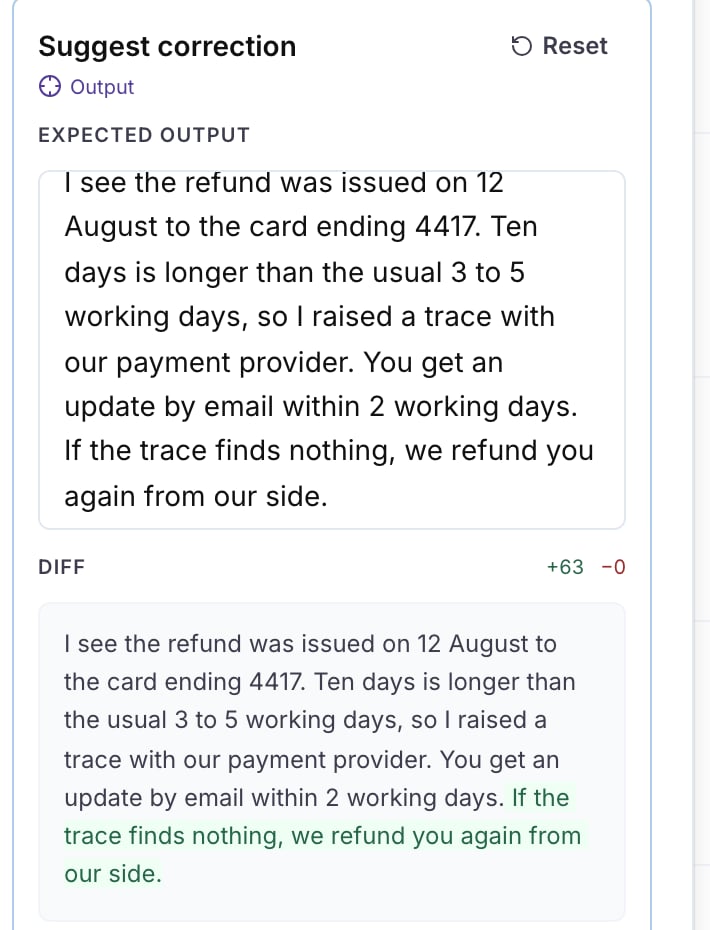
Suggest correction prefills Expected output with the reply. Edit the text; the Diff section counts the added and removed characters and highlights the change. Reset restores the original reply.
The Suggest correction composer with one sentence added to the Expected output and the Diff section showing +63 -0 with the added sentence highlighted
Every message, span, attribute row and panel in the trace drawer has a Comment button too, so an annotation can point at exactly the part that is wrong. The Annotations chip in the drawer header counts the annotations on the trace. Saving a suggestion also records the corrected output on the trace, so a dataset built from that trace gets the corrected text. See Edit a trace. You can edit or delete your own annotations from the trace. Writing annotations needs the annotations:manage permission; reading them needs annotations:view.

The annotations inbox

Annotations lists the traces queued for review. The sidebar has Inbox (everything queued for you or for a queue you are in), You (traces sent to you directly), All (every annotation in the project) and one entry per queue under My queues, each with its pending count.
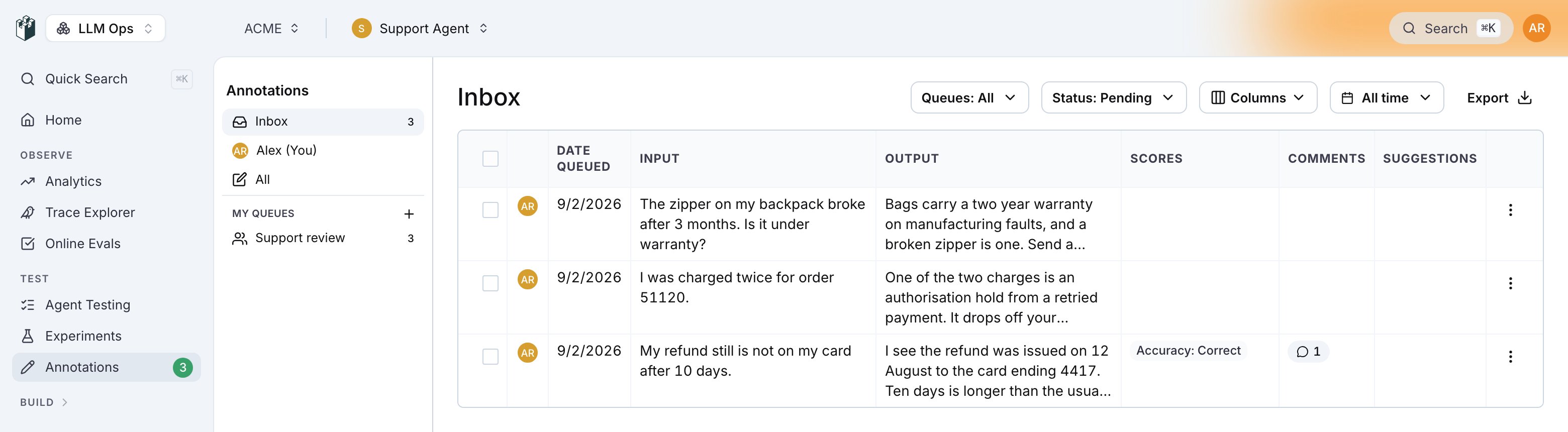
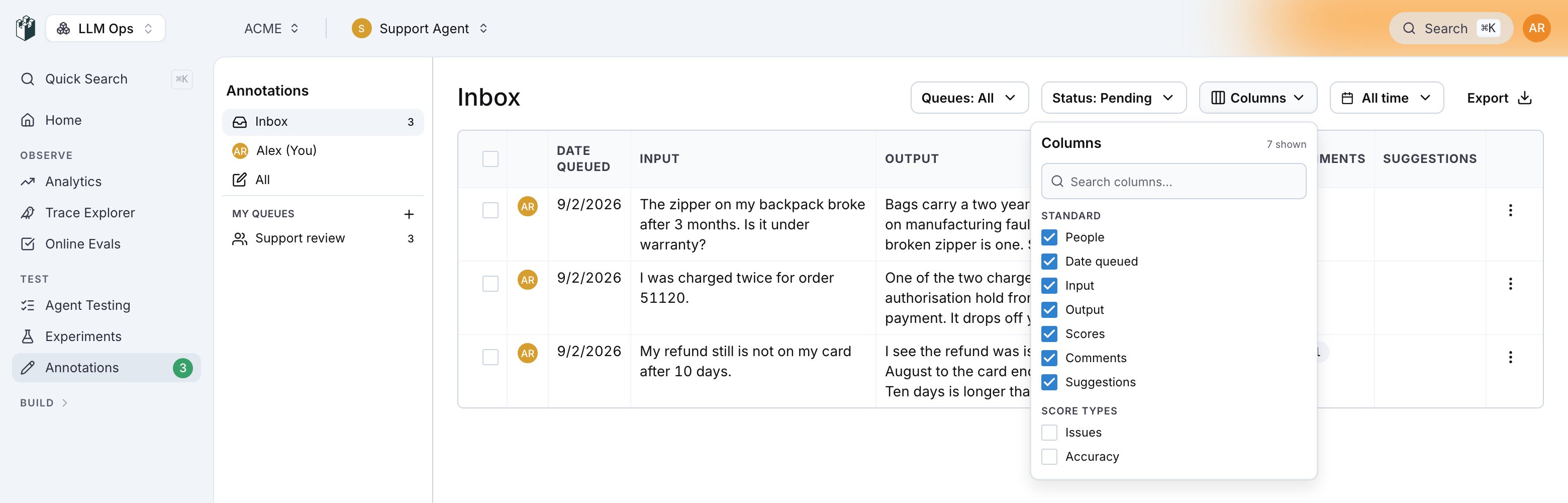
The annotations inbox: the sidebar with Inbox, You, All and the Support review queue, the Queues, Status: Pending, Columns and All time filters, Export, and the table with the reviewer avatars, Date queued, Input, Output, Scores, Comments and Suggestions
The table shows People (the reviewer avatars, in a column without a header), Date queued, Input, Output, Scores, Comments and Suggestions. Columns adds one column per score type or hides the ones you do not need; the choice is kept per project in your browser.
The Columns popover with the 7 shown count, a search box, the Standard section with every column ticked and the Score types section with Issues and Accuracy
Status filters Pending, Completed or All; the inbox opens on Pending. Queues filters by queue. Export downloads the visible rows as CSV with the trace id, the status, every visible column and the annotators. A pending row opens the review page for that item. A completed row opens the trace. The row menu has View trace, Add to dataset and, on a queue item, Remove from queue. Select several rows to add them to a dataset or to a queue at once.

Where annotations show up

  • The Annotations column of the Trace Explorer, and the annotated and unannotated filter under Quality.
  • The annotations source when you add traces to a dataset: the comment, the scores and their reasons, the expected output, or all of them as one text. See Datasets.
  • The annotations inbox and the CSV export.
Also check: Annotation queues to organize a review session across a team, and Annotation scores to define what reviewers score.
Last modified on September 6, 2026