

image (URL) and put the URL of an image in each cell. The grid renders the image as a thumbnail; click it to see it full size. The cell value stays the URL, so editing the cell edits the URL.
The grid shows a thumbnail when the value is a data:image/...;base64, string, a markdown image (), or a URL that ends in .jpeg, .jpg, .gif, .png, .webp, .svg or .bmp. A URL without an image extension shows a thumbnail only when its path is longer than 30 characters and contains a word such as image, img, photo, media or upload. Any other value is shown as text, and the experiment still fetches it as an image.
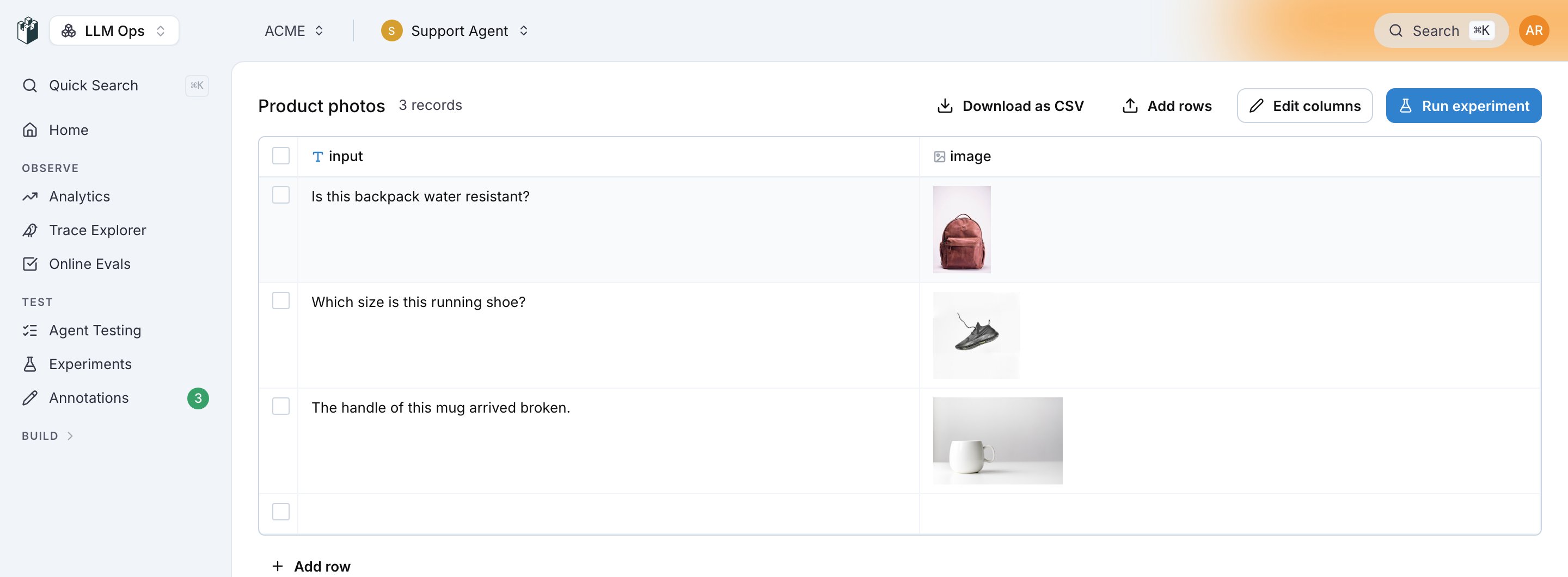
How the image reaches the model
A prompt or agent column in the Experiments Workbench fetches the URL on the server and sends the image bytes to the model as image content, so the model sees the picture and not the link. This works for every model provider, whether or not the provider fetches URLs itself. The type of the file comes from the response, so a signed S3 or CDN URL without an extension works too. Audio and PDF URLs in a prompt are delivered the same way: an audio file reaches the model as audio, a PDF as a document. The fetch times out after 30 seconds and a file is limited to 20 MB. A URL that resolves to a private or internal address is refused. When a field is declared as an image and its URL cannot be loaded as an image, the run fails with a message naming the URL and the reason. A link written inside prose is left as text and never fails the run. An evaluator that takes an image passes the URL to its model provider as animage_url part without fetching it, so the URL has to be reachable by the provider.
Also check: Multimodal evaluation for an experiment that scores image outputs.