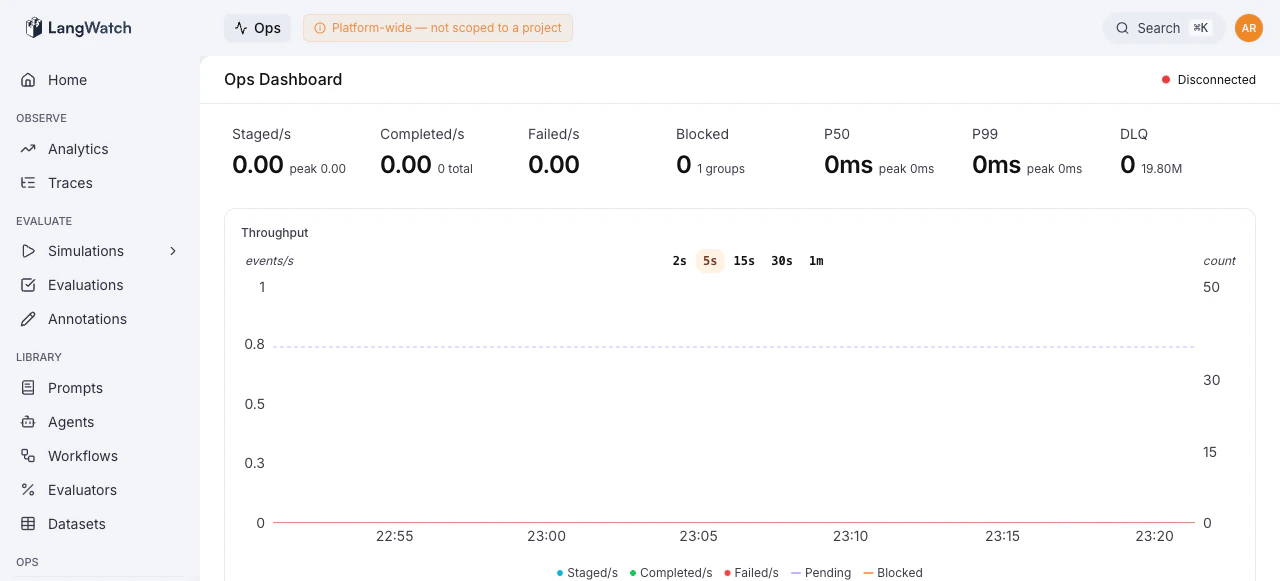
Real-time pipeline health monitoring with throughput, latency, and error tracking
The Ops Dashboard is the landing page of the Operations Console (/ops). It provides a real-time view of the event-sourcing pipeline, ingestion rates, processing throughput, latency percentiles, queue health, and top errors, all in a single screen.
The top of the dashboard displays six key metrics, each showing the current rate and a secondary stat (peak, total, or count):
Metric
What it measures
Secondary stat
Staged/s
Ingestion rate, commands entering the queue
Peak rate
Completed/s
Processing throughput, commands fully processed
Total completed
Failed/s
Failure rate, commands that errored
Total failed
Blocked
Groups stuck due to errors
Number of error groups
DLQ
Items in the Dead Letter Queue
Redis memory usage
P50, P99
End-to-end processing latency
Peak latency
Metrics marked in red indicate an active problem, non-zero failure rates or blocked groups. Orange
indicates a warning state, such as items in the DLQ.
A time-series chart tracks throughput over time, showing staged, completed, and failed rates. Use this to identify processing backlogs (staged >> completed) or failure spikes.
The pipeline tree shows the hierarchical structure of all processing pipelines. Each node represents a pipeline stage.Operators with ops:manage permission can pause and unpause individual pipeline stages directly from the tree. Pausing a stage prevents new jobs from being consumed while allowing in-flight jobs to complete.
A compact section at the bottom shows the latest projection replay run with its status, duration, and description. Click it to navigate to the full replay detail view.