

Also check: Ask Langy (other things you can ask), Experiments overview (what the workbench is), Evaluators (the scoring functions Langy uses), Improve your agent (the same loop on a whole agent, with scenarios as the gate).
How it works
1
Langy scores the baseline
Langy attaches your evaluator to the prompt column, maps the evaluator’s fields to the dataset columns, and runs the baseline prompt against a subset of rows. The pass rate and cost land as the baseline score.
2
It duplicates and rewrites
Langy duplicates the prompt column into a candidate and edits the candidate’s template. The evaluator and its field mappings carry over from the baseline, so both columns are scored by the same criterion.
3
It runs the candidate
Langy runs the candidate column against the same dataset rows and compares the results side by side.
4
It reports the result
The closing message states both figures: the pass rate (or score) before and after, and what happened to cost. For example, “pass rate improved from 30% to 100%, total cost $0.12.”
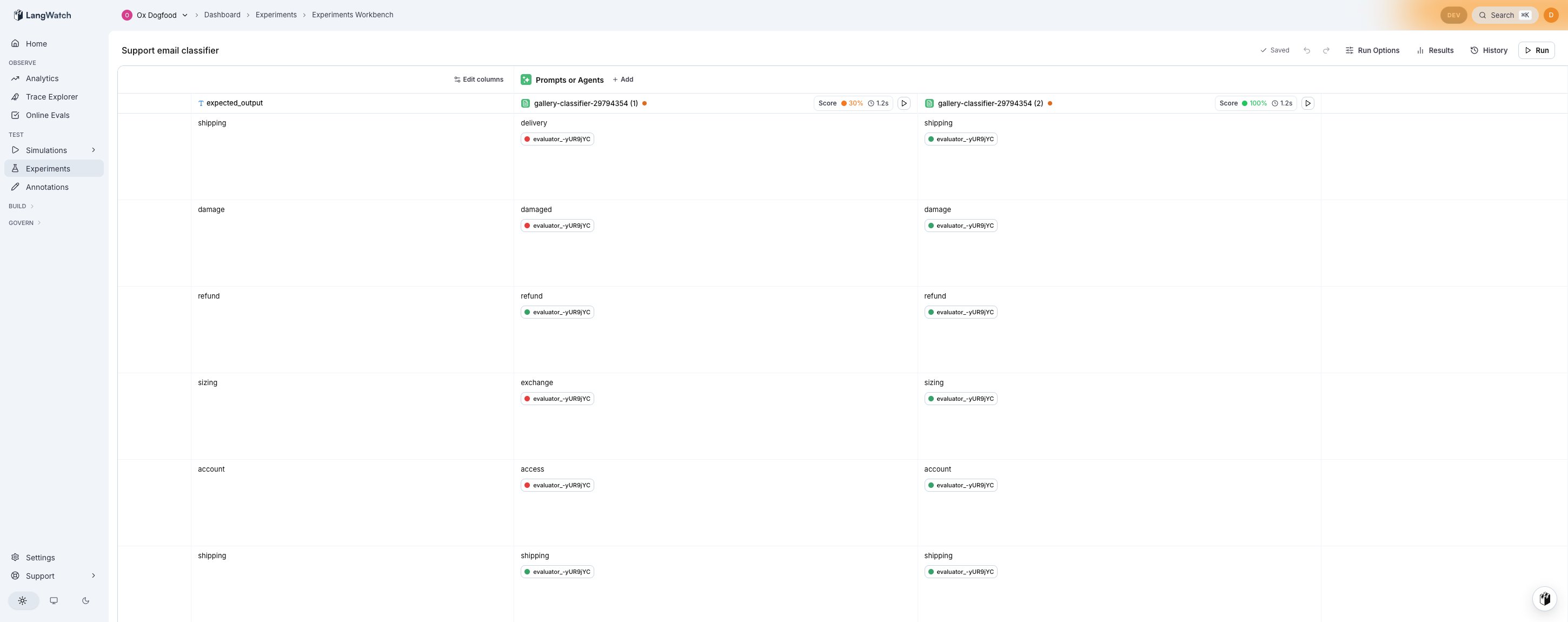
The optimization result: baseline at 30% pass rate on the left, candidate at 100% on the right, with evaluator chips on both columns.
Starting a run
Open any experiment that has a prompt column in the Experiments Workbench. Click the play button on the prompt column header and select Optimize this prompt from the menu. Langy opens in the side panel and starts the optimization loop. You do not need to configure the evaluator or the dataset in advance: Langy picks the evaluator from what is available on the project, maps its fields, and runs against the dataset already attached to the experiment. If no evaluator exists yet, Langy creates one, maps it, and runs the baseline before making any changes. If the evaluator’s fields are not mapped, Langy maps them first.What you see during the run
The Langy panel streams each step as a tool-call activity card. In the workbench table, you see:- The baseline column’s per-row outputs and evaluator verdicts.
- The candidate column appearing with its own outputs and verdicts filling in.
- Score chips on both column headers showing the aggregate pass rate.
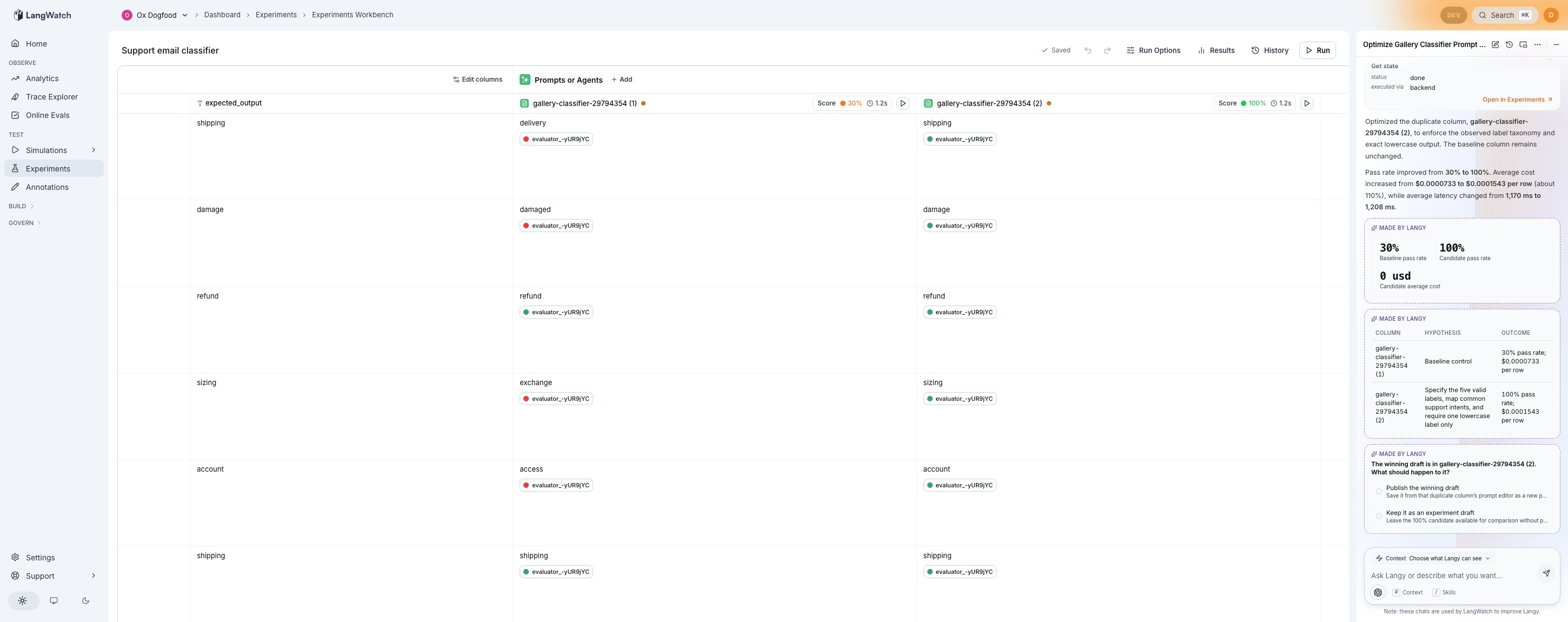
Langy's closing report: the winning candidate, the pass rate before and after, and the cost per row.
After the run
Langy asks what to do with the winning candidate:- Publish the winning draft. Save the candidate’s prompt as a new published version, replacing the current one.
- Keep it as an experiment draft. Leave the candidate column in the workbench for further iteration without publishing.
What Langy will not do
- It will not create a standalone comparison column. Only the Comparison judge (the pairwise evaluator) may own a comparison column. Langy attaches evaluators as chips on each prompt column, and the workbench enforces this rule at the schema, the transform, and the save boundary.
- It will not skip the baseline. The loop always scores the current prompt first. A score from an unmapped evaluator, or from one that compares empty strings, is not trusted. Langy maps and reruns until real verdicts exist.
Running from chat
You can also start the optimization from the Langy chat panel by asking in plain language:- “Optimize the support classifier prompt.”
- “Can you improve this prompt’s pass rate?”
- “Try a better version of this prompt and compare.”