

Prerequisites
- A dataset with an
inputcolumn. See Datasets. - A model provider configured in Settings, so the prompt column and the judge can call a model.
Pick the judge type
LangWatch ships three LLM-as-a-Judge evaluators. All three read the same inputs (input, output and, when you map it, contexts) and apply the criteria you write in the evaluator’s prompt.
Steps
1
Create the experiment and add the dataset
Open Experiments, click New Experiment, then Create Experiment. Under Datasets, click Add and pick Select existing dataset.
2
Add a prompt column
Under Prompts or Agents, click Add, pick Prompt, then New Prompt. Pick the model,
write the coaching assistant’s system prompt, check that
input maps to the dataset’s input
column under Variables, and click Apply.3
Create the judge
On the prompt column, click Add evaluator, then New Evaluator. Pick the LLM as Judge category and LLM-as-a-Judge Boolean Evaluator.Name it, pick the judge model, and replace the default prompt with your criteria. Write the criteria as a checklist the judge can apply to one answer at a time. For example: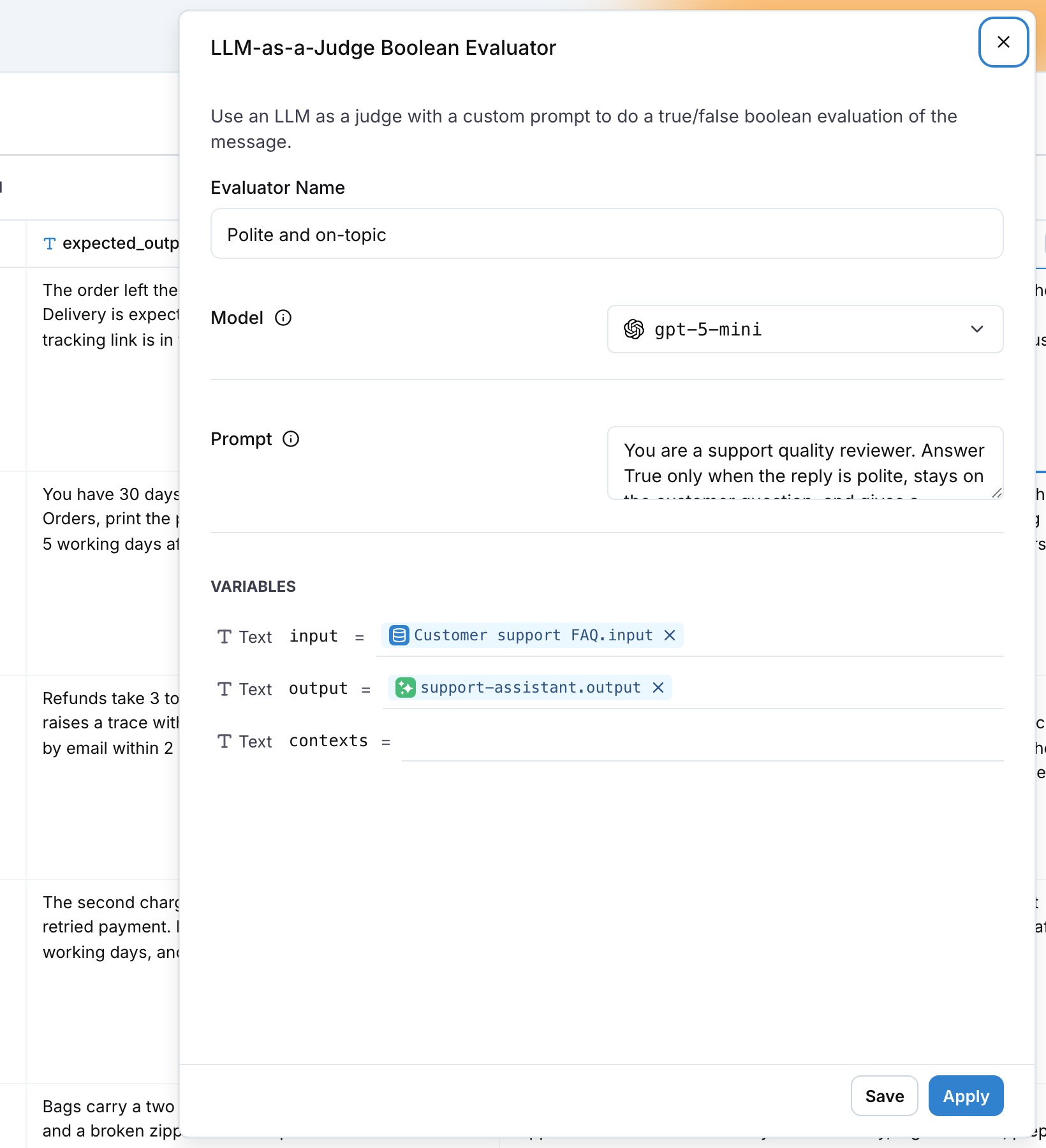
input to the dataset’s input column and output to the prompt column’s output. Click Create Evaluator. If a required field stays unmapped, the workbench opens the mapping editor. Map the field there and click Apply.4
Run
Click Run in the header. Each row fills with the assistant’s answer and the judge’s verdict.
5
Read the reasons
Click an evaluator chip to open its Result block. Status is the verdict and Details holds the judge’s reasoning, including the criterion that failed. Read the failed rows first: a reason that names the same criterion on many rows points at what to change in the prompt.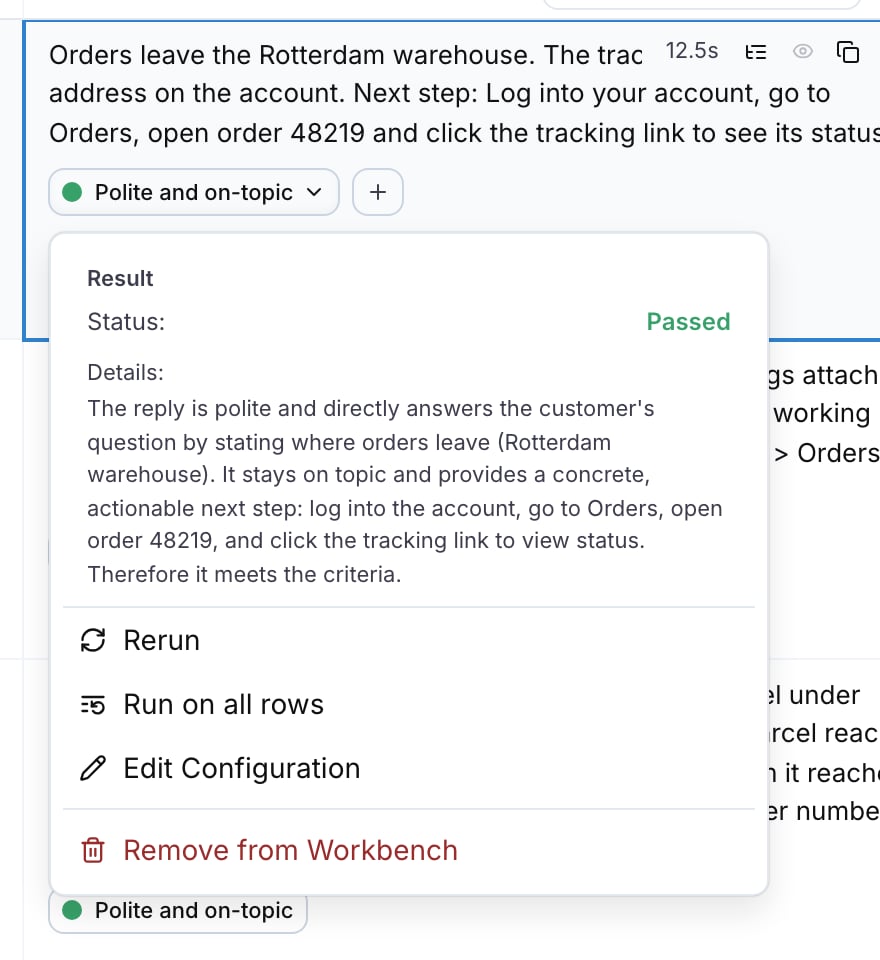
Calibrate the judge
A judge is a model with a prompt, so check it before you trust its pass rate.- Read ten verdicts by hand. If you disagree with the judge on more than one or two, tighten the criteria: replace adjectives such as “helpful” with observable checks such as “gives a next step”.
- Keep the judge model separate from the model under test when you can, so the same blind spots do not score themselves.
- Reuse the evaluator. It is saved under Evaluators and you can attach the same one to an online evaluation to score production traffic with the same criteria. See Online Evaluation.