

The rail
The Scenarios tab lists the test suites of the project under Test Suites in the rail on the left. Press one to open its scenarios in the table. New Test Suite asks for a name only.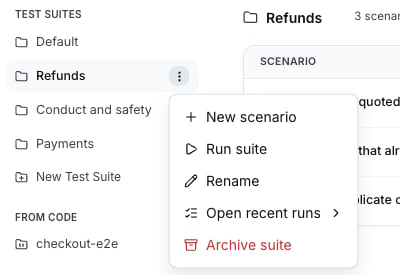
Every project has a Default test suite. A scenario saved with No test suite goes there.
Under the suite name, the header shows a chip per field and a chip per evaluator, and the count line
N scenarios · N fields · N evaluators.
Fields
A test suite reads like a dataset. Beyond the situation and the criteria, it declares typed fields, and a scenario in it may carry a value for each. A blank value skips the evaluators that read it. A field holds what an evaluator compares against: the golden SQL query, the reference answer, the tables the answer had to be written against. Edit suite opens the suite editor. Under Customize test suite, Add fields opens the field rows: an identifier and a type each, with Add field for the next one. Drag a row by the handle on its left to reorder the fields. The handle appears once the suite declares more than one field, and it takes the arrow keys when it has focus.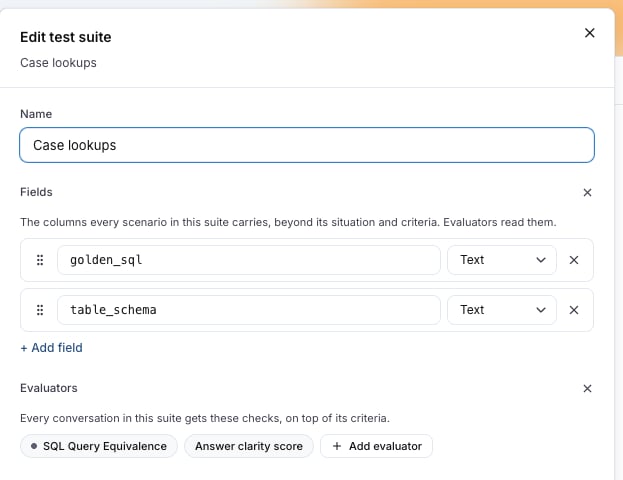
Case lookups suite, with the drag handle on the left of each.
A suite declares up to 30 fields. A field an attached evaluator still reads cannot be removed: detach the evaluator or change its mapping first. Removing a field keeps the values scenarios hold for it; the scenario editor lists them under Not in this suite until they are removed.
Evaluators
The evaluators attached to a suite run after every scenario run and report beside the judge’s verdict. A required pass or fail evaluator fails the scenario when it fails, and a score-only evaluator never gates. See Evaluators for the mappings, the gate and what each run reports.Run a test suite
Run suite, in the rail menu or at the top of the table, opens the run dialog. The run goes under the run plan named after the test suite and the agent, for exampleRefunds checkout-prod, so every run of the same test suite against the same agent joins one history on the Results tab.
Move scenarios between test suites
Move to suite… in the row menu of a scenario opens Move to test suite, which lists the test suites of the project. Select several rows and press Move to suite in the bar that appears to move them together. A scenario belongs to exactly one test suite.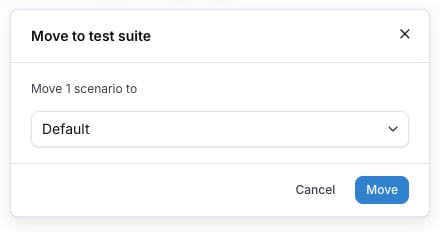
Test suites and labels
A test suite is the group you run before a release. A label is a tag on a scenario, and a scenario can have any number of them. A run plan can scope by labels across every test suite, for example every scenario labelledsmoke, so use labels for a cut that crosses the test suites and a test suite for the group that ships together.
From Code
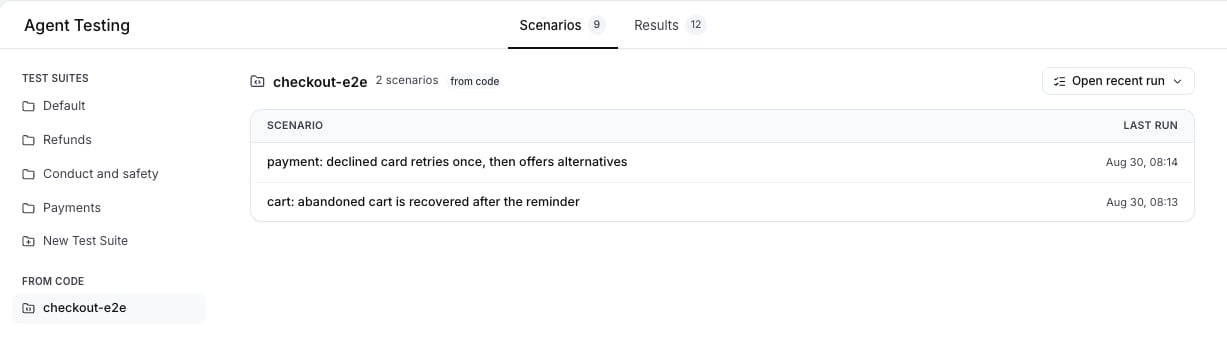
Scenarios written with the Scenario SDK and run from your own test runner report to the project and appear under From Code in the rail, one entry persetId. Their table is read-only and shows each scenario with its last run. Edit them in your repository. The platform lists them so their results appear next to the test suites written here.
From the CLI and the API
--field identifier:type repeats, and on update the flags together replace the list the suite declares. The same list travels as fields on POST /api/v1/test-suites and PATCH /api/v1/test-suites/{id}; see the Test Suites API reference. The Python and TypeScript SDKs take fields on test_suites.create / testSuites.create and test_suites.update / testSuites.update; the MCP tools platform_create_test_suite and platform_update_test_suite take the same.
Also check: Write scenarios in code, Scenarios, Evaluators, Run plans.