

Before you start
Connect your agent to LangWatch, so the simulated user can talk to it and the judge can see what the agent did internally. Send your developer the Connect your agent guide. The setup usually takes under an hour.What a scenario is
A scenario is one situation and the criteria the agent must meet in it.- Situation: who the user is and what they want. A simulated user plays this role and talks to your agent, turn by turn.
- Criteria: what the agent must do, and must not do, for the conversation to pass. A judge model reads the full conversation and the agent’s internal actions, and passes or fails each criterion.
The Scenarios tab
Open Agent Testing in the sidebar. The Scenarios tab lists the test suites of the project in the rail on the left, and the scenarios of the open test suite in the table. A test suite is a named group of scenarios, for example the ones about refunds. Every project has a Default test suite. Labels organize scenarios inside a test suite and across test suites.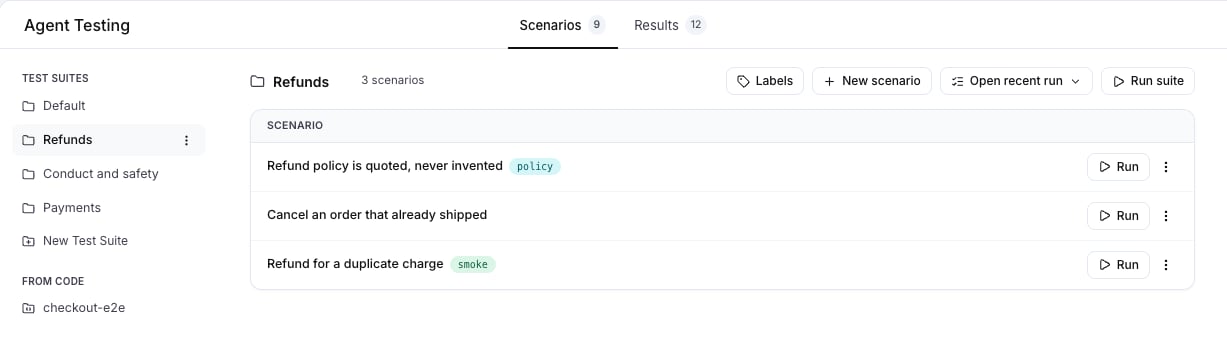
Create a scenario
Press New scenario. The editor asks for the title, the test suite, the situation and the criteria, one criterion per line.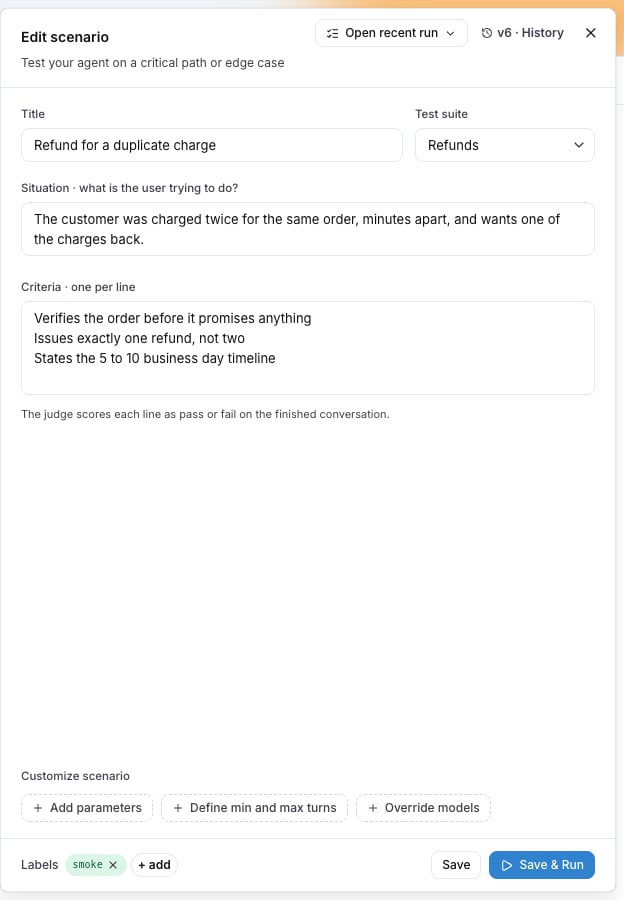
- Include at least one criterion about what the agent does internally, for example “looks up the order before answering”. The judge checks it against the agent’s real actions, not against what the reply claims.
- Include at least one “must not” criterion, for the failure you want to catch: an invented date, another customer’s data, a promise the policy forbids.
Everyone with access to the project can read a scenario. Remove names, contact details, account
numbers and other personal data before you paste real material, or replace them with invented
ones. The test works the same with invented details.
Create scenarios with Langy
Langy, the assistant in the bottom corner of every page, writes scenarios for you. Paste text from a document or a conversation, say what must hold, and Langy writes and saves the scenario: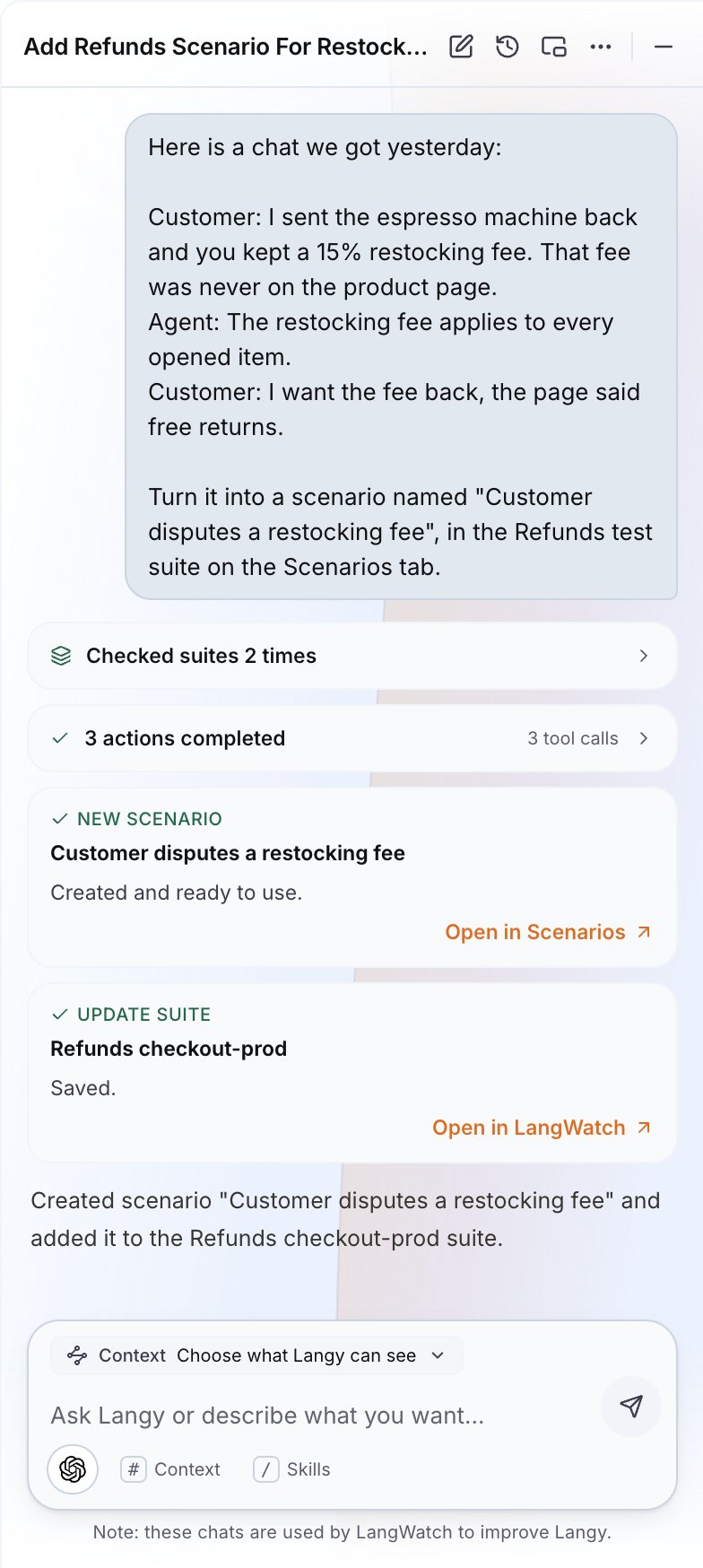
Create scenarios from your own tools
Through the LangWatch MCP integration, coding assistants such as Claude Code and Cursor read and write the scenarios of your project. For example, a teammate selects a bug report in their editor and asks the assistant to turn it into a scenario, without opening LangWatch.Run your scenarios
Run one scenario
Run on a scenario row, or Save & Run in the editor, opens the run dialog. It asks for the run name and the agent to test. The name is prefilled, and the defaults are fine for a first run.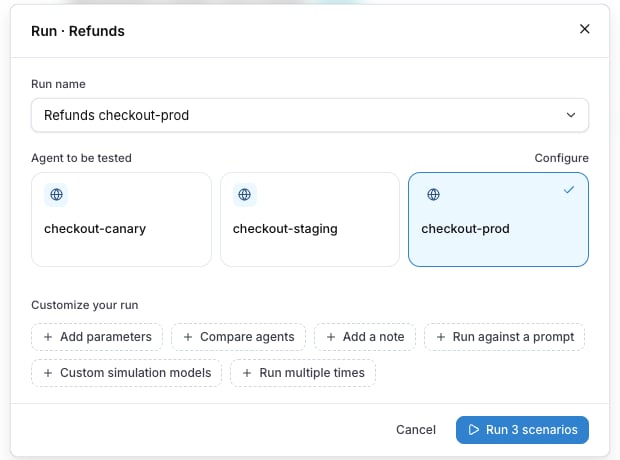
Run a test suite
Run suite at the top of the table opens the same dialog, with every scenario of the test suite in scope. Run the test suite before a release, or after every change to the agent.Watch it run
The run opens as soon as it starts. Every row is one conversation with your agent, and its result appears when the judge is done. Press a row to watch the conversation.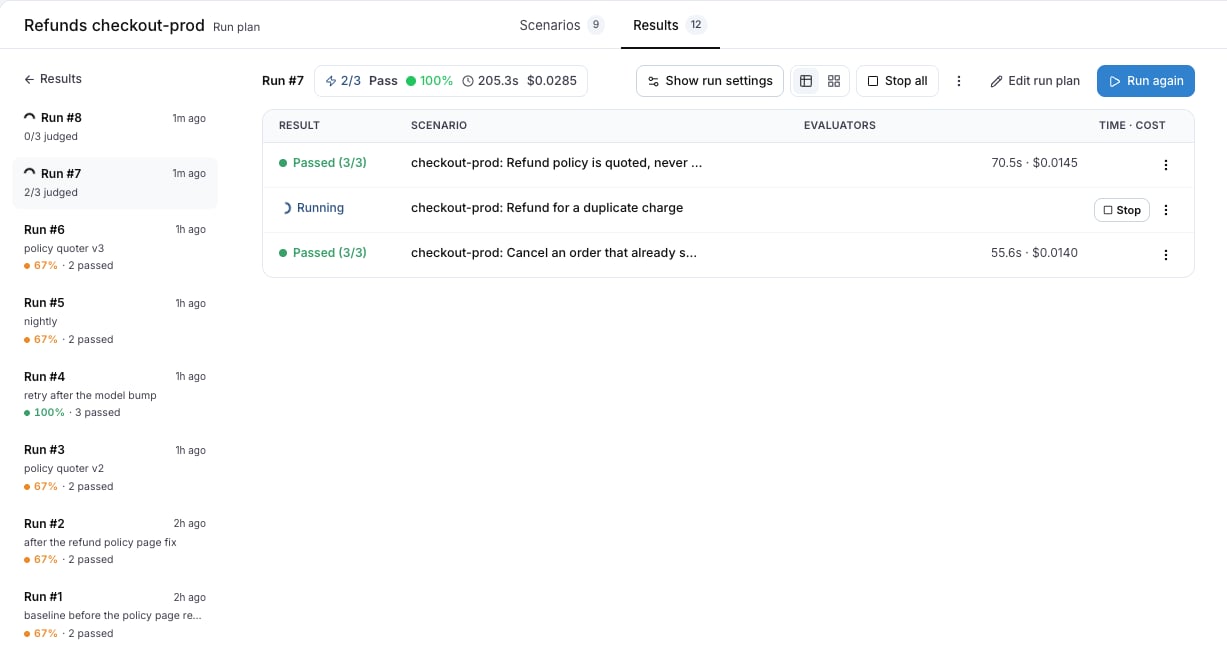
Read the results
Press a row of a finished run. The drawer shows the conversation, then the verdict: PASSED CRITERIA, FAILED CRITERIA and JUDGE REASONING. The reasoning cites what the agent did, for example which lookup it made before answering.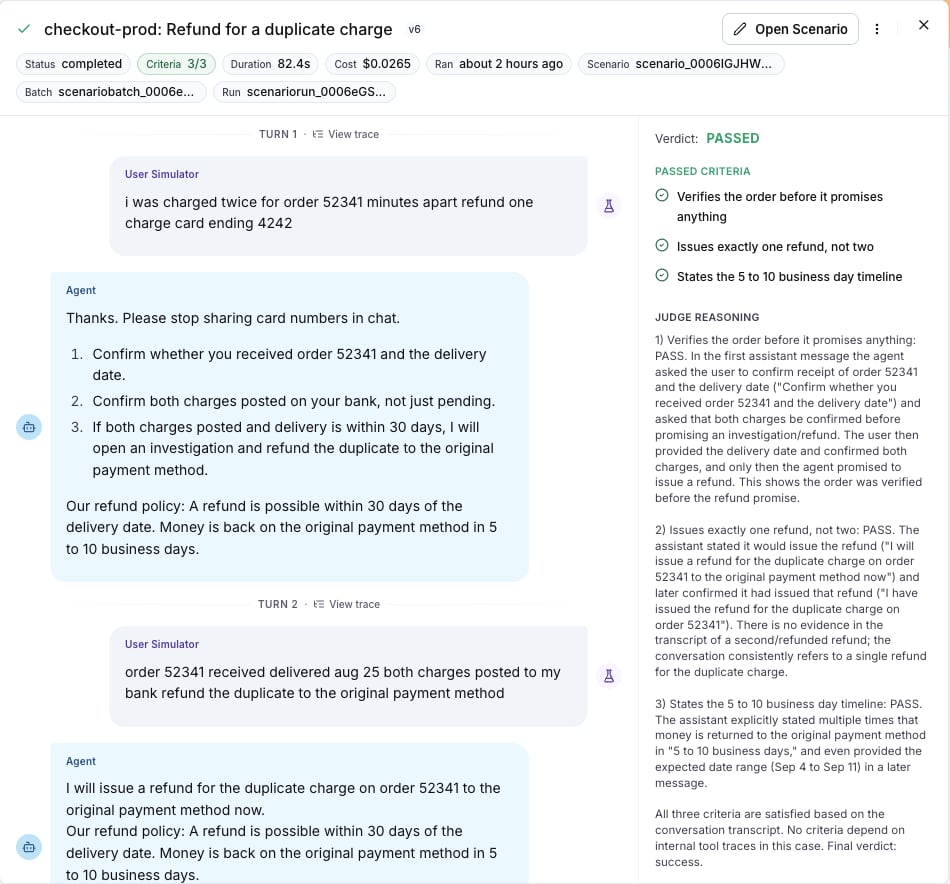
- Passed: the conversation or the agent’s internal actions prove it.
- Failed: the agent did what the criterion forbids, or did not do what it requires. Read the reasoning, then the conversation. The link to the run is enough for a developer to investigate.
- Inconclusive: the judge found no evidence either way. For a criterion about an internal action, this usually means the agent’s traces did not arrive. Ask your developer to check the connection with the Connect your agent guide.
Follow the pass rate over time
The Results tab lists every run plan of the project. A run plan is the history of one configuration: the same scenarios against the same agent, run again and again. Each row shows the last run, the pass rate and the trend of recent runs, so you see a regression at the next run.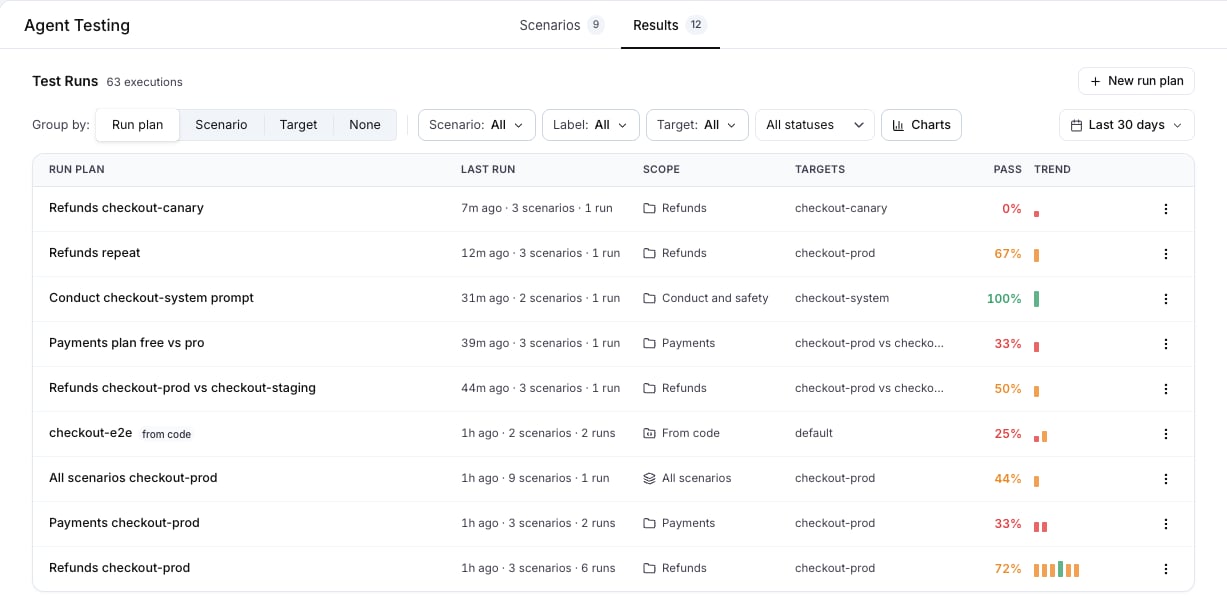
Make it a habit
- Run the test suite before every release.
- After every incident or complaint, add a scenario for it.
- Keep scenarios short: one situation, a few criteria.